
Advertisement Credits
Ad credits are a prepaid balance used for one thing: the campaigns we run for you through Managed ads. They are kept apart from your main wallet, so ads can never use the money you need for messages.
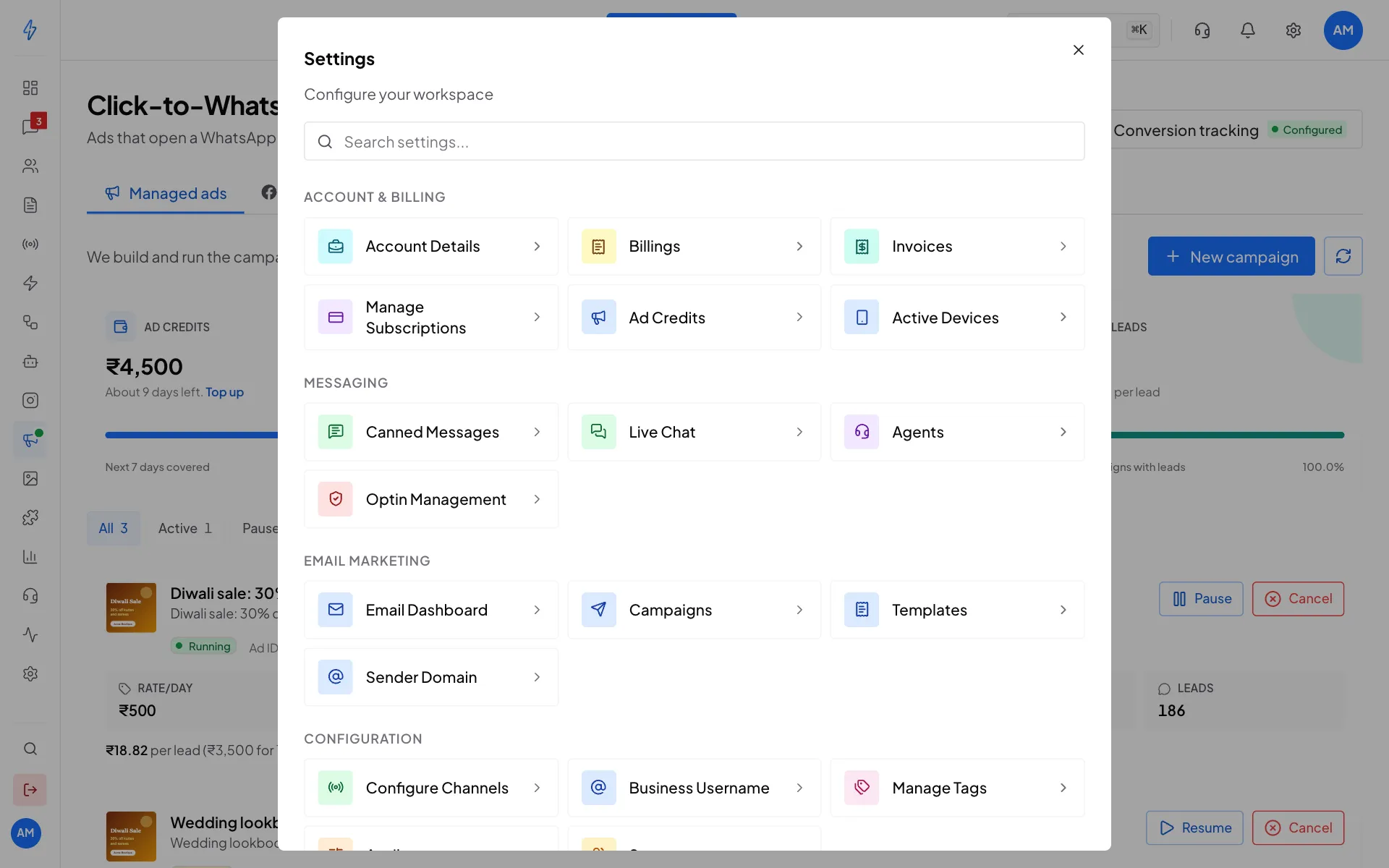
Find your ad credits
- Click the gear icon (Quick settings) at the top right, then Ad Credits under Account & Billing.
- Or, in CTWA Ads, click Top up in the Ad credits box on the Managed ads tab.
Why it is separate
If ad credits run out, the campaign pauses. It does not fall back to your main wallet.
Used to be called AI Credits
This balance used to be called AI Credits. AI now bills the main wallet, so the name changed to match what the balance does. Any balance you had was moved to your main wallet, where AI is charged.
Top up
The amounts, GST and ways to pay in this section are for accounts in India. For an account outside India, see Paying.
Open Ad credits
Open the Ad credits page (see above). The left side shows your Ad credits balance, about how many days it covers (Enough for), your Last top-up, and the Alert below amount.
Pick an amount
Under Add ad credits, click a quick amount (₹1,500, ₹5,000, ₹10,000 or ₹20,000) or type your own in Amount, from ₹1,500 to ₹2,00,000.
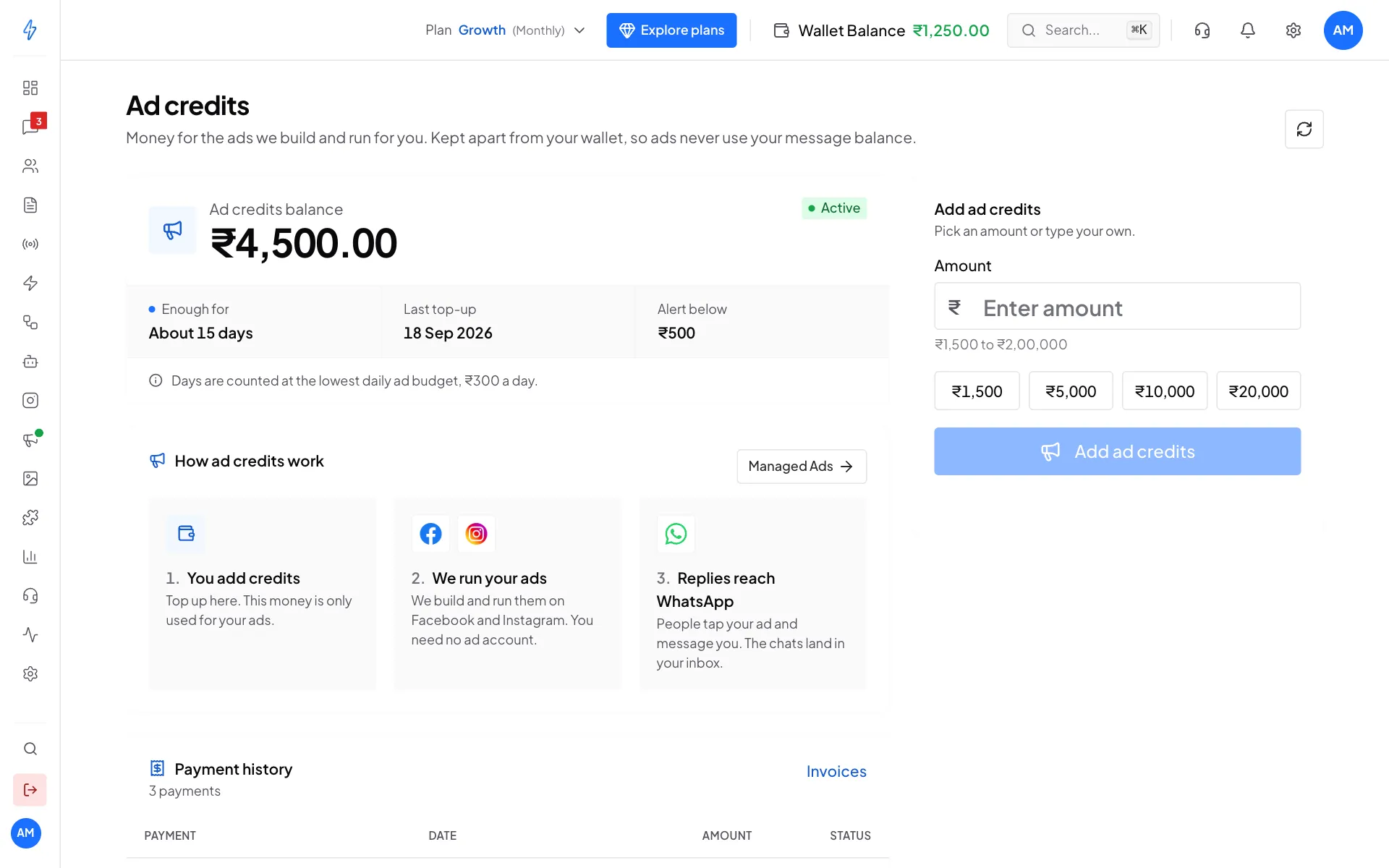
Your balance on the left, the top-up form on the right Pay
Click Add ad credits and finish the payment by UPI, card or netbanking in the secure payment window.
You will see the new balance within a few seconds of a successful payment, and the payment in Payment history further down the page. Click Invoices there for your GST invoices.
Enough for is worked out at the lowest daily rate available to you, so a campaign with a higher rate uses the balance faster.
GST applies when you top up and appears on the invoice. The daily campaign charge adds no further tax.
Auto-recharge
For accounts in India that pay in rupees.
Auto-recharge tops up your ad credits by itself when they go below an amount you choose, so a campaign does not pause for lack of credits. You approve it once with your bank. Topping up by hand works as before.
Find the Auto-recharge card
On the Ad credits page, the Auto-recharge card is under Add ad credits.
Turn it on and set the amounts
Click the switch next to Auto-recharge. Type the balance at which a top-up starts in When the balance goes below, and how much to add each time in Add. A line sums it up, for example Auto-recharge of ₹5,000 will start when your balance goes below ₹1,000.
Save and approve ₹1
Click Save. The first time, click Approve ₹1 and approve the payment of ₹1 with your UPI app or your card in the secure payment window. The card then says Auto-recharge is on.
One approval covers your ad credits and your main wallet. If you already approved it for your wallet, your ad credits usually turn on as soon as you click Save.
- Your bank tells you first. Before each automatic payment your bank sends you a notice, so the credits are added about a day later. Keep the "below" amount a little higher, for example a few days of your campaign, so it never pauses while you wait.
- Above ₹15,000, your bank asks you to approve each payment.
- Turning it off stops auto-recharge for both your ad credits and your wallet. Click Turn off on the card, then Turn off in the box that asks first.
See Auto-recharge on the wallet page for changing the amounts and what to do when a payment does not go through.
How charges appear
Day one is charged when the campaign starts. After that, one charge is taken for each day the campaign runs, at your chosen rate.
You are never charged for:
- a day the campaign was paused for the whole day
- a campaign that failed to start
AI ad pictures are paid from your main wallet, not from ad credits. See AI credits and pricing.
Running out
The campaign pauses on its own and its card explains why. Nothing is lost: top up and click Resume, and it picks up from that day.
To avoid the break, keep enough for several days rather than exactly one, or turn on auto-recharge. A campaign that starts and stops the next morning gathers very little useful data.