
AI assistant troubleshooting
Your assistant passes on our messages word for word, so you can find most of them on this page. The fix is usually one step in your assistant or in Settings > Connected apps.
Connecting and signing in
"Couldn't register" or "couldn't reach" the server
- Check the link is exactly
https://mcp.splashifypro.com/mcp. It must end in/mcp. Older links that end in/sseno longer work. - Do not add an API key, a Client ID or a header. Leave them empty.
- If you tried before and it failed, remove Splashify Pro from the assistant, add the link again and connect.
- In Claude, if signing in still fails, edit the connector and pick Register automatically for the OAuth client.
"This connection link has expired"
The full message says: "In your AI assistant, remove Splashify Pro, add https://mcp.splashifypro.com/mcp again and connect." Do exactly that. It happens when Splashify Pro was added to an assistant but not connected within 30 days, or not used for more than a year.
"Only the account owner can connect apps"
You are signed in as a team member. Ask the account owner to connect the assistant, or sign out of app.splashifypro.com and sign in as the owner.
"You are signed in as Splashify Pro support"
Our support team can not connect assistants for you. Sign out and sign in with your own owner account.
"Connected apps are not available on this account"
Accounts managed by a reseller can not connect apps or AI assistants. Ask your reseller.
"This assistant link has already been used for too many accounts"
An assistant we have not checked can connect at most 5 Splashify Pro accounts with one link. Remove Splashify Pro from your AI assistant, add it again and try once more.
"Your plan does not include API access"
AI assistants need a plan with API access, the same as your API key. You see this on the Splashify Pro page when you connect, or from your assistant as "Your Splashify Pro plan does not include API access, so AI assistants can not use this account" if your plan changed after you connected. Upgrade at app.splashifypro.com/plans/whatsapp. An assistant that was already connected works again by itself once your plan includes API access.
"Your Splashify Pro plan is not active"
Your plan or free trial has ended. Renew at app.splashifypro.com/plans/whatsapp, then ask the assistant to try again.
"AI assistants are switched off right now"
We have paused AI assistants for a short time. Please try again later.
"This app is not available right now"
We have blocked this assistant. If you think this is a mistake, open a support ticket with the assistant's name.
What it can do
It can only read reports
Your assistant is one we have not checked yet, so it has read-only access. See Assistants we have not checked to get full access.
"This connection was not allowed to do this"
The full message says: "Remove Splashify Pro from this assistant and connect it again to allow it." This happens when you connected before we added a permission. Connect again and click Allow on the new list.
The assistant does not show Splashify Pro
Turn it on for the chat: in Claude, click +, then Connectors; in ChatGPT, pick it from the tools menu in a new chat; in VS Code, pick Agent in the Chat view; in Cursor, check it is switched on in Customize.
"Your Splashify Pro plan does not include this"
The feature is not part of your plan, for the assistant as for you. Upgrade at app.splashifypro.com/plans/whatsapp.
A text could not be sent, or "24 hours"
A free text, file or buttons reach only people who wrote to you in the last 24 hours. Ask the assistant to send an approved template instead.
"This message contains several phone numbers or email addresses"
To protect your customers' data, an assistant can not send a message with more than 3 phone numbers or email addresses in it. Send it from the app if it is really needed.
"We could not find that"
The contact, chat, template, broadcast, segment, ticket or file does not exist, or it is not a WhatsApp chat. Ask the assistant to search again, or check the name or number.
"The number of recipients or the price changed"
Between the preview and the start of a broadcast, the number of people or the price went up. The assistant has to show you the new cost before it can start. Ask it to preview the broadcast again.
"This segment is used by a broadcast that has not finished"
A scheduled or sending broadcast still uses this segment, so an assistant can not change who is in it. Change the filters in the app, or cancel the broadcast first.
A broadcast failed with "the audience grew"
More than 5 percent more people matched its segments when it was due to send than when the assistant set it up, so it was not sent and nothing was charged. Check the segment, then ask the assistant to preview and create the broadcast again.
"Only WhatsApp broadcasts can be started by AI assistants"
The broadcast also sends RCS or SMS messages, or falls back to them. Start it from the app.
Limits and money
"This AI assistant has reached its daily spending limit"
You set a daily spending limit for this assistant, and the full message names it, for example "of Rs 1,000". It resets at midnight India time. To raise it, open Settings > Connected apps, click Change limits on the assistant's row and save a higher amount, or choose No limit. See Daily limits for each assistant.
"This AI assistant has messaged its daily limit of different people"
You set a daily limit on people for this assistant. Single messages count each phone number once, and a broadcast counts everyone it goes to. It resets at midnight India time. Raise it, or choose No limit, in Settings > Connected apps with Change limits.
"This broadcast would take this AI assistant over its daily limit of different people"
The broadcast goes to more people than the assistant has left for today under the limit you set. Nothing was sent or charged. Raise the limit, or choose No limit, in Settings > Connected apps with Change limits, or send a smaller broadcast.
"The account owner has not allowed this AI assistant to spend from the wallet" or "to message anyone"
A limit for this assistant is set to 0, so it can not send messages or broadcasts. It can still read and organise. To let it send, open Settings > Connected apps, click Change limits on its row and save a higher number, or choose No limit.
"Your wallet balance is too low"
Recharge your wallet at app.splashifypro.com/settings/billing, then ask the assistant to try again.
"Too many requests from this assistant" or "sending too fast"
The message tells you how long to wait. Each assistant can send 60 messages a minute and start 10 broadcasts an hour.
"Has created its daily limit of templates", "support tickets" or "ticket replies"
Each assistant can create 20 templates, open 5 support tickets and send 50 ticket replies a day. These reset at midnight India time. Do more in the app if you need to.
Access
"Your account only allows listed IP addresses"
Your account uses Allowed IPs and the assistant's address is not on the list. Add it in Settings > Allowed IPs, or turn the list off. Assistants on the web call from their own servers; assistants on your computer call from your own internet address.
"Splashify Pro is no longer connected to this assistant"
The assistant was removed in Settings > Connected apps, or its access ended. Connect it again from the assistant's settings. See Connect your AI assistant.
"Splashify Pro could not do this right now"
Something on our side did not answer in time. Try again in a minute. You do not need to connect again.
Check what happened
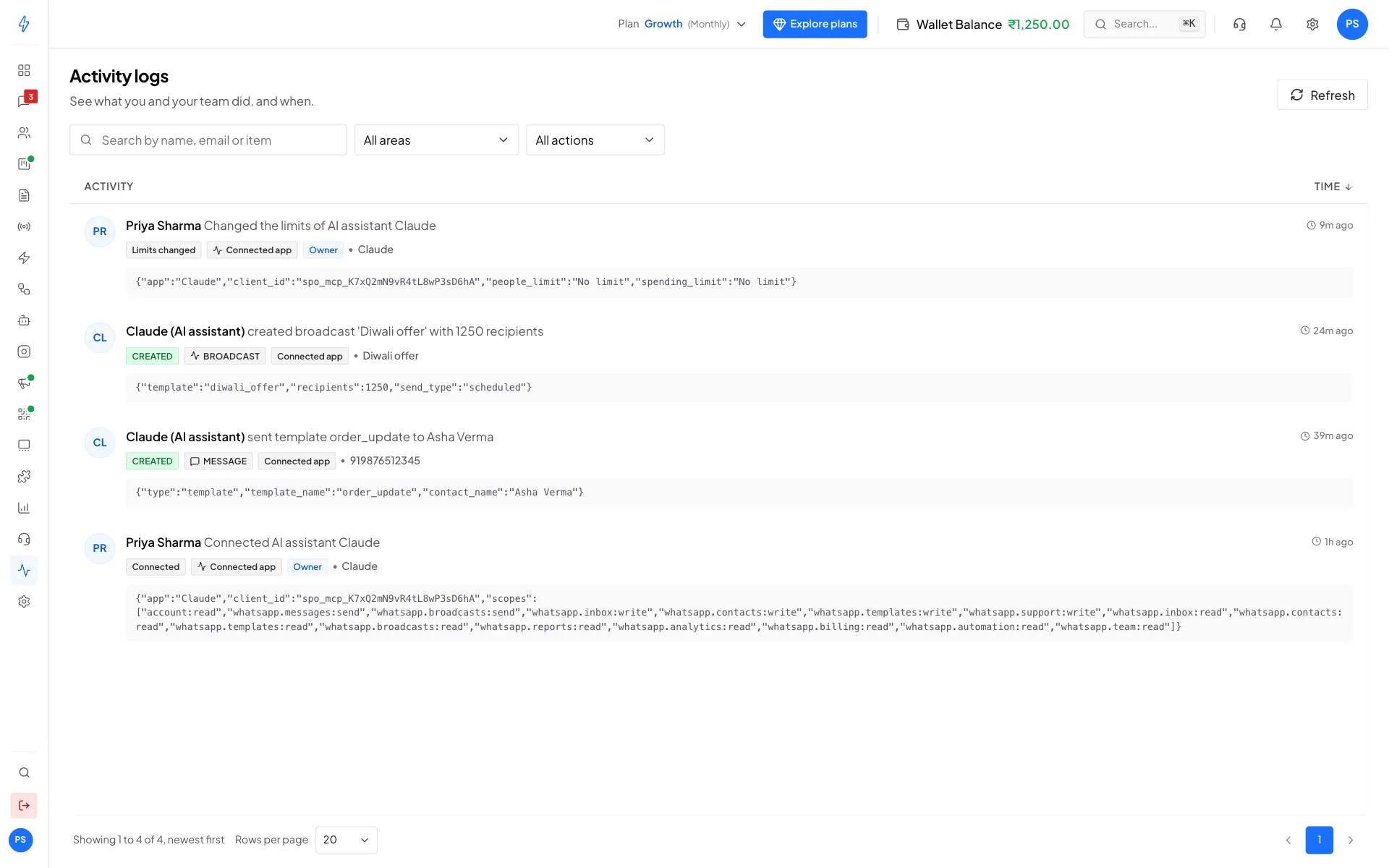
Open Activity Logs in the left sidebar. Every action an assistant takes shows with its name, for example Claude (AI assistant), with the time.
Still stuck? Open a support ticket with the assistant's name, what you asked it and the message you got.