
Creating a Flow
You create a flow from a ready-made form, so you never start from an empty page. It takes under a minute, and nothing is shown to customers until you publish it.
There is nothing to set up first. If your WhatsApp Business account is connected, you can build a flow.
Create your first flow
This example builds Book a fitting, a form a clothing shop sends so customers can book a tailor fitting.
Open Flows and click Create flow
In the left sidebar, click Flows. Then click Create flow at the top right of the page.
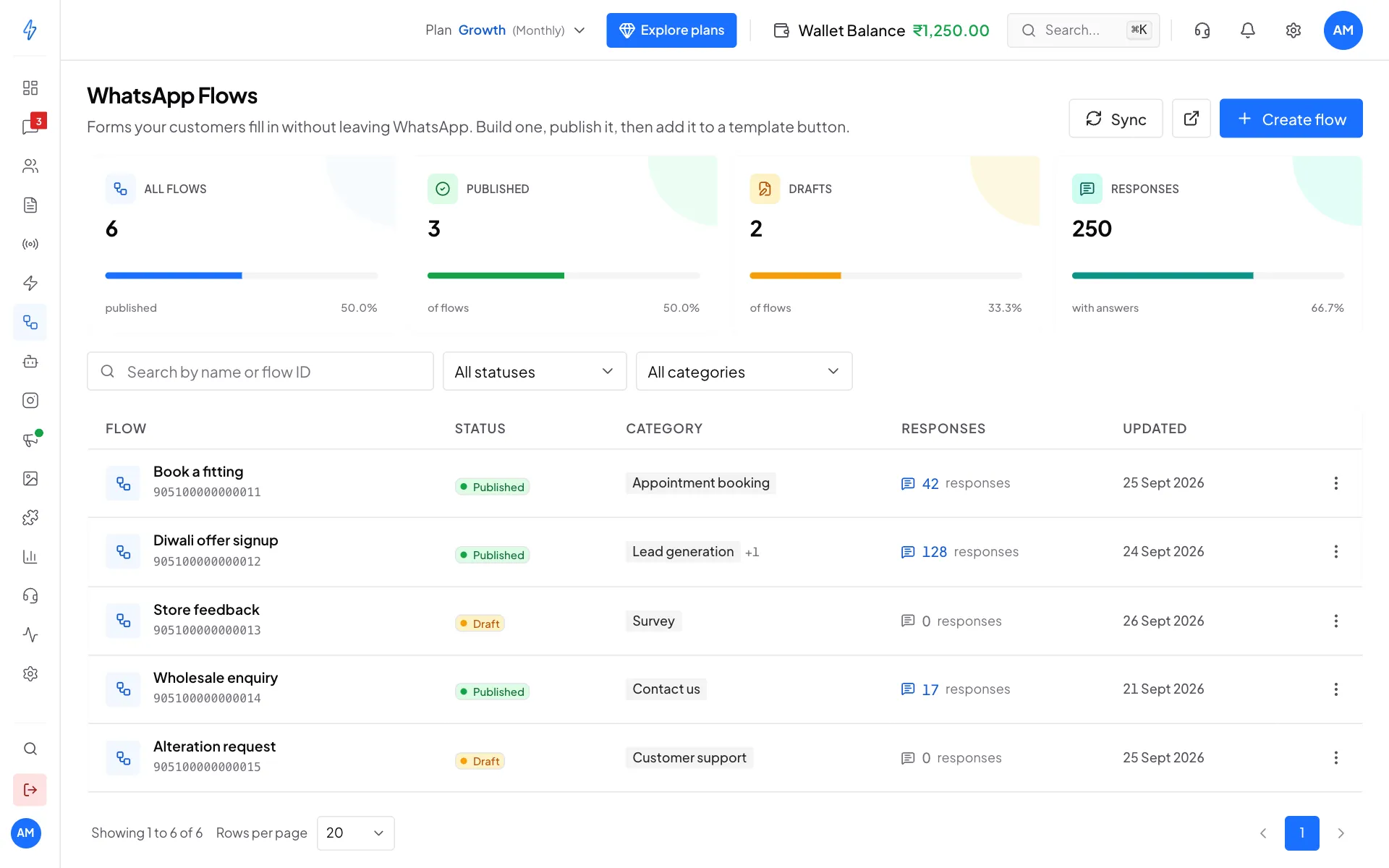
Create flow is the blue button at the top right Pick a starting point
Under Start from, click the form closest to what you need. For a booking form, click Appointment booking. Each card shows how many screens it has.
Picking a form also fills in the flow name and the category for you.
Name the flow
Type a name in Flow name, for example Book a fitting. Only you see this name, customers never do. Pick something you will recognise in a list months from now: Diwali offer signup, not Flow 3.
Check the categories
Under Categories, the matching category is already ticked. Categories tell WhatsApp what the flow is for. Click any other that also fits. You need at least one.
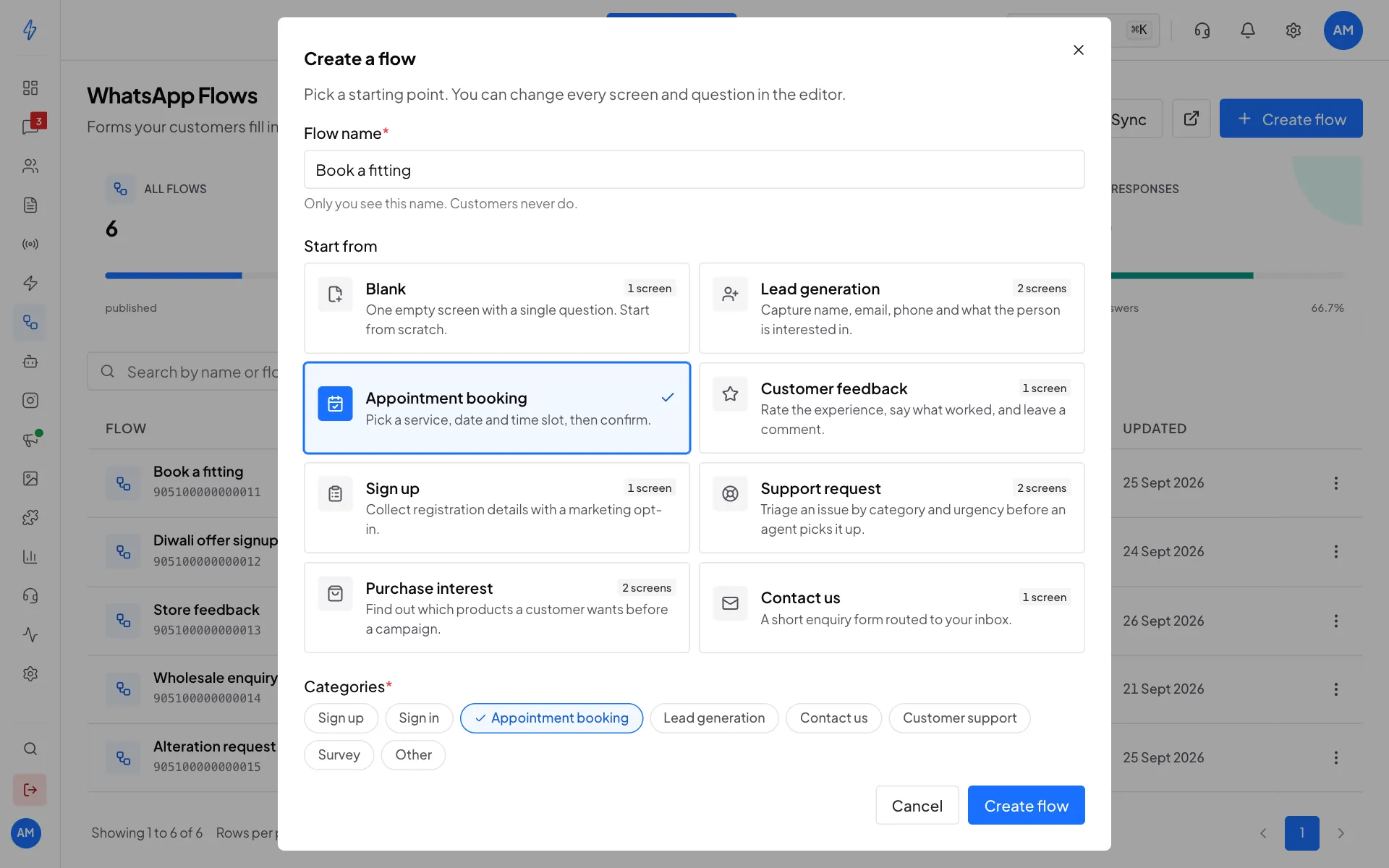
Name, starting point and category, then Create flow Click Create flow
Click Create flow at the bottom of the dialog. The flow is saved as a Draft and the editor opens straight away.
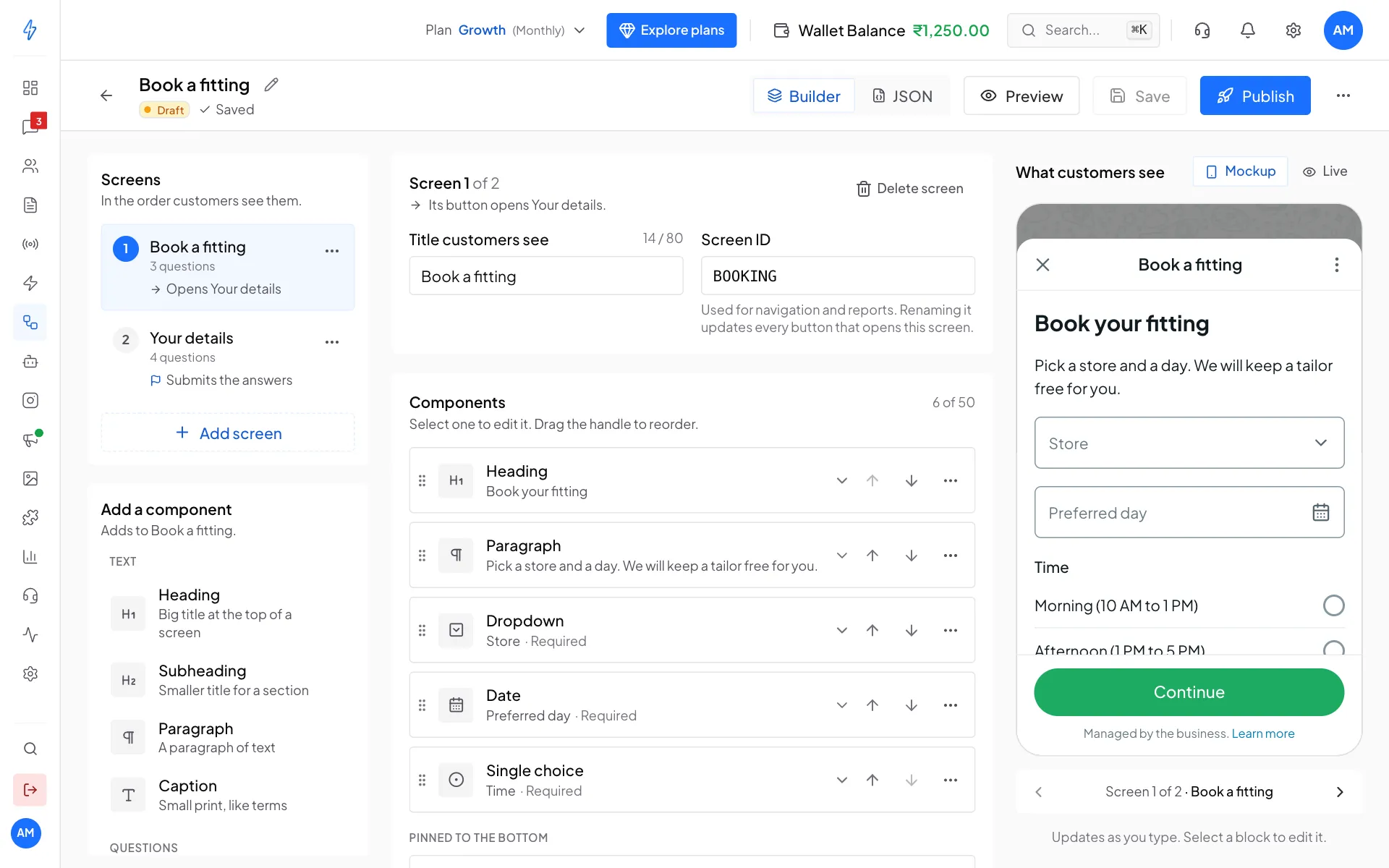
The editor: screens on the left, the screen you are editing in the middle, the phone preview on the right
You will see the editor with your form already filled in. You can send a form as it is, or change every question. Next, see Build screens.
A draft is safe to play with
A draft can be edited, previewed and deleted as many times as you like. Customers see nothing until you publish.
The ready-made forms
Categories
The categories are Sign up, Sign in, Appointment booking, Lead generation, Contact us, Customer support, Survey and Other. Pick whatever honestly matches the form. You can pick more than one.
Flows you made in WhatsApp Manager
If you already built flows in Meta's WhatsApp Manager, click Sync at the top of the Flows page. They appear in your list with their current status. You can edit and publish drafts here too.
The square button with an arrow, next to Sync, opens the flow builder in WhatsApp Manager if you would rather work there.