
Sales pipeline
The sales pipeline shows every sale you are working on as a card on a board. Each column is a stage, like New lead or Proposal sent. When a sale moves forward, drag its card to the next column.
A card is called a deal. Each deal belongs to one contact and has a value in rupees, an owner from your team, a priority, an expected close date and tags. A contact can have more than one deal.
Open the pipeline
Click Sales Pipeline in the left sidebar. The first time, you get a pipeline called Sales with these stages: New lead, Qualified, Demo booked, Proposal sent, Negotiation, Won and Lost.
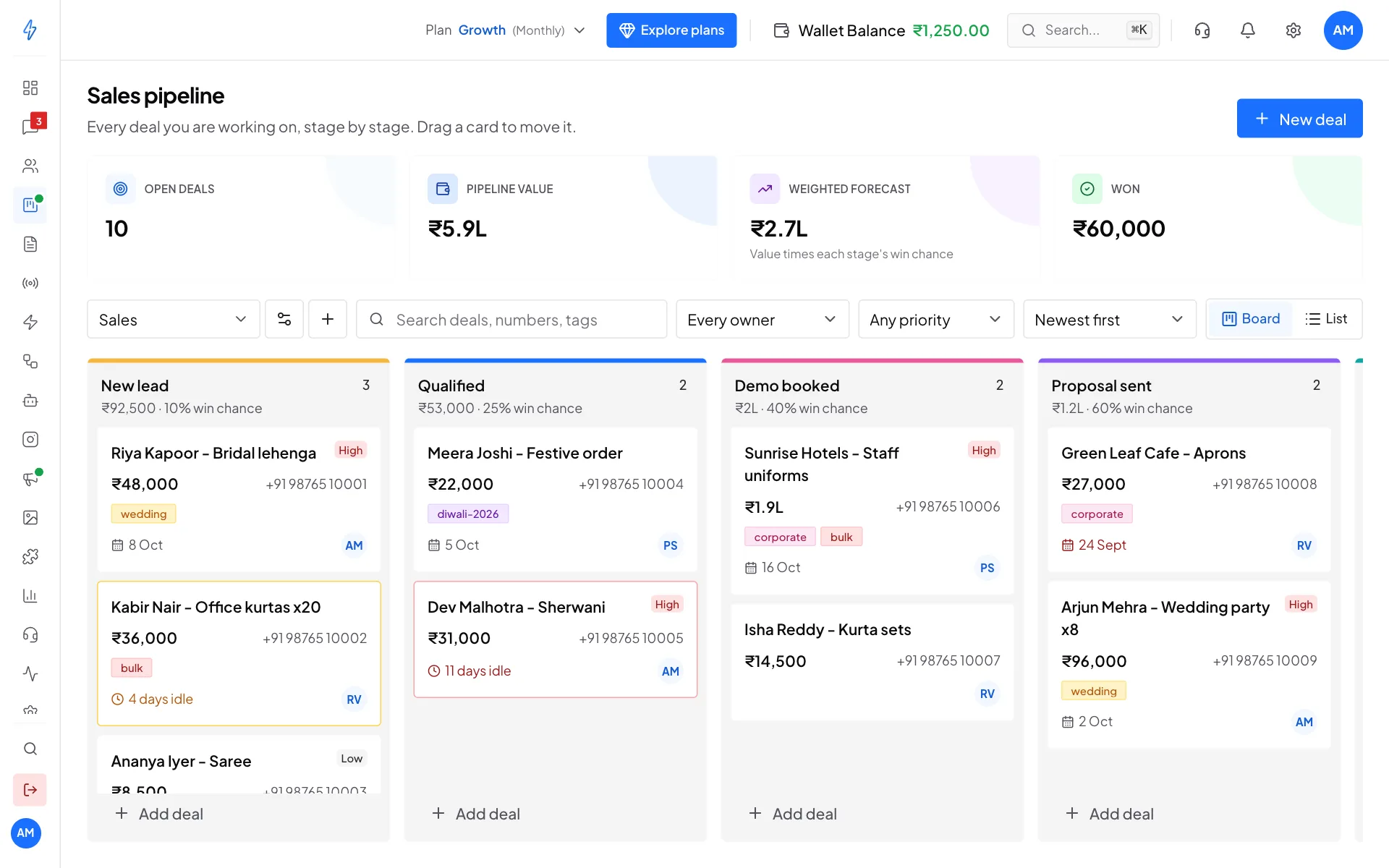
At the top you see four numbers:
- Open deals: how many deals are still being worked on.
- Pipeline value: the total value of those open deals.
- Weighted forecast: each deal's value times its stage's win chance, added up. It is a fair guess of what will close.
- Won: the value of the deals you have won.
Each column shows how many deals it has and their total value. A card shows the deal name, value, phone number, tags, close date and the owner's initials.
Amber and red cards need attention
A card turns amber when nothing has happened on it for the stage's idle days, and red at twice that. A close date in the past shows in red. Open the deal and add a note, or move it on.
Add a deal
Click New deal
Click New deal at the top right. You can also click + Add deal at the bottom of a column to start the deal in that stage.
Pick the contact
Under Contact, type a name or phone number and click the right contact in the list. The contact must already be in Contacts.
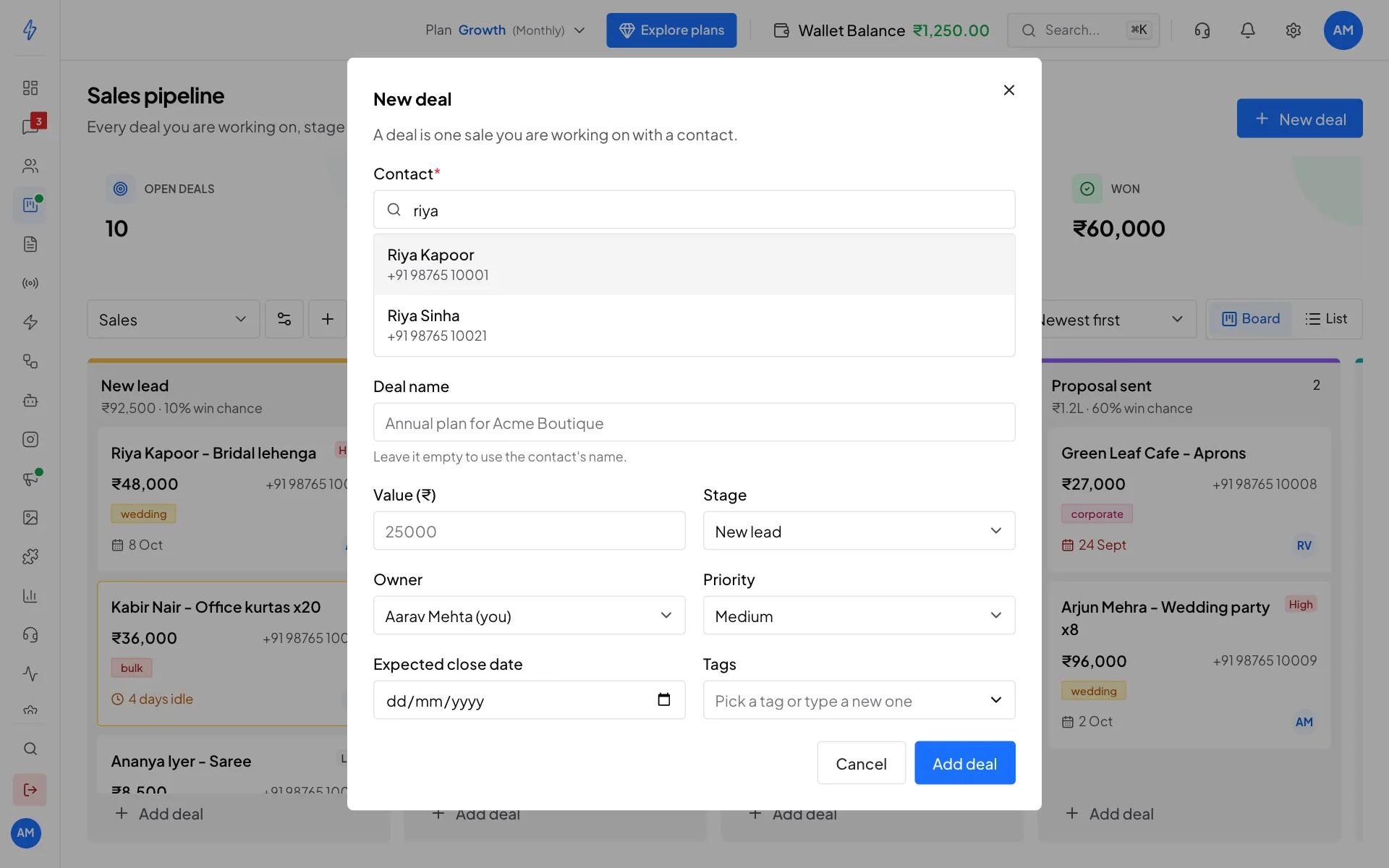
Search for the contact by name or number Fill in the details
Give the deal a name, or leave it empty to use the contact's name. Enter the Value (₹), then pick the Stage, Owner and Priority. Add an Expected close date if you know it.
Add tags
Click Tags to see your tags, each in its own colour. Click one to add it. To make a new tag, type its name and click Create. A deal can have up to 10 tags.
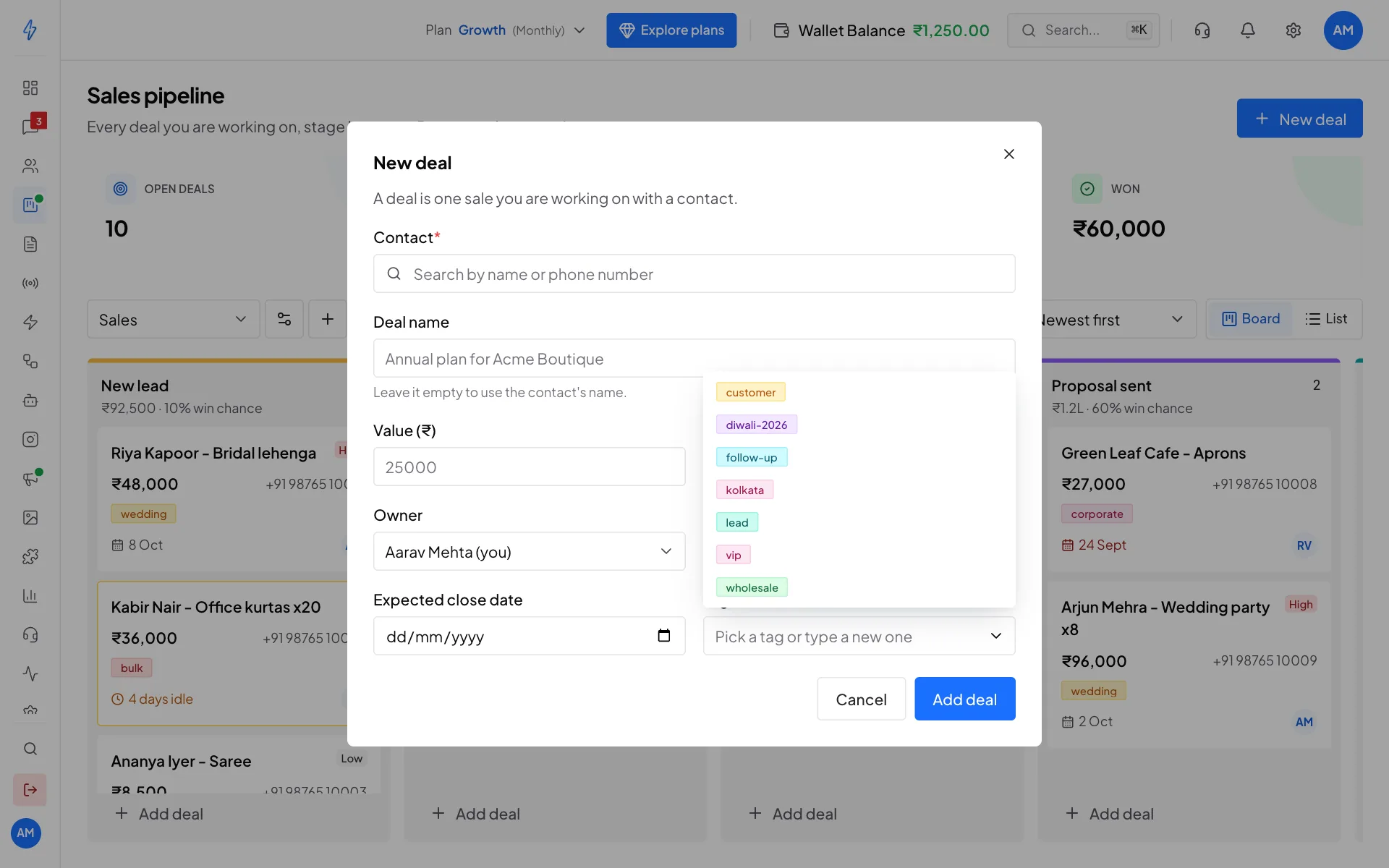
Pick a tag or create a new one Click Add deal
Click Add deal. The card appears at the top of its column.
Add a deal from a contact or a chat
On the Contacts page, click the three dots on a contact's row, then Add to pipeline. In Messages, open a chat and use Add to pipeline under Deals on the right. The contact is filled in for you.
Move a deal
Drag the card to another column. The move saves straight away. To move it with the deal open, click a stage in the bar under the deal's value.
When you move a deal to Won, it is closed as won. When you move it to Lost, you are asked why.
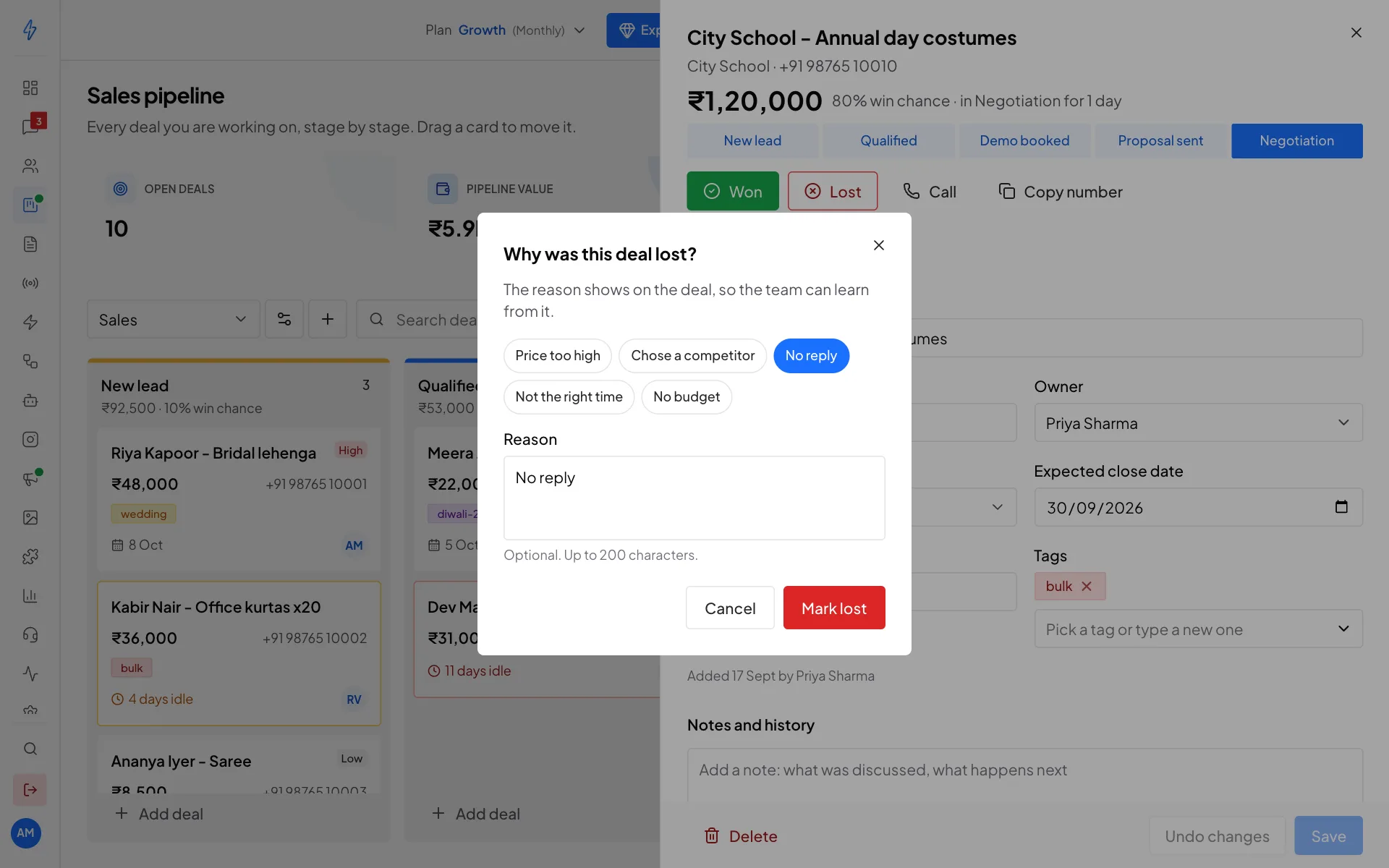
Click a quick reason or type your own, then click Mark lost. The reason shows on the deal, so your team can see why sales are lost.
To reopen a won or lost deal, open it and click Reopen. It goes back to the first stage.
Open a deal
Click a card to open the deal on the right.
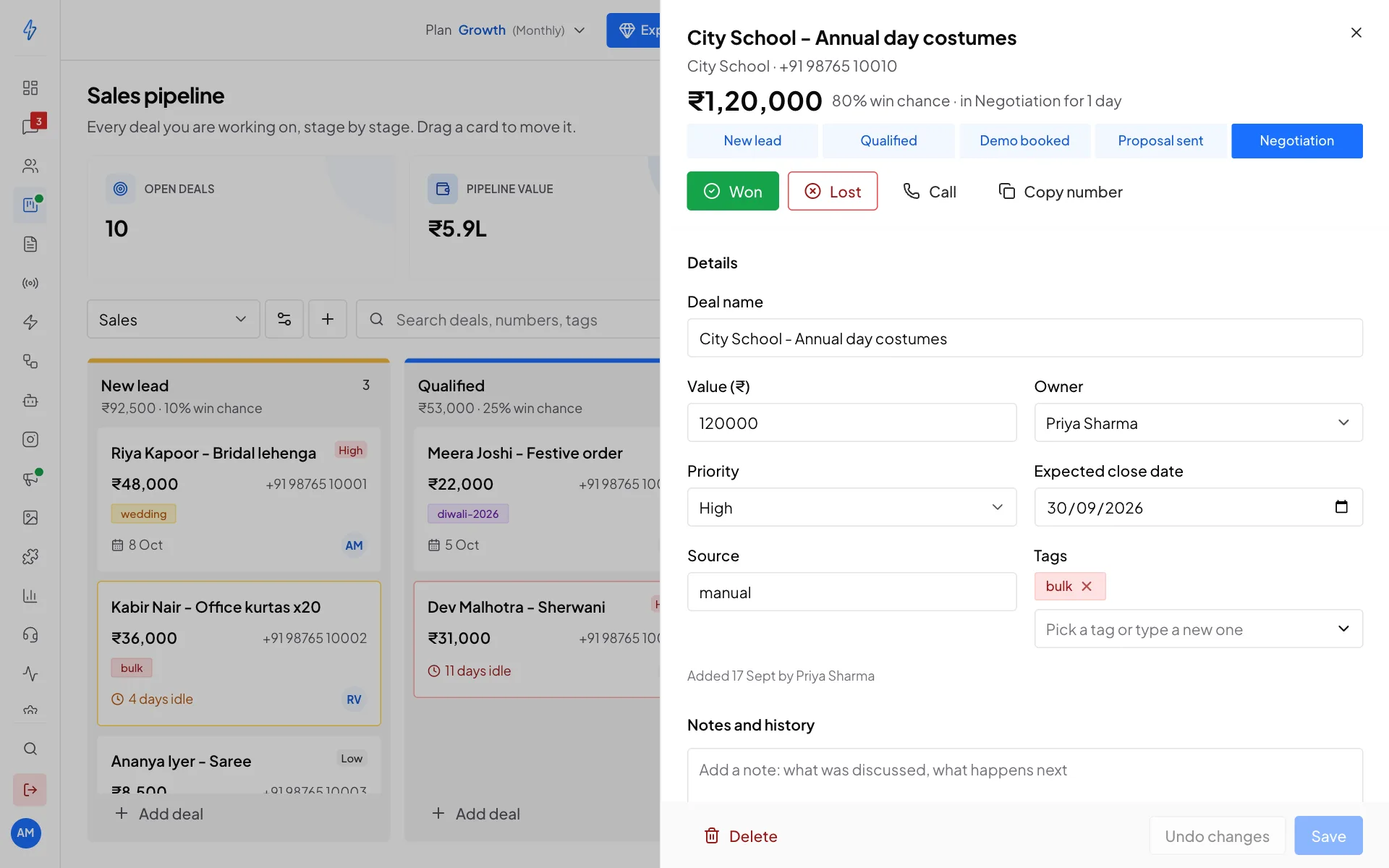
From here you can:
- Click Won or Lost to close the deal.
- Click Call to phone the contact, or Copy number.
- Change the name, value, owner, priority, close date, source or tags, then click Save. Undo changes puts them back.
- Add a note under Notes and history, then click Add note. Notes are for what was said and what happens next.
- Read the history: who created the deal, every move and every change, with the time.
- Click Delete to remove the deal. The contact stays.
See deals as a list
Click List at the top right to see every deal in a table with its stage, tags, value, owner, priority, close date and last activity. Click a row to open the deal. Click Board to go back.
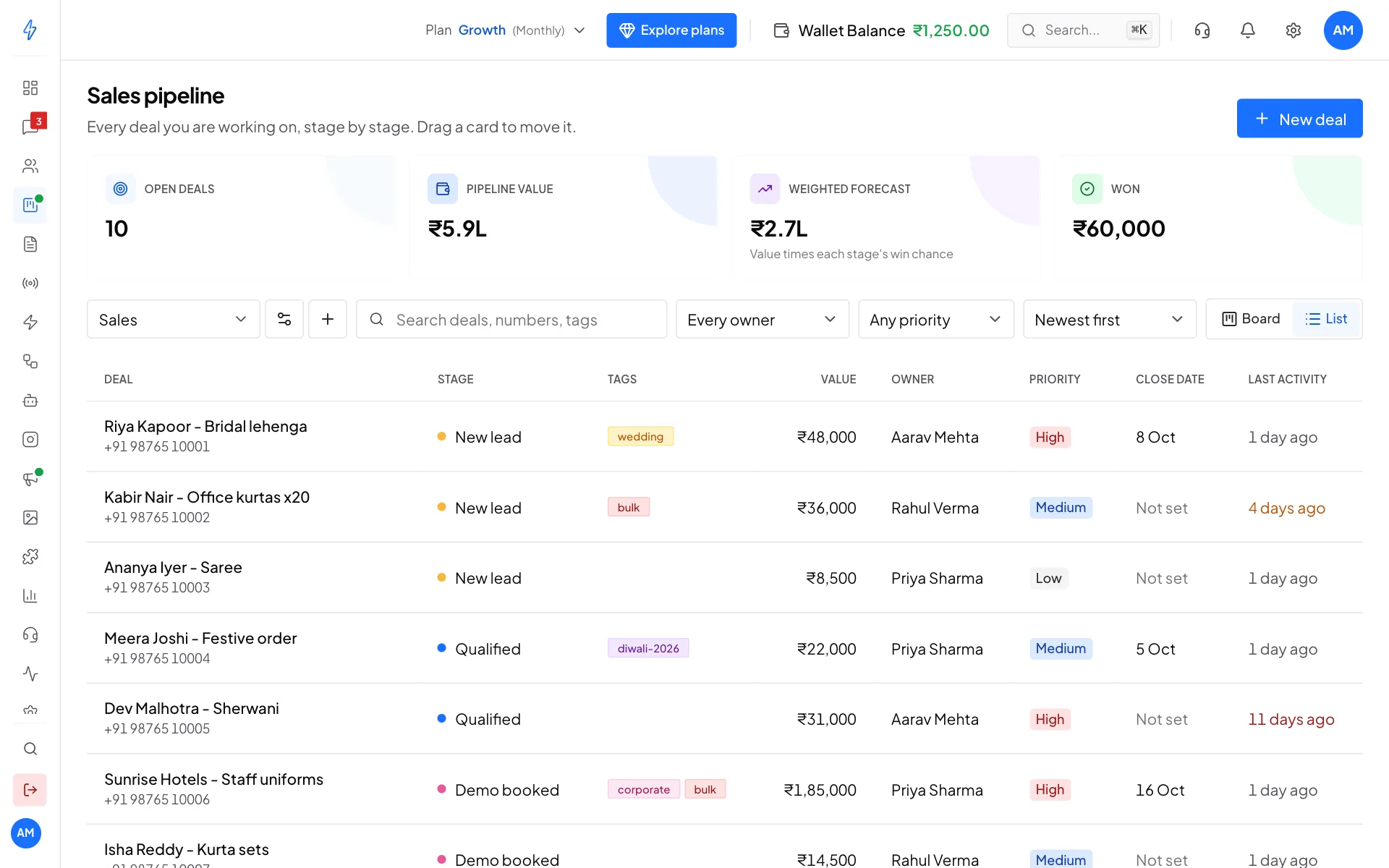
Use the filters above the board or list to find deals:
- Search deals, numbers, tags finds deals by name, phone number or tag.
- Every owner shows only one person's deals.
- Any priority shows only high, medium or low priority deals.
- Newest first changes the order: highest value, closing soonest or longest idle.
Change stages and colours
Open Pipeline settings
Click the settings button next to the pipeline name.
Change the stages
For each stage you can change:
- Colour: click the dot and pick a colour, or click Pick your own.
- Name: type a new one.
- Type: Open for a step in the sale, Won or Lost for the end. Keep at least one open stage.
- Win %: how likely a deal in this stage is to close. It is used in the weighted forecast.
- Idle days: after this many days without activity, the card turns amber.
To change the order, drag a stage by the handle on its left. Click Add stage for a new one, or the bin to remove one.
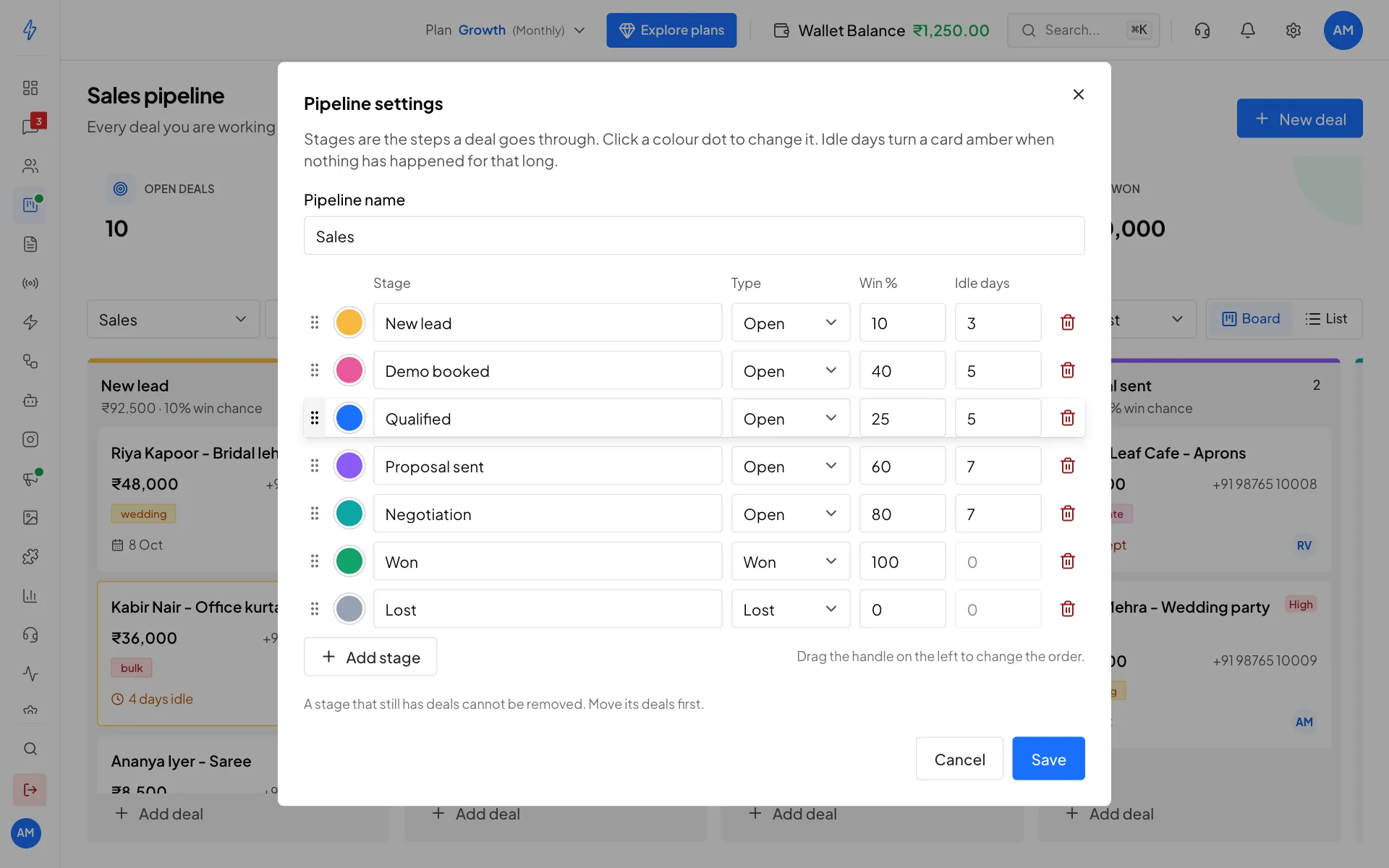
Drag the handle to reorder stages Click Save
Click Save. The board shows the new stages.
A stage that still has deals cannot be removed. Move its deals to another stage first.
Add another pipeline
You can have a separate pipeline for another kind of work, like onboarding new customers.
Click the + next to the pipeline name
Click the + button next to the pipeline name at the top of the board.
Name it and set its stages
Type a Name, for example
Onboarding. It starts with the usual stages. Change the names, colours and order as you like.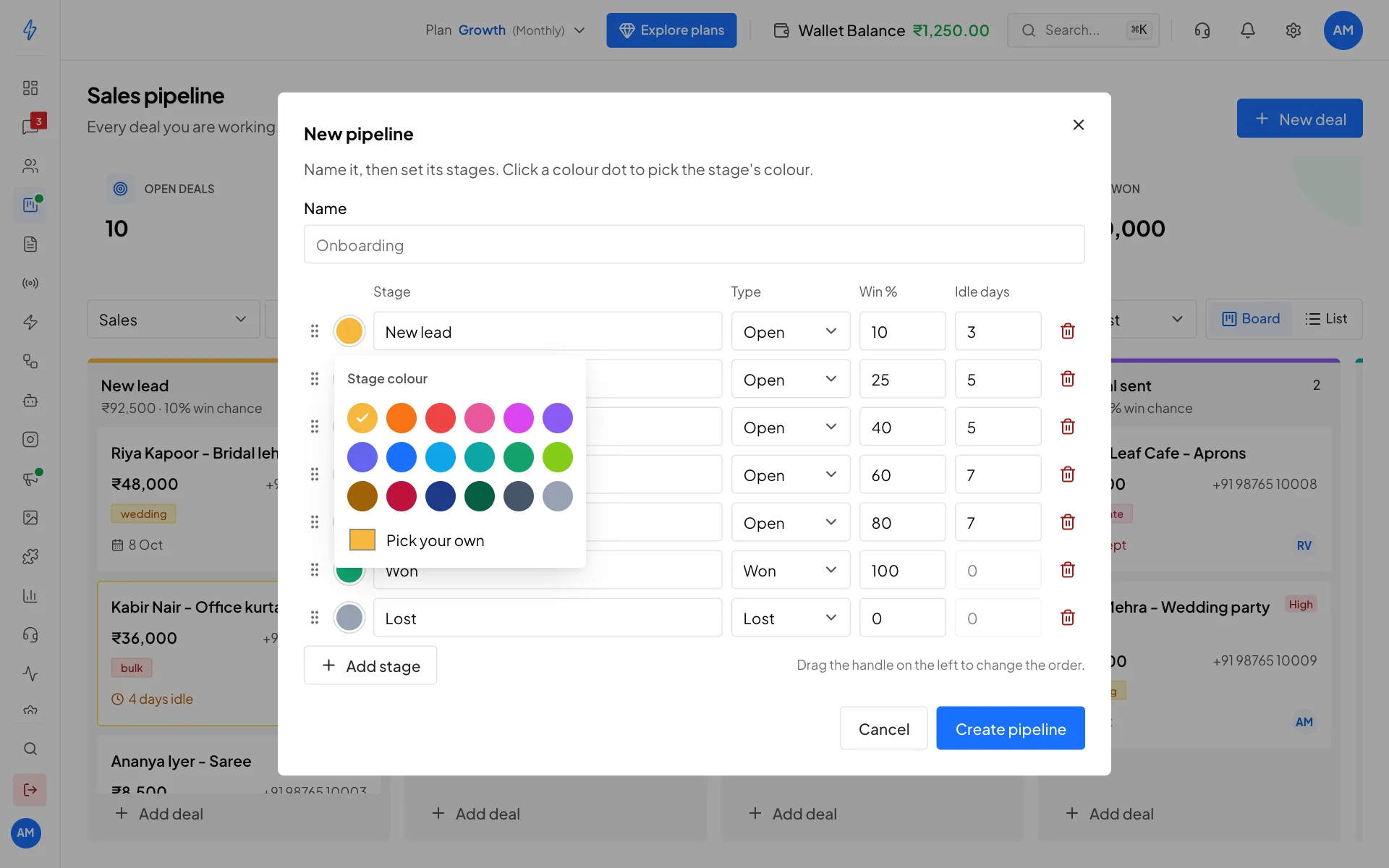
Click a colour dot to pick the stage's colour Click Create pipeline
Click Create pipeline. To switch between pipelines, pick one from the list at the top left of the board.
How many pipelines you can have depends on your plan. Every plan includes one. To delete a pipeline, open its settings and click Delete pipeline. Only an empty pipeline can be deleted.
Team access
Team members need access to Sales Pipeline. The account owner sets this in Settings, under Agents, for each member: No access, View only or Full access. With View only, a member can see deals but not add, move or change them.