
Publishing a Flow
Publishing makes a flow ready to send to real customers. It is also permanent: once published, WhatsApp locks the flow and it can never be edited or deleted again, so check it properly first.
Before you publish
Preview the whole flow
In the left sidebar, click Flows. Click ⋮ on the flow's row, then Preview flow. A window shows the form as customers see it, and it works: fill it in and press the button to go through every screen, like a customer would. The last screen shows the answers you would receive.
The editor's right column works the same way. See Try your flow in the Mockup.
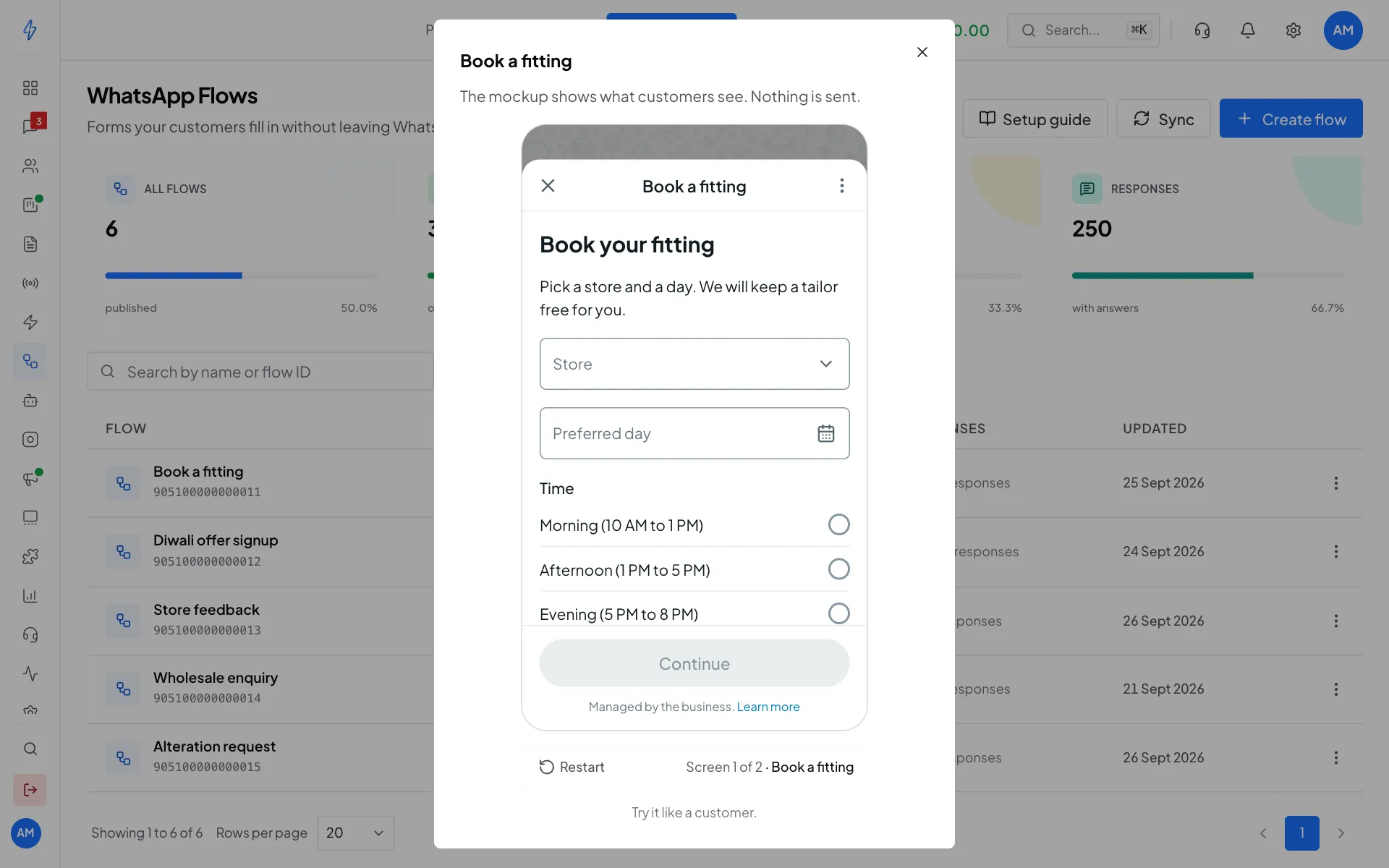
Try the whole flow without leaving the list Read the words once more
Screen titles, questions and button labels all appear in front of your customers. Read them once with fresh eyes. Make any question you do not really need optional, or remove it. Every extra question means fewer people finish.
Fix every problem
If a red to fix button shows in the top bar of the editor, click it. It lists each problem, for example a choice question with no options. Click a problem to jump straight to it, fix it, then click Save. Many problems can be fixed for you: see Fix problems before you publish.
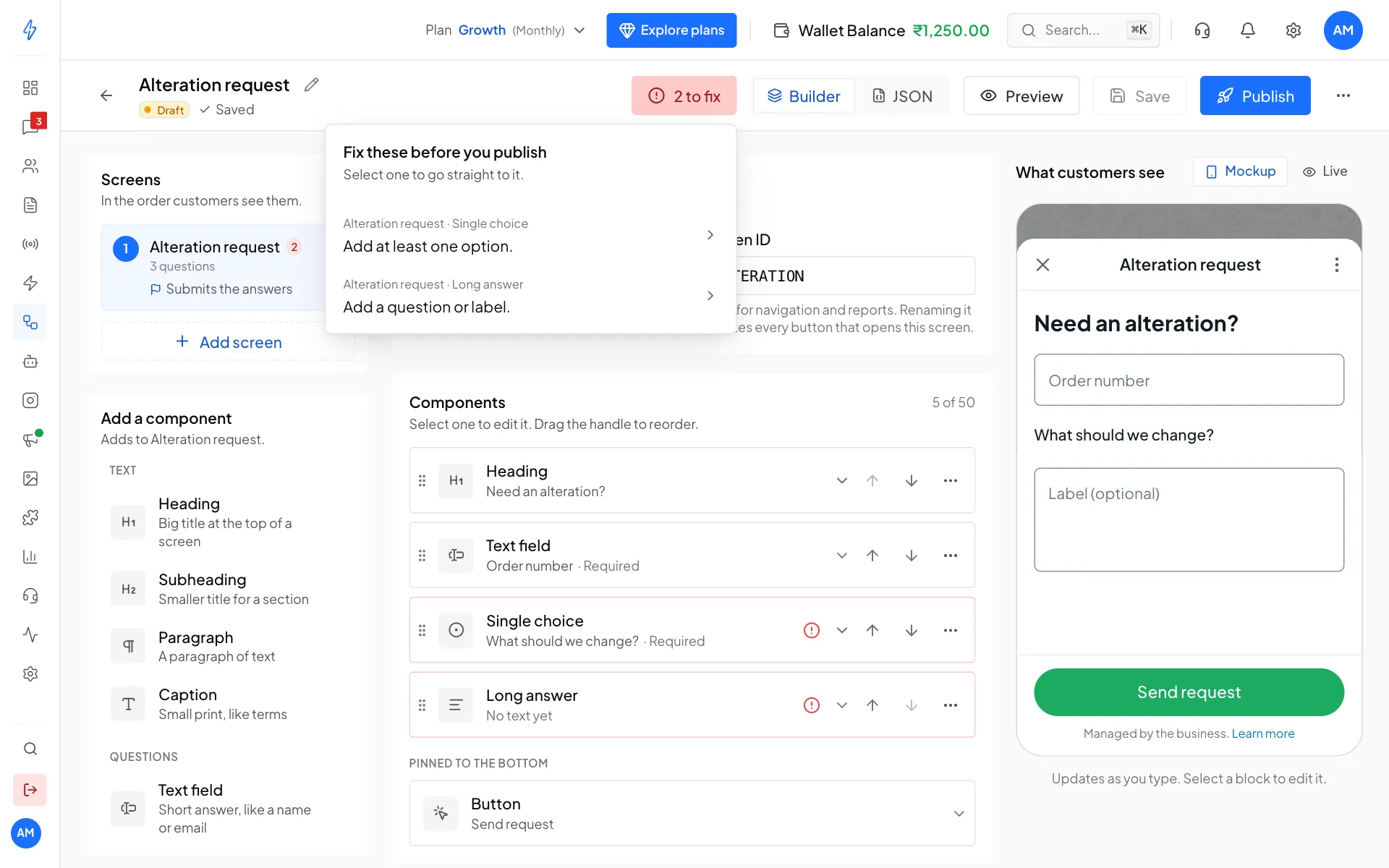
Click a problem in the list to go straight to it Test it on your own phone (optional)
You can send the draft to your own phone from Meta's WhatsApp Manager: open the flow there, click ⋯, then Send, pick your business number and type your test phone number. Message your business number from the test phone first, so the 24-hour chat window is open. A draft shows a warning banner on the phone. That banner goes away once the flow is published.
Fix problems before you publish
When something in the flow needs fixing, a red to fix button shows in the top bar of the editor with the number of problems, for example 3 to fix. WhatsApp will not publish the flow until every problem is fixed.
Open the list
Click the red to fix button. Each problem says where it is, the screen and the question, for example Screen 2 (Your details) > Text field "Your name". Under that, a short note says what is wrong.
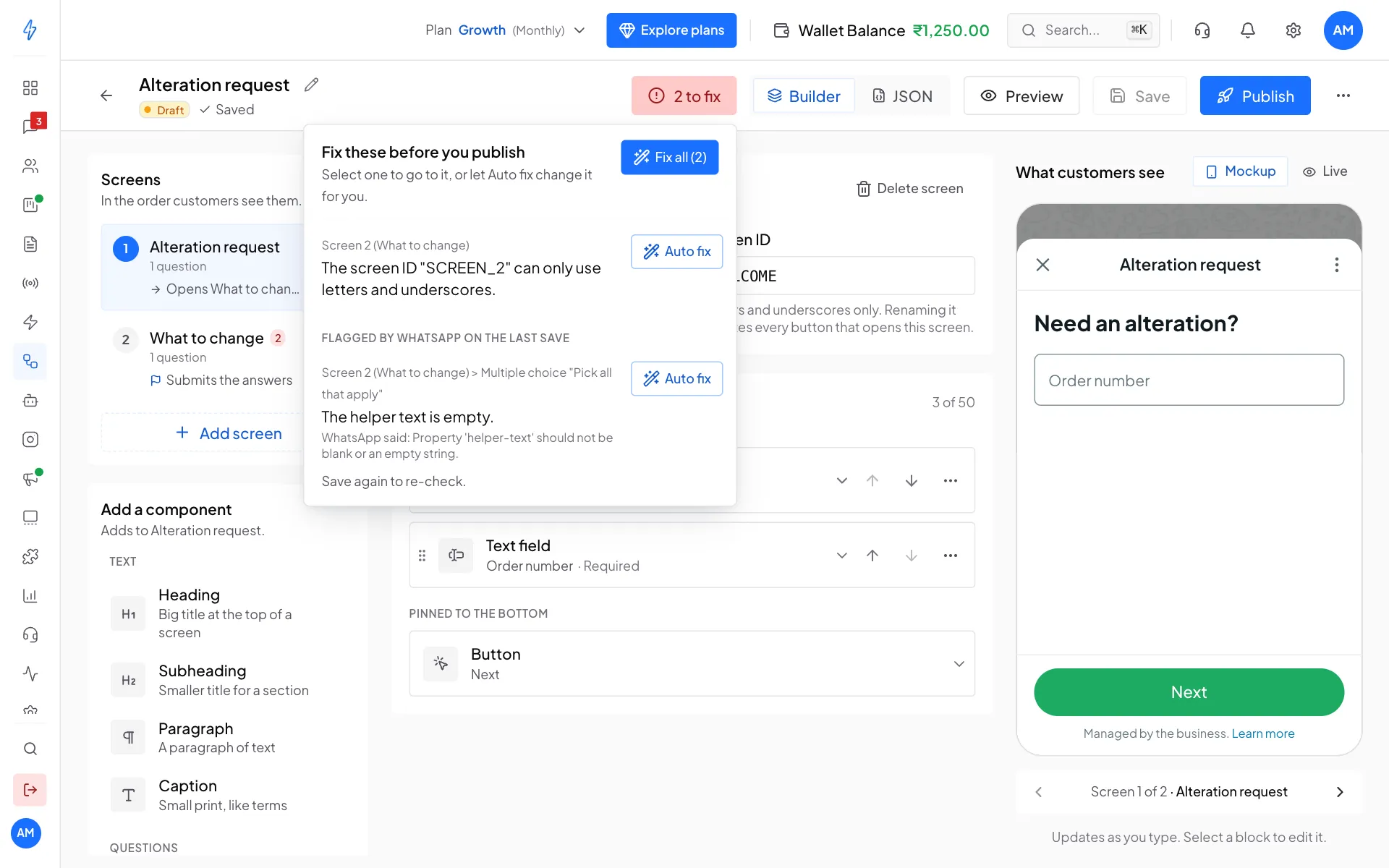
Each problem says where it is and can be fixed in one click Jump to a problem
Click a problem. The editor opens that screen and selects the question, so you can change it straight away.
Let Auto fix do it for you
Many problems have an Auto fix button. Point at it to see what it will change, then click it. For example, it can rename a screen ID or an answer name that uses characters WhatsApp does not accept, and it updates every place in the flow that reads it.
When more than one problem has an Auto fix, click Fix all at the top of the list to fix all of them at once.
Some problems have no Auto fix, because changing them for you could break something else in the flow. Click those to go to them and change them yourself.
Save again
Click Save. WhatsApp checks the flow again, and the red button goes away once nothing is left to fix.
If you are editing the flow in the Flow JSON view and have changes you have not applied yet, click Apply changes first, then use Auto fix.
Publish
Click Publish
Open the flow in the editor and click Publish in the top bar.
Confirm
A window asks Publish this flow? and reminds you it can never be edited or deleted again. Click Publish. Any unsaved changes are saved first, so what you see is what gets published.
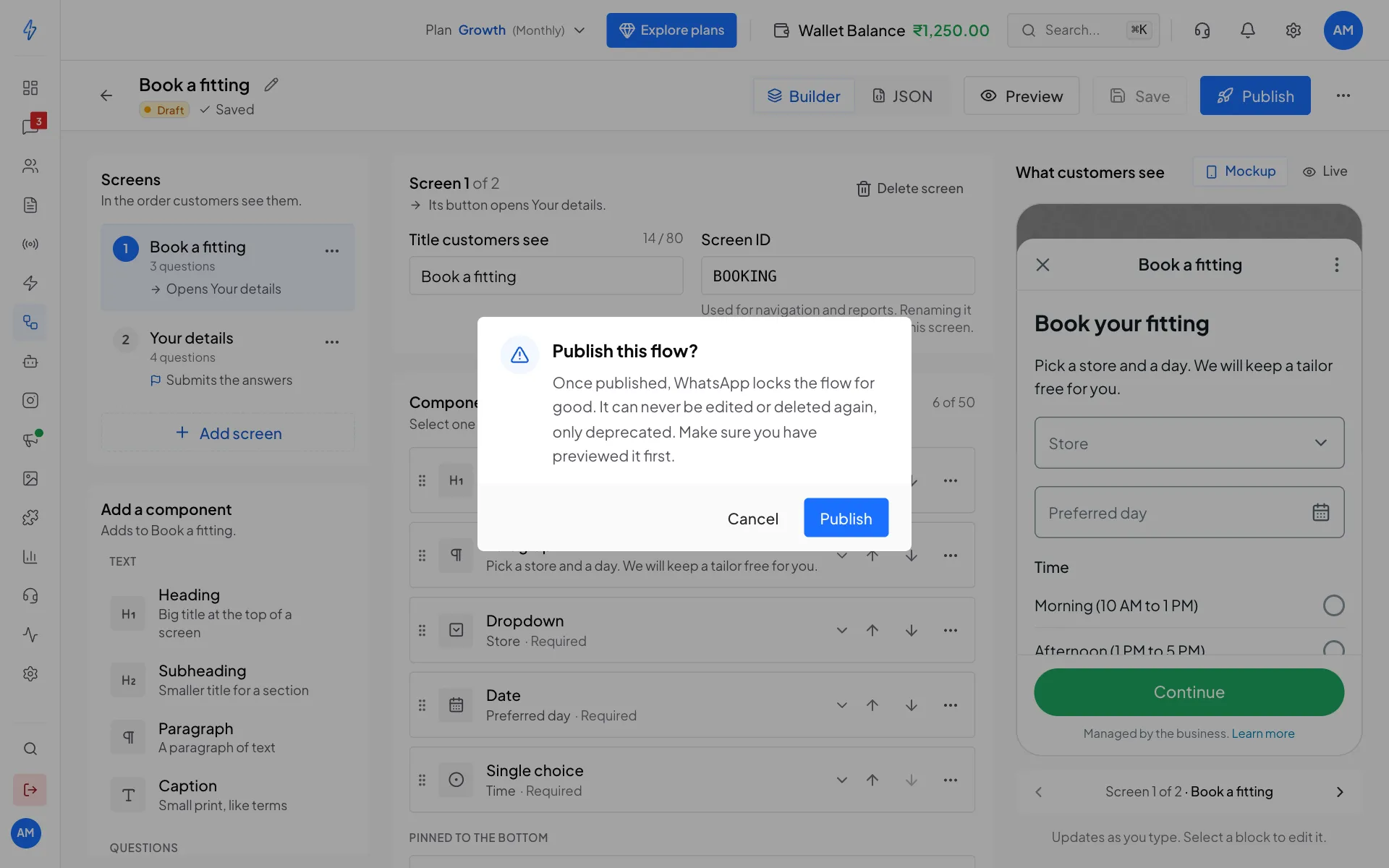
Publishing is the one step you cannot undo
You will see the status change to Published. The flow now shows as Published in your list, and you can add it to a template.
If WhatsApp refuses to publish, the reason is shown. The most common reasons:
After publishing
A published flow opens read-only. A green note says it is locked, and View responses takes you to its answers.
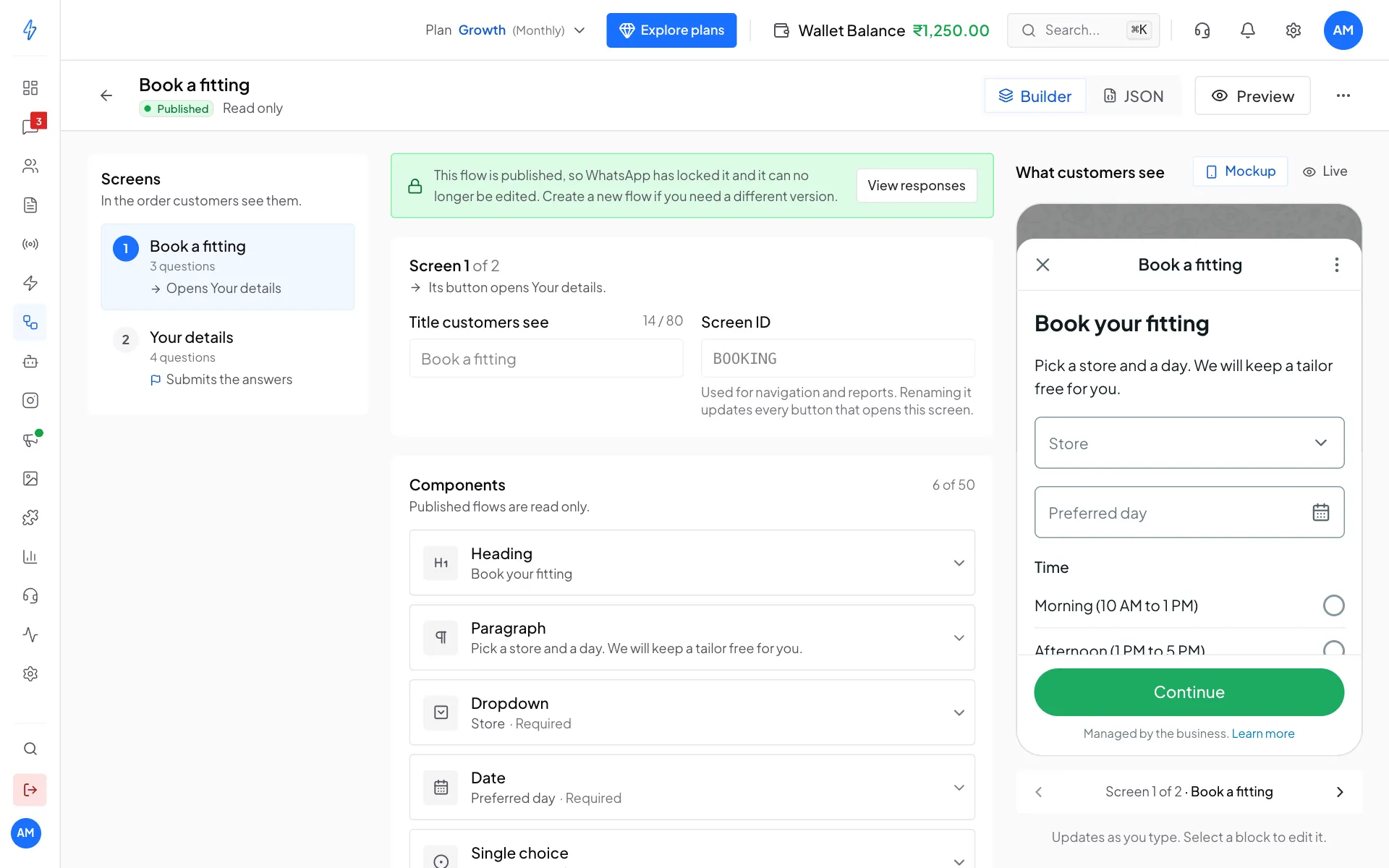
To change anything, create a new flow. You can start from the same ready-made form and edit from there.
Retire a flow (deprecate)
When a flow is replaced or no longer needed, deprecate it so it can no longer be sent.
Open the row menu
On the Flows page, click ⋮ on the flow's row, then Deprecate.
Confirm
Click Deprecate in the window that asks Deprecate this flow?.
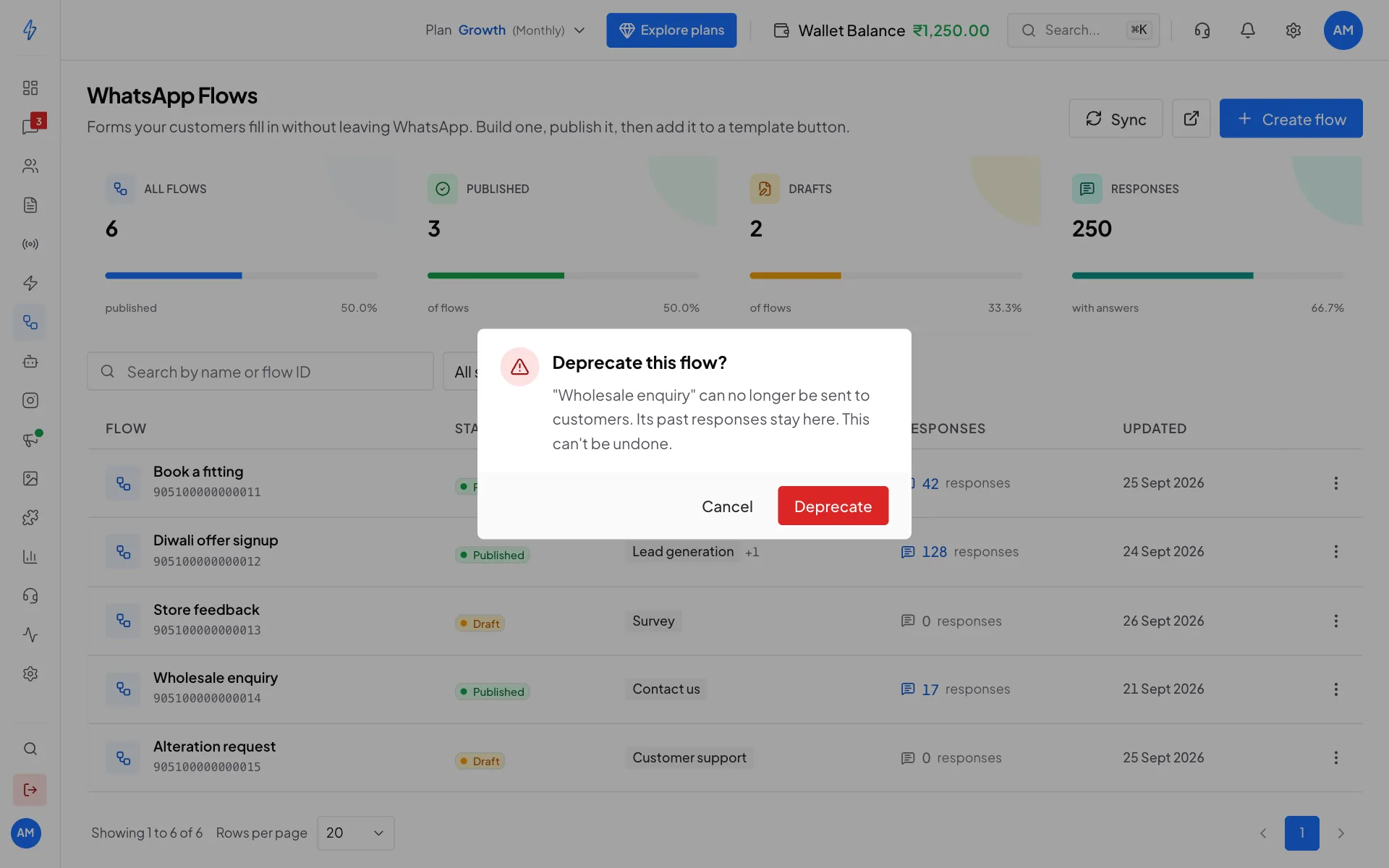
Deprecating is permanent too, but past responses stay
Deprecating is also permanent. Its past responses stay in the app. A customer who already has the form open may still send answers for a little while afterwards.
A draft you never published can simply be deleted: open it, click ⋯ in the top bar, then Delete draft.