
Template insights
See how each of your templates did in broadcasts: how many people read it, replied or tapped, ranked best first. Weak templates are marked against your own average, and Improve with AI writes a better version.
Open insights
Open Templates
Click Templates in the left sidebar.
Click Insights
Click the Insights tab next to WhatsApp, RCS and SMS. Pick Last 30 days or Last 90 days at the top.
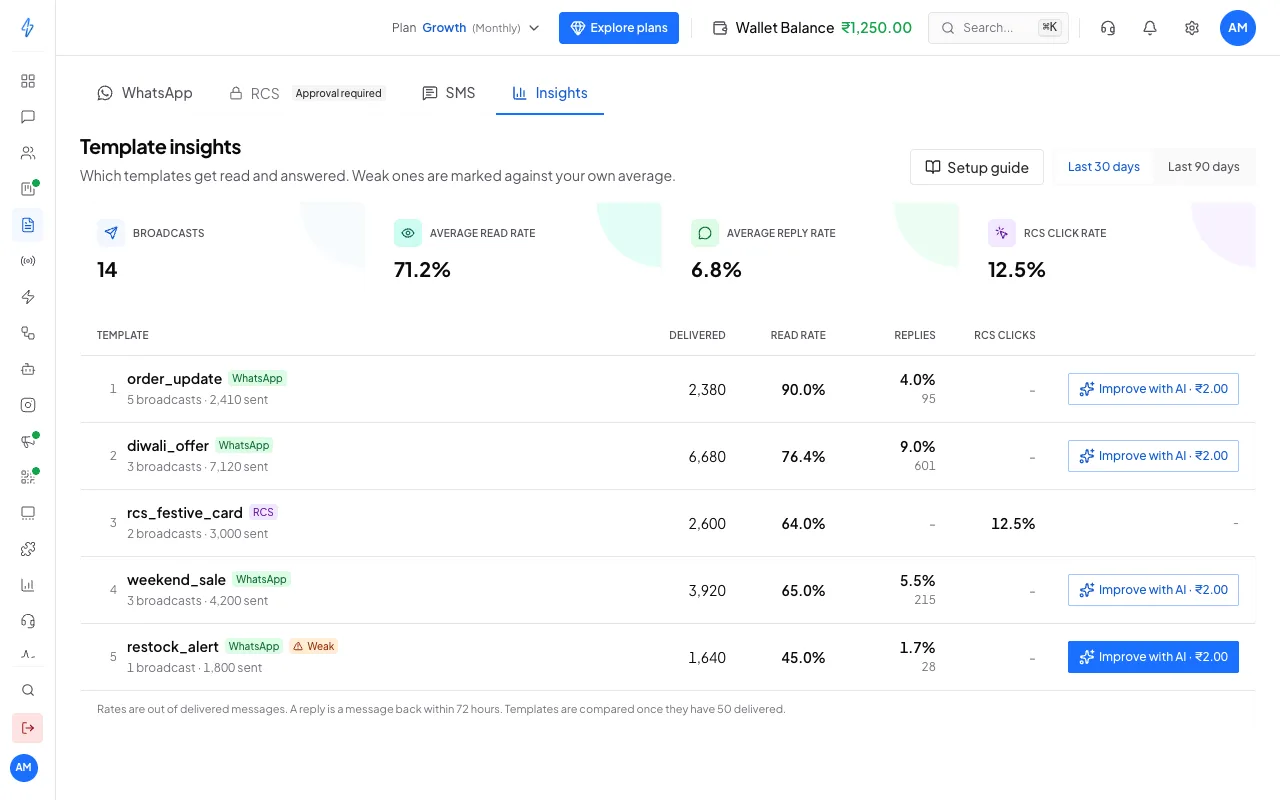
Your templates, best first
Read the table
A template is marked Weak when it is read clearly less than your other templates, or gets clearly fewer replies. Hover over Weak to see why. Templates are compared once they have 50 delivered messages, and only when you have at least two to compare.
The numbers come from the broadcasts themselves, so they match each broadcast's report.
Improve a template with AI
Click Improve with AI
In the template's row, click Improve with AI. The price is on the button.
Check the price and run it
The window shows how the template did and what it costs. Click Improve for and the price. You are charged only when a suggestion comes back.
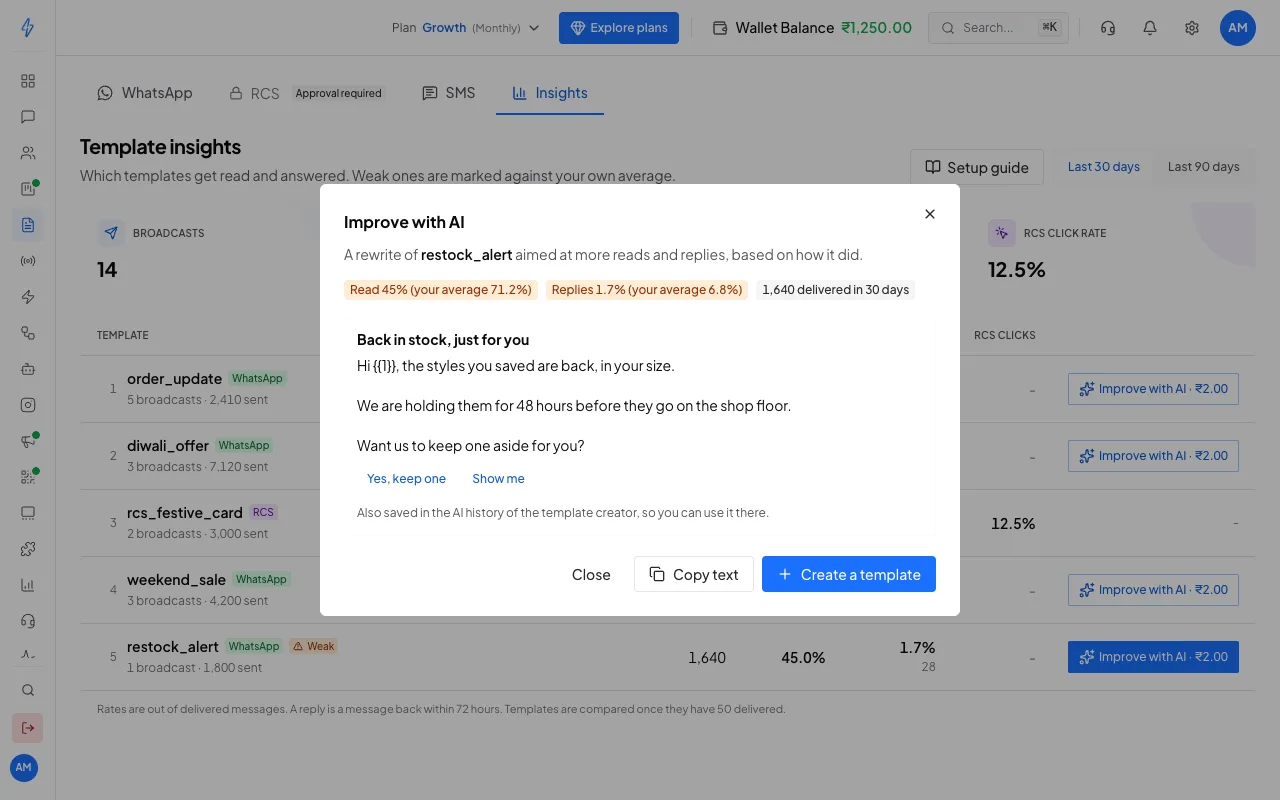
A suggested rewrite Use the suggestion
Click Copy text, or Create a template to open the template creator. The suggestion is also saved in the creator's AI history. Submit it as a new template, then use it in your next broadcast or retarget.
Your template is not changed. Improve with AI is always charged from your wallet, at the price shown.
Good to know
- No broadcasts in the period? The tab says so. Send a broadcast and its template shows up here.
- Replies are counted for WhatsApp broadcasts. A reaction is not a reply.