
QR codes with counts
Make one WhatsApp QR code for each place you put one: a shop counter, a flyer, a delivery bag. Each code counts its own scans and the chats it starts, so you know which one brings you customers.
How it works
- A customer scans the code with their phone camera.
- WhatsApp opens a chat with your business, with your message already typed, for example Hi Acme Boutique #SC4K.
- They tap send. The chat is counted for that QR code and tagged in your inbox, for example QR: Shop counter.
The short code at the end of the message (like #SC4K) is how the chat is matched to the QR code. Each QR code has its own.
Make a QR code
Open QR codes
Click QR Codes in the left sidebar.
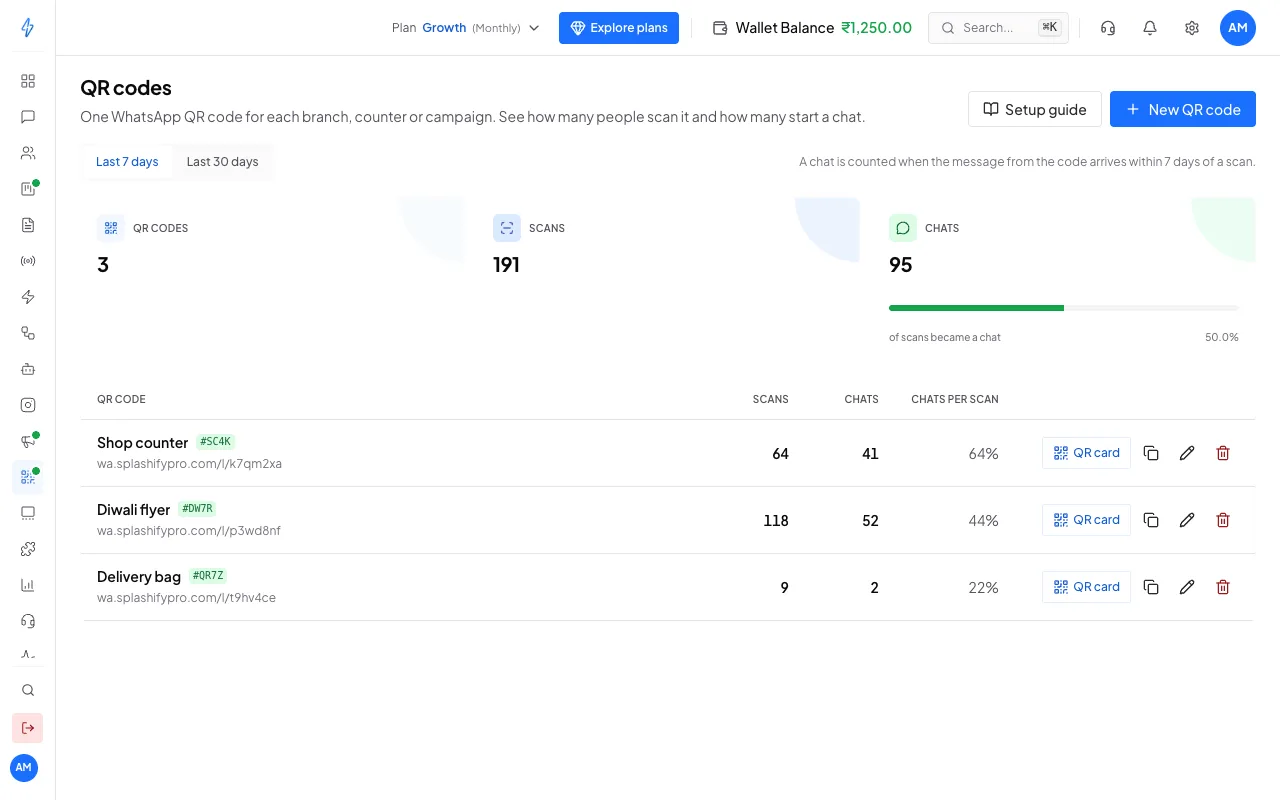
Your QR codes with their scans and chats Click New QR code
Give it a Name, for example Shop counter. Only you see the name, and it is printed small on the card.
Write the message
Under Message the customer sends, write what their WhatsApp opens with, for example Hi, I am at your shop. Keep it short. The short code is added at the end for you.
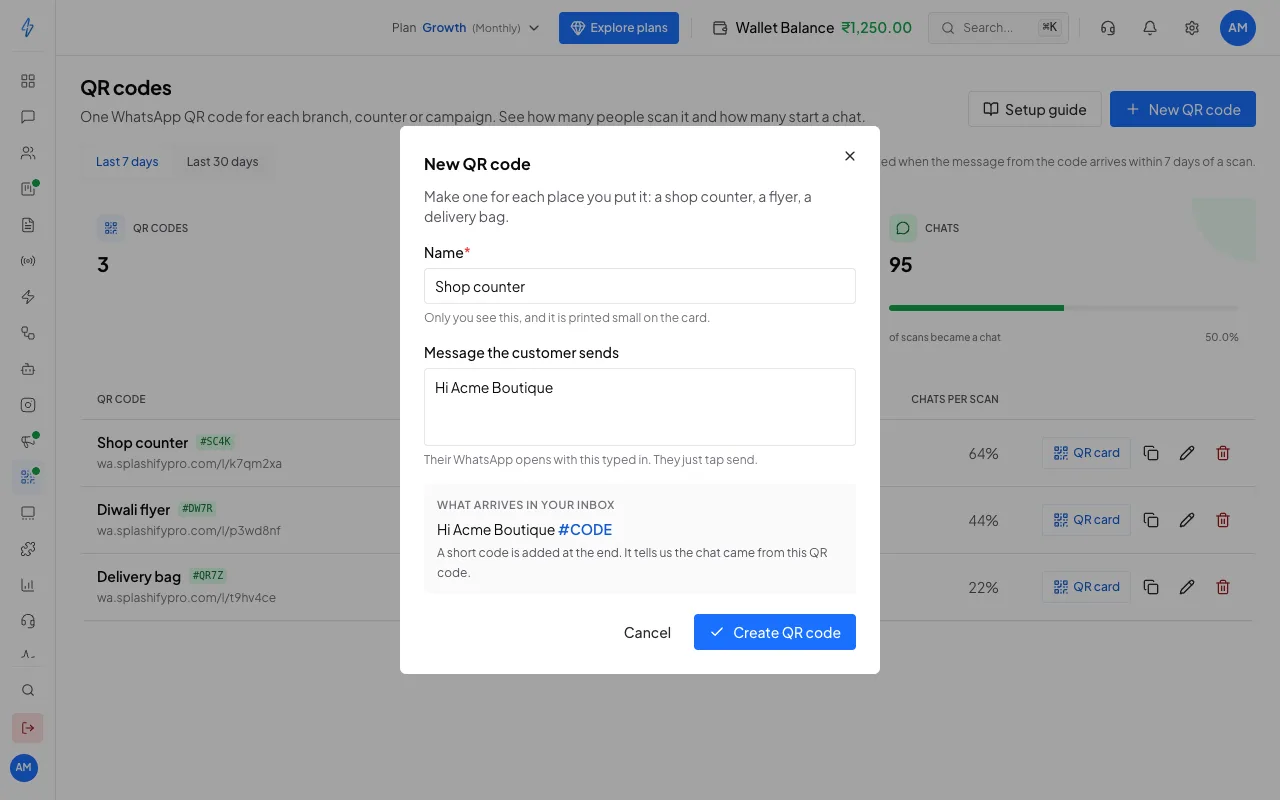
Name the code and write its message Click Create QR code
The printable card opens. Click Download PDF to print it, or PNG for an image you can share or put on a poster.
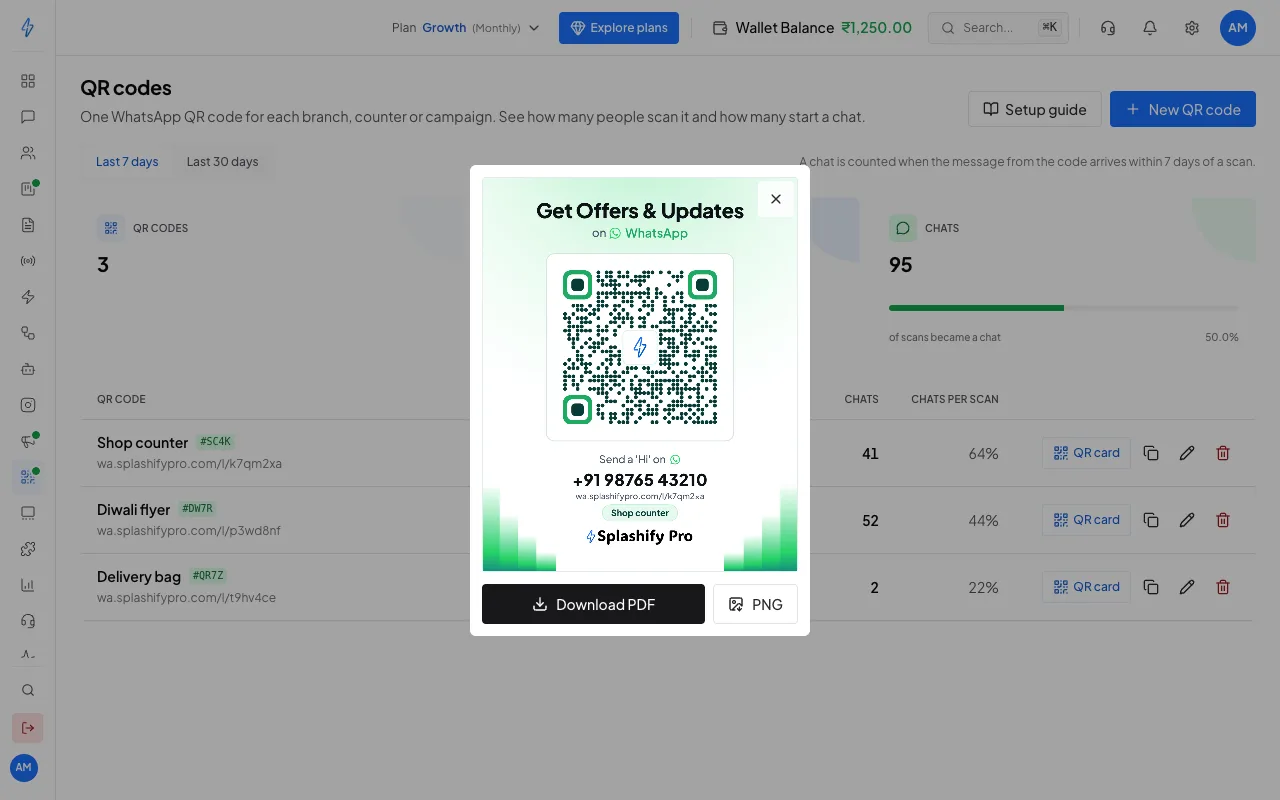
Read the numbers
Pick Last 7 days or Last 30 days at the top.
Chats from a QR code are tagged in your inbox, so you can filter them and reply fast.
Change or delete a QR code
- Click the pencil to rename it or change its message. The code itself does not change, so cards you already printed keep working.
- Click the bin to delete it. It stops counting. Cards you already printed still open your chat, just without being counted.
- Click the copy button to copy its link, for your website or social profile.
Good to know
- A QR code opens a chat with your connected WhatsApp number. Connect your number first under Settings, Channels.
- You can have up to 200 QR codes.
- The WhatsApp QR code in the top bar still works as before. It is not counted.