
WhatsApp payments
Available for accounts in India.
Get paid in the same chat where you sell. Send a payment link in two clicks, and save your tax, shipping and discount rules once as order templates for your WhatsApp invoices.
Ask for a payment in a chat
The quickest way to get paid: send the customer a payment link. They pay by UPI, card or wallet through your own payment gateway.
Open the chat
In the left sidebar, click Messages, then open the customer's WhatsApp chat.
Click the ₹ button
Click the green ₹ button (Request a payment) next to + under the reply box. The Request a payment box opens.
If no payment gateway is connected yet, you see Connect a payment gateway first. Click Open Integrations and connect your gateway (for example Razorpay, Cashfree or PayU). See Integrations.
Fill in the amount and reason
Type the Amount (₹) and What is it for?, for example "Order #1024, red silk saree". Product is optional. If you connected more than one gateway, pick the Gateway.
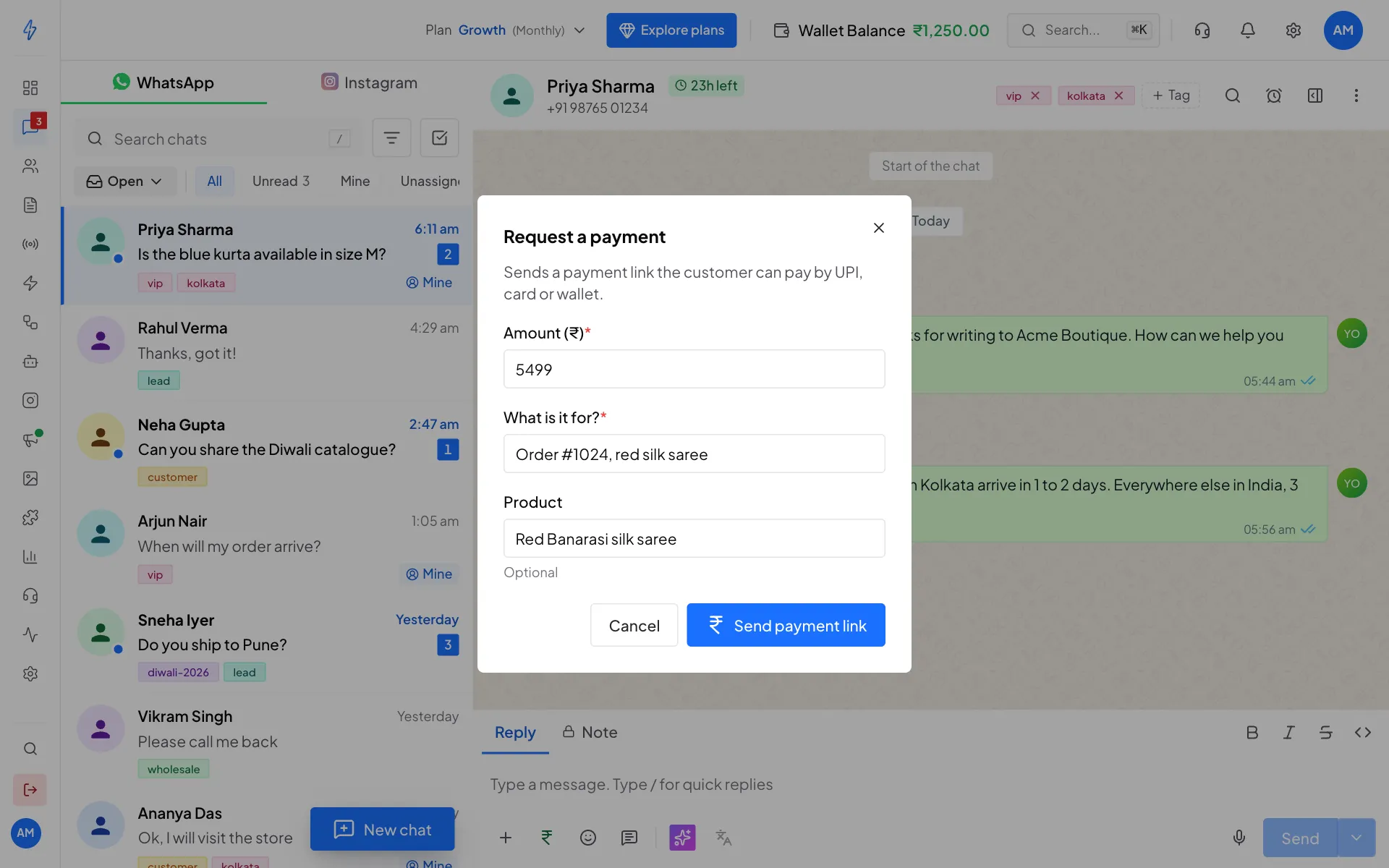
Fill in the amount and what it is for Click Send payment link
Click Send payment link. You will see Payment link sent. The customer gets the link on WhatsApp. It stays valid for 7 days.
Order templates
An order template saves the tax, shipping and discount rules for your WhatsApp invoices, so you set them once instead of for every order. Rates are saved rather than amounts, so an 18% rule stays right whatever the cart is worth.
Open Order templates
Open Settings (the gear icon), then Commerce, then the Order templates tab. You see your templates with their rules, such as 5% tax included or Shipping ₹99.
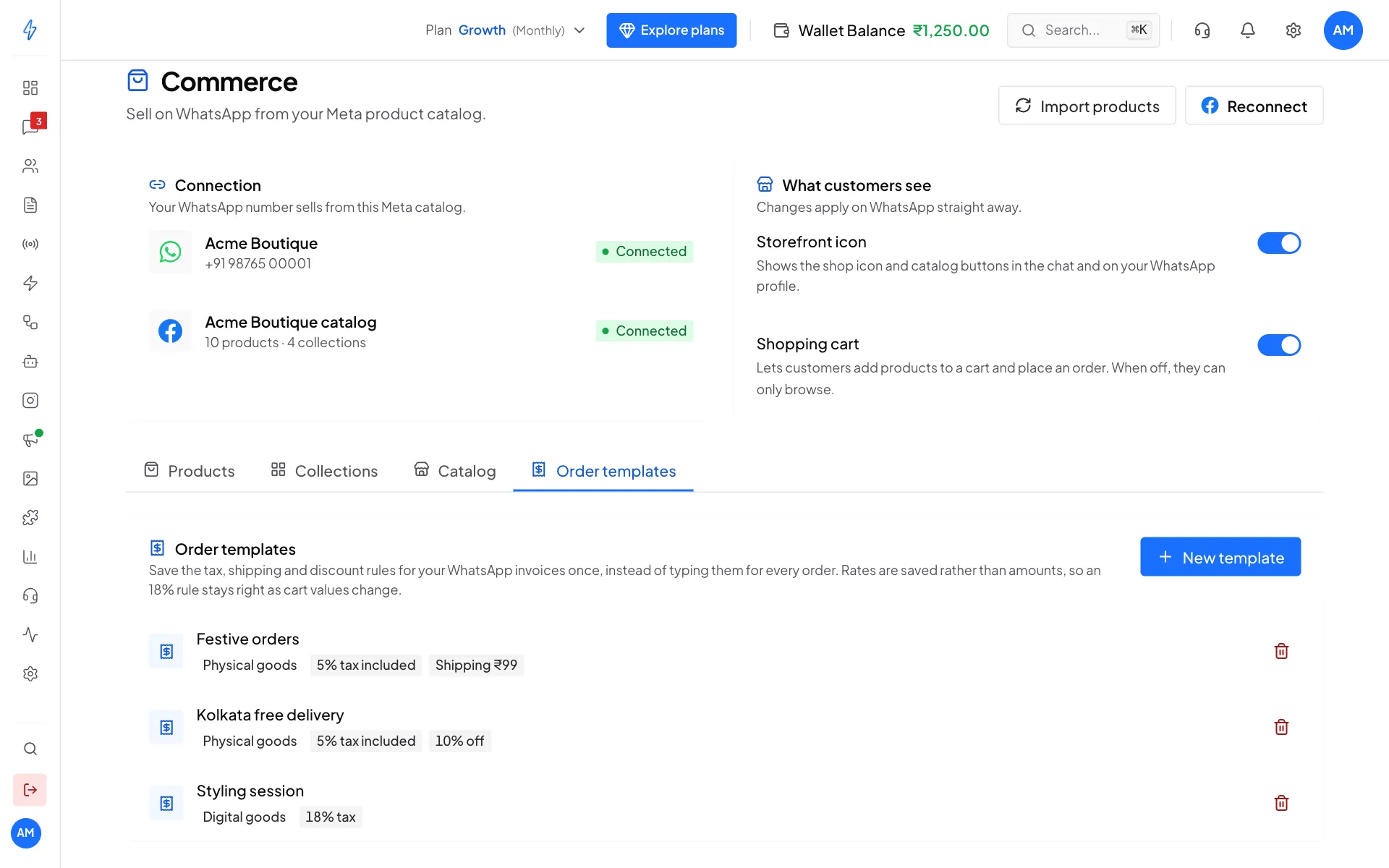
Your order templates Click New template
Click New template. The form opens on the left and a Preview of the WhatsApp order on the right. The preview uses a sample basket, so you can see how your rules change the total.
Fill in the basics
- Name: a unique name, for example "Diwali orders".
- Product type: Physical goods or Digital goods.
- Message: the text the customer sees with the order. You can use
*bold*,_italic_,~strikethrough~and{{1}}for a variable. - Payment link expiry: how many seconds the customer has to pay. The minimum is 300 (5 minutes).
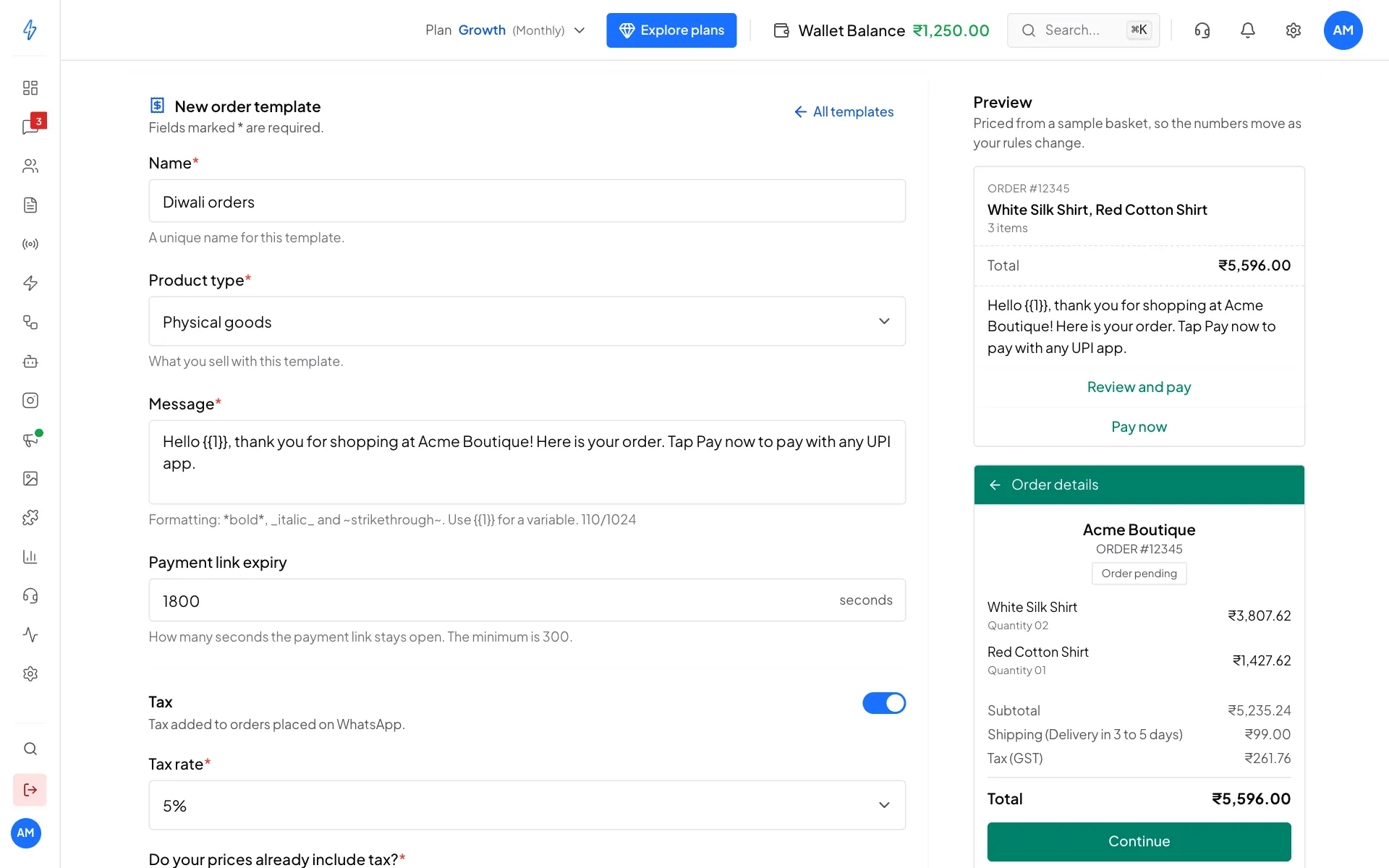
The form on the left, a live preview on the right Switch on the rules you need
- Tax: pick the Tax rate (3, 5, 12, 18 or 28%), answer Do your prices already include tax? with Yes, included or No, add it on top, and add a Tax description like "GST".
- Shipping: type the Shipping charge and a Shipping description like "Delivery in 3 to 5 days".
- Discount: pick Fixed amount (₹) or Percent (%), type the Discount, and add a Discount description like "Festive offer".
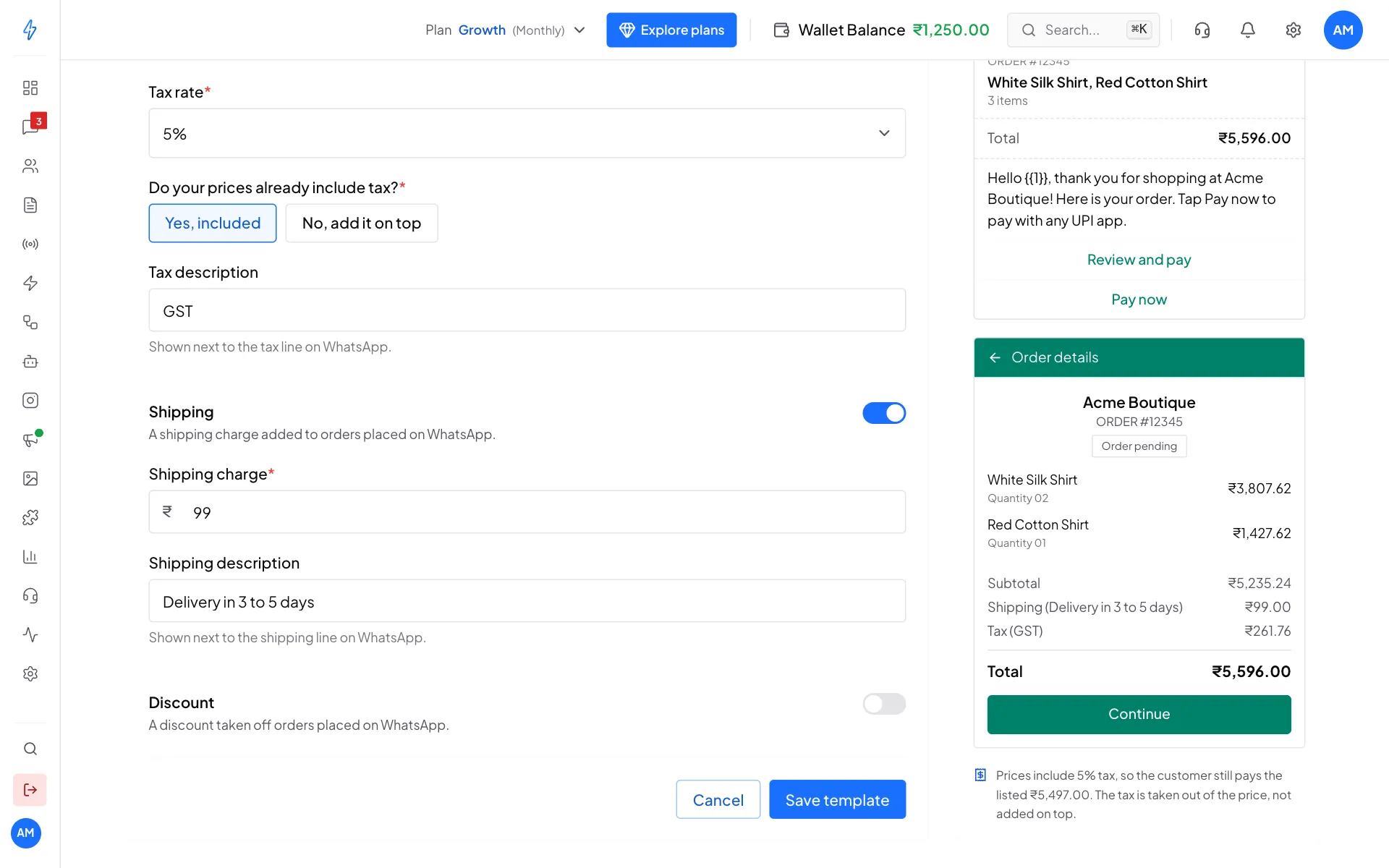
Tax, shipping and discount rules Save
Click Save template. You will see Template saved. If something is missing, the fields to fix are marked.
To delete a template, click the bin on its row, then Delete.
Prices that already include tax
With Yes, included, the customer pays the price you listed. The tax is taken out of it, not added on top. For example, a ₹5,497 basket at 18% included becomes a ₹4,658.48 subtotal plus ₹838.52 tax.
When a discount applies, it comes off before tax, so the customer is not taxed on money they never paid.
Invoices customers pay inside WhatsApp (India)
With WhatsApp Payments, the customer gets an invoice in the chat and pays with any UPI app without leaving WhatsApp.
Set up by a developer
There is no button for sending these invoices in the app yet. Your developer sends them through the API. The rest of this section is for them.
- India only: Indian businesses, customers with an Indian number, amounts in INR.
- Your WhatsApp Business account must have accepted the WhatsApp Payments terms. Until then, every request fails with an error that includes the link to accept them.
How it works
The app never talks to your payment gateway. You do, and you pass the app the link your gateway made. So any gateway that can make a UPI link works.
- The customer decides to buy.
- You ask your payment gateway for a UPI link, using your own order number as the reference.
- You send an invoice with that link and the list of items.
- The customer taps Pay now and pays in any UPI app.
- Your gateway tells you whether the payment worked.
- You send an order status update.
Step 6 matters: the invoice stays on Pending until you send a status update, so a paid order still looks unpaid to the customer if you skip it.
Payment configuration
A payment configuration tells Meta where the money goes. Make one per UPI handle.
You need your merchant VPA, merchant category code (MCC) and purpose code from your gateway. A gateway configuration starts as Needs_Connecting and becomes Active once you finish connecting on Meta's site. The connect link expires, so make a new one if you were too slow.
Invoice fields
Amounts are in rupees.
The total must add up
Meta works out the total again and rejects any mismatch:
total = subtotal + tax + shipping - discountThe subtotal comes from your items (using sale_amount where present). You do not send the subtotal or total. Both are worked out for you, so they always match.
Without a catalog_id, Meta needs country_of_origin, importer_name and importer_address on every item. Invoices with your own item pictures can have up to 10 items.
Order status
After your gateway confirms the payment, send the status:
The customer's number is taken from the invoice, so a status can never go to the wrong person. Use reference_id to match gateway payments to invoices, and trust your gateway for the final payment status.
Error messages
Not supported yet
- Checkout button templates: India-only buying from inside a marketing template. Needs Meta's approval.
- Refunds through WhatsApp: only in the deeper gateway link.