
Sending a Flow
You send a flow as a button on a template message. The customer gets your message, taps the button, and the form opens. Only a published flow can be added to a template.
A template message can go to any customer who has agreed to hear from you, at any time, so it works for single customers and for broadcasts.
Add the flow to a template
Publish the flow first
The template's flow picker only lists published flows. Drafts do not appear. If the list is empty, the app says No published flows yet with a link back to Flows. See Publish a flow.
Start a new template
In the left sidebar, click Templates, then Create Template.
Fill in the template
Pick the Template Category, Template Language and a Template Name (lowercase, with underscores, for example
fitting_invite). Type your message in Template Format under Body, for example: Hi! Book a free fitting at Acme Boutique. Tap the button below, pick a store and a day.Add the flow button
Scroll down to Buttons and choose WhatsApp Flow. In Select Form, pick your flow, for example Book a fitting. In Button Text, type what the button says, for example Book now (up to 25 characters).
The Template Preview on the right shows your message with the button under it.
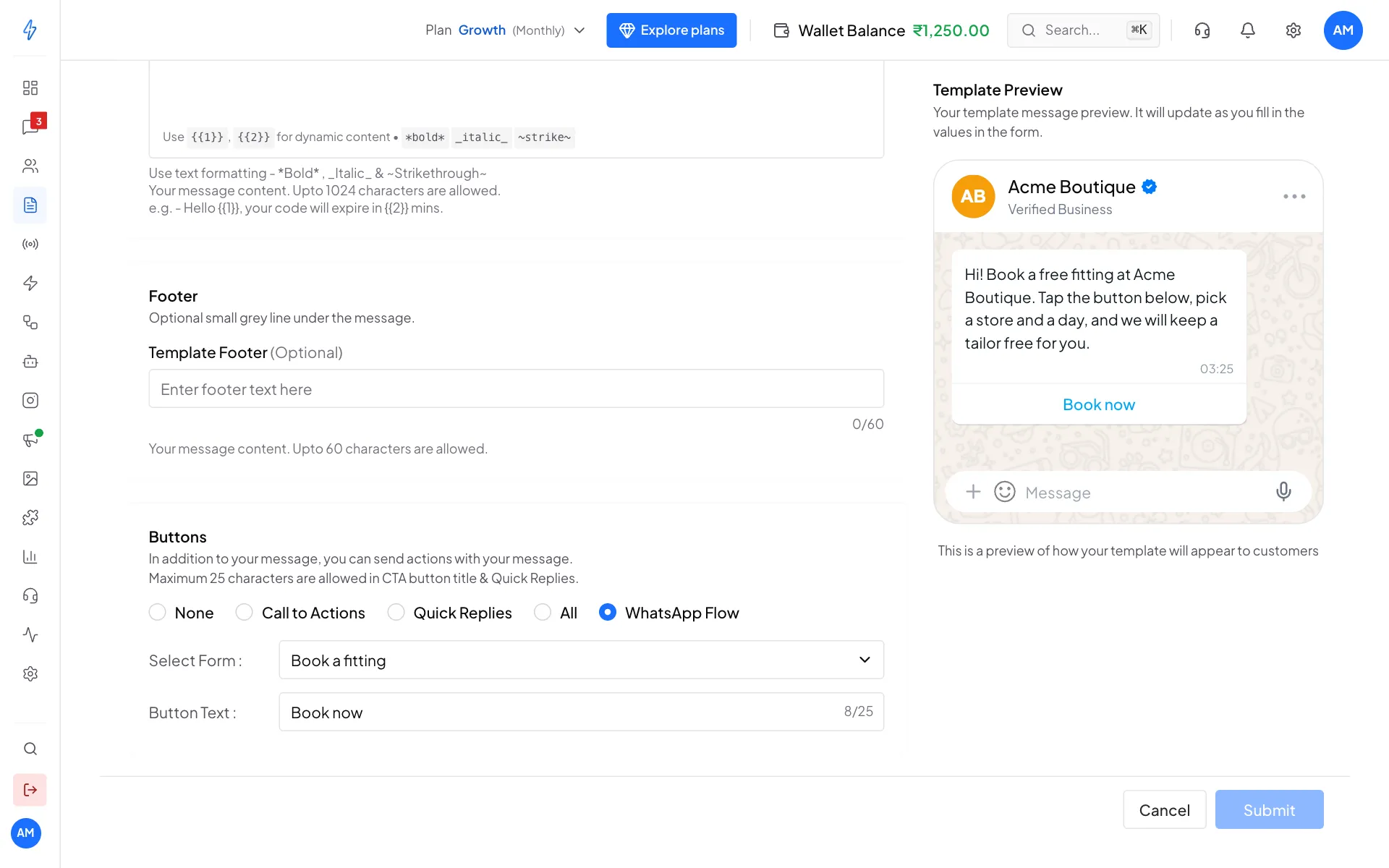
Buttons, then WhatsApp Flow, then pick the flow and write the button text Submit the template
Click Submit at the bottom. The template goes to Meta and shows as in review. Most templates are approved within 24 hours.
Send it
Once the template is approved, send it like any other template:
- To many customers at once, from Broadcasts, then New Broadcast. See Broadcasts.
- To one customer, from their chat in Messages, using the template button in the message box.
- From your own systems, with the messaging API. See Public API.
What the customer sees
The message arrives with your text and the button. Tapping the button slides the form up over the chat. They fill it in, tap the last button, and the form closes.
In Messages, the flow you sent shows as a card, and the customer's answers arrive as a Form reply you can open. See Reading Responses.
A short confirmation appears in the chat on its own. It helps to send your own follow-up too, saying what happens next: when you will call, or their booking reference.
Inside an open chat, without a template
If the customer has messaged you in the last 24 hours, a developer can also send the flow directly as an interactive message, with no template and no approval step. This is done through the API, not from the app screens. See Flows in the CLI.
Testing a draft
A draft cannot be added to a template. To try a draft on your own phone, send it from Meta's WhatsApp Manager instead. See Publish a flow.
Next
Read responses shows where the answers arrive.