
Links and files
An ig.me link opens a DM with your Instagram account in one tap. Add a tracking code to see which campaign, poster or QR code a chat came from. The same tab also keeps files you upload to Instagram once and reuse in bots.
Both are on the Links & files tab: in the left sidebar click Instagram, then Links & files.
Make an ig.me link
https://ig.me/m/yourhandle opens a DM with your account. Put it on your website, in an email, or behind a QR code on your packaging or shop window.
Type a tracking code (optional)
In Tracking code (optional), type a short name for where the link will be used, for example
diwali_qr-2026. Use only letters, numbers and-_=.Click Build link
Click Build link. Your link shows below, for example
https://ig.me/m/acmeboutique?ref=diwali_qr-2026.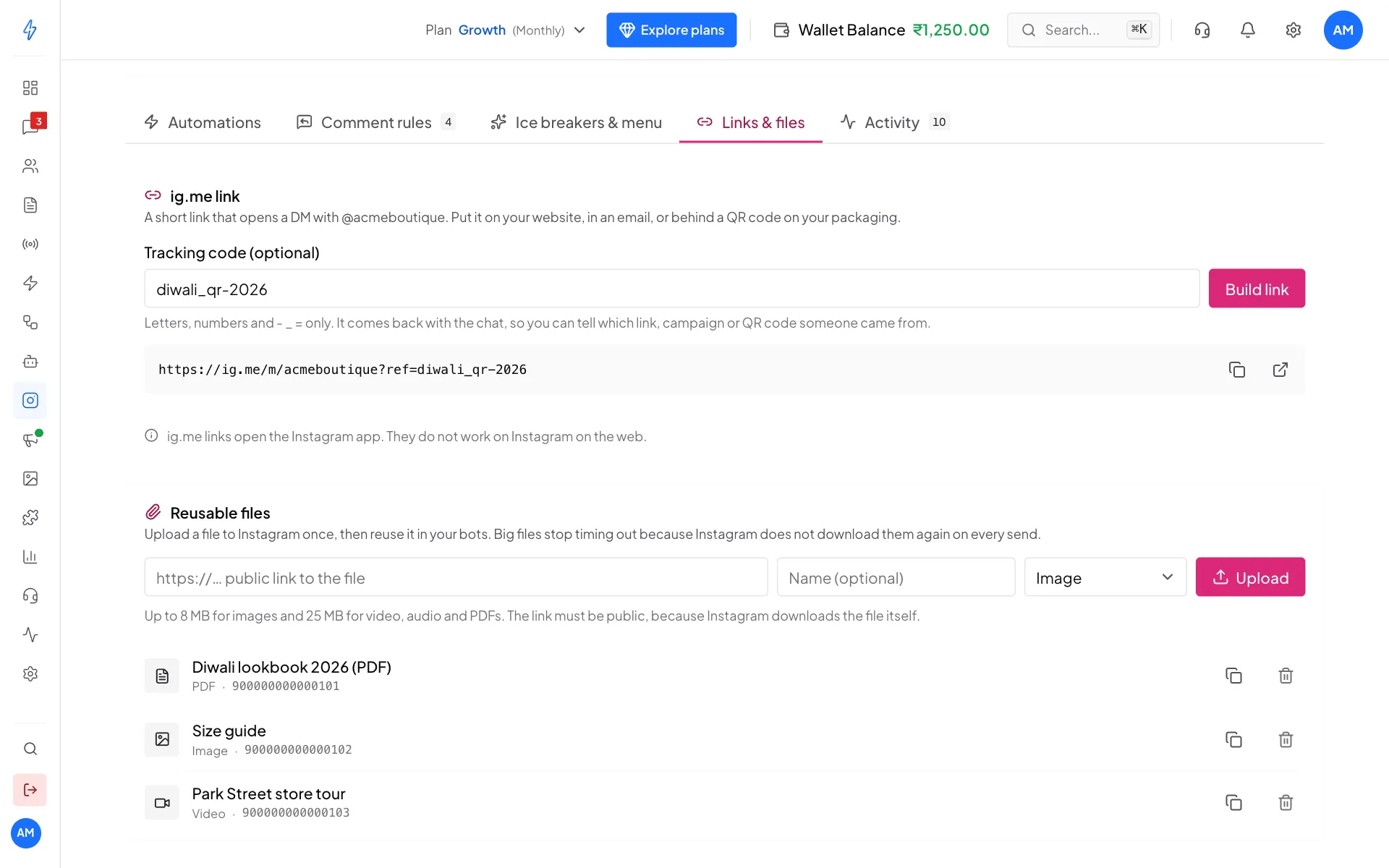
Your ig.me link with a tracking code Copy it
Click the copy button next to the link to copy it, or the open button to try it. Then paste it where you need it.
If you have no ice breakers yet, a yellow note under the link reminds you to set them up. Without ice breakers, brand-new customers arrive without the tracking code.
When the tracking code reaches you
The first two need ice breakers. The tracking code can be up to 2,083 characters. Instagram quietly drops other characters, so the app refuses a code it would drop.
Limitation
ig.me links open the Instagram app. They do not work on Instagram on the web. On a computer the customer sees a prompt to open Instagram.
Reusable files
Normally Instagram downloads a file every time a bot sends it. A big file, or a slow website, can make that fail with a "Could not upload" error. Uploading the file to Instagram once fixes this, because Instagram already has it.
Paste the file's link
In the Reusable files card, paste a public link to the file in the first box. The link must open for anyone, because Instagram downloads the file itself. A file behind a login, or a link that has expired, fails.
Name it and pick the type
Type a Name (optional) so you recognise it later, and pick the type: Image, Video, Audio or PDF.
Click Upload
Click Upload. You will see Uploaded to Instagram, and the file appears in the list below.
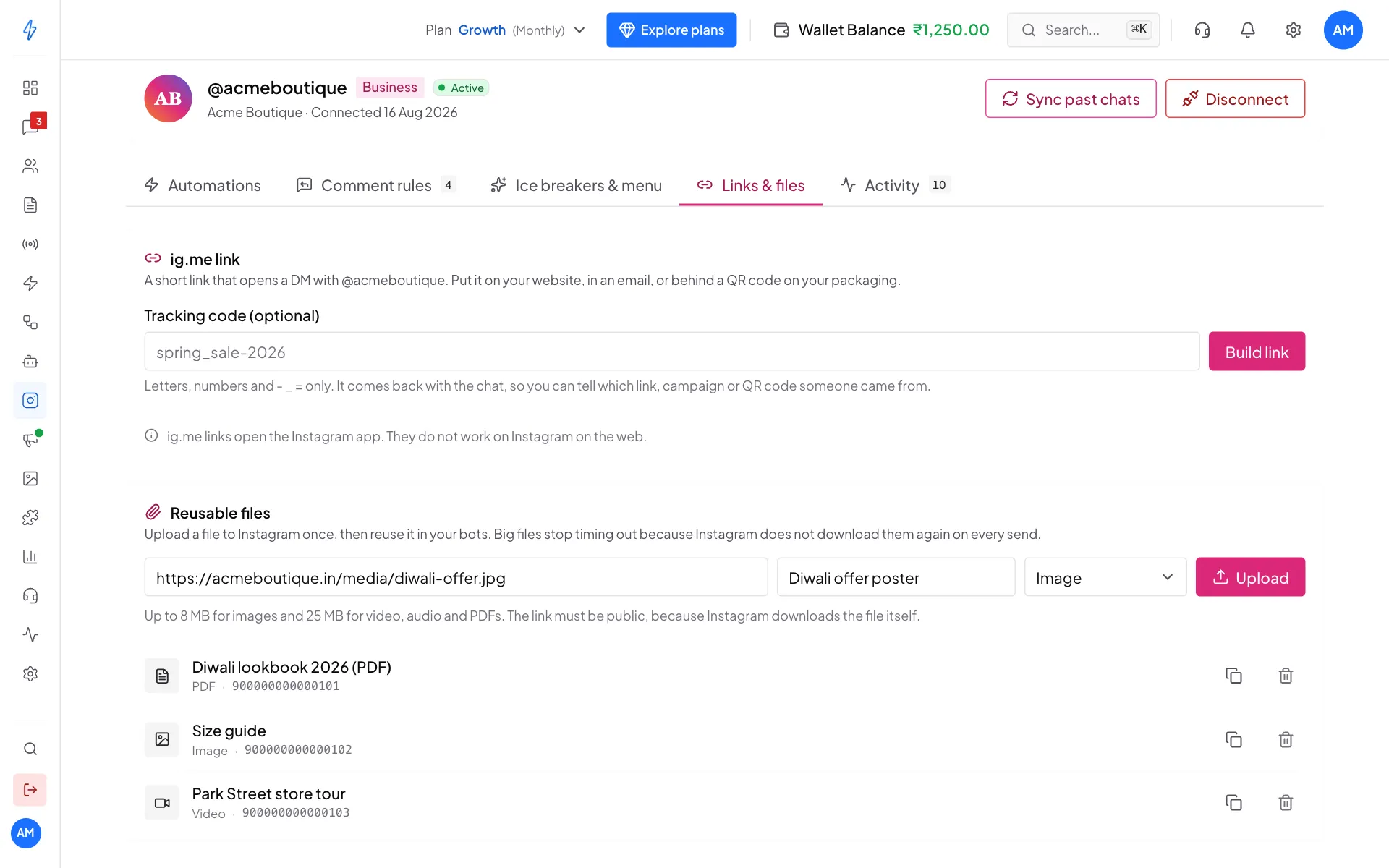
Upload once, reuse many times
File names with non-English letters (for example Hindi or Chinese) do not work. Rename the file first.
Use and remove files
- Click the copy button on a row to copy the file ID. Bots send the file by this ID. The flow builder does not have a step for file IDs yet, so ask our support team if you want a bot to use one.
- Click the bin to remove a file, then Remove. This only takes it off your list. Instagram keeps the file until it expires.
If a file that used to work starts failing, upload it again.