
WhatsApp Flows
A Flow is a short form that opens inside WhatsApp. The customer taps a button in your message, the form slides up, they fill it in and tap submit, all without leaving the chat.
Use a flow for any task that would otherwise take a dozen messages back and forth:
- Booking an appointment or a store visit
- Collecting a lead's name, number and what they want
- A feedback or satisfaction survey
- Sign-up and registration
- A support request with the right details from the start
Find Flows in the app
Open Flows
In the left sidebar, click Flows. (Point at the sidebar to see the names next to the icons.)
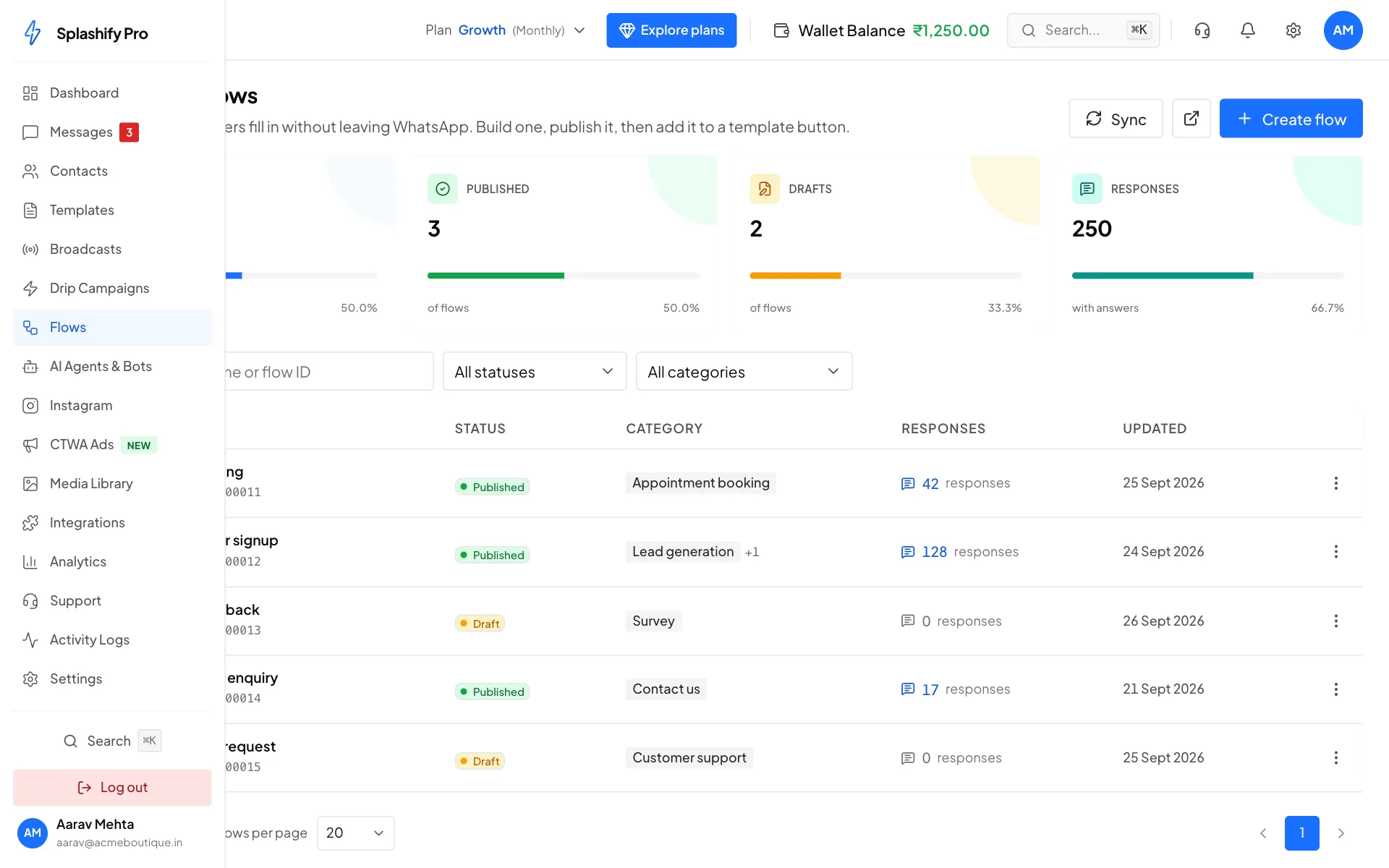
Flows sits in the left sidebar, under Drip Campaigns See all your flows
The WhatsApp Flows page lists every flow with its Status, Category, number of Responses and when it was last Updated. The boxes at the top count your flows, how many are published, how many are drafts and how many answers came in.
Use the search box to find a flow by name, or filter by status and category.
Use the row menu
Click the ⋮ button at the end of a row to open its menu:
- Edit flow opens the editor (drafts only)
- View responses shows every answer customers sent
- Preview flow shows what customers see, without leaving the page
- Copy flow ID copies the flow's ID
- Deprecate retires a published flow
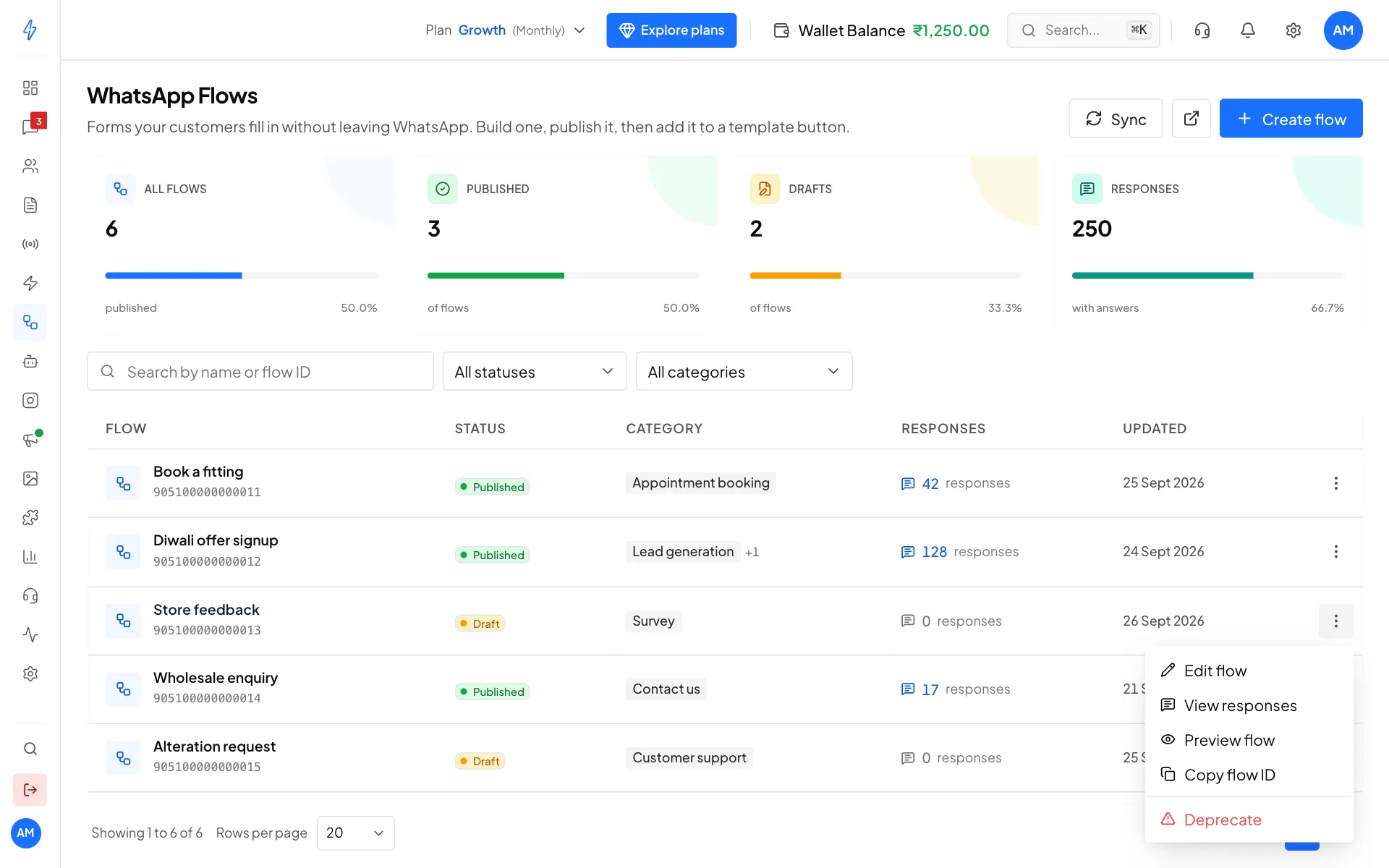
Everything you can do with one flow is in its row menu
You need WhatsApp connected
Flows only appear once your WhatsApp Business account is connected. Until then the page says Connect WhatsApp to use Flows and sends you to the dashboard.
How a flow works, start to finish
- Create the flow from a ready-made form. See Create a flow.
- Build its screens and questions in the editor. See Build screens.
- Preview and publish it. See Publish a flow.
- Add it to a template as a button and send it. See Send a flow.
- Read the answers as they come in. See Read responses.
Why not just ask in the chat
Asking six questions as six messages works, but people drop out halfway, answers arrive in the wrong order, and someone has to read the chat and type it all up somewhere.
A flow asks everything at once, checks the answers as the customer types (an email field refuses something that is not an email), and gives you one clean answer sheet per customer.
Phones only
Flows open on WhatsApp for Android (6.0 or newer) and iPhone (iOS 12 or newer). They do not open on WhatsApp Web or on linked devices, so the customer must use their phone.
Words you will see
Flow statuses
A flow moves through a few statuses. One step cannot be undone.
Publishing is permanent
WhatsApp locks a flow the moment you publish it. There is no edit, no unpublish and no delete. Preview it properly first. If you need a change later, create a new flow and deprecate the old one.
Limits worth knowing
- 50 components per screen, though far fewer reads better
- 20 options in a dropdown, single choice or multiple choice list
- Aim for a flow a customer can finish in under five minutes
- One task per screen. Split anything longer across screens.