
Inbox tools
Small tools in Messages that save time on a busy day: hide a chat until later, work on many chats at once, find an old message, schedule a reply, and let AI suggest what to write.
Snooze a chat
Snooze hides a chat until a time you pick, then brings it back to Open. Use it when a customer says "I will confirm on Monday".
Click the alarm clock
Open the chat and click the Snooze button (the alarm clock) at the top right. You can also point at the chat in the list and click the small alarm clock there.
Pick a time
Pick In 1 hour, In 3 hours, This evening, Tomorrow morning, This weekend or Next Monday. For any other time, click Pick a date and time (up to 30 days ahead), then Snooze.
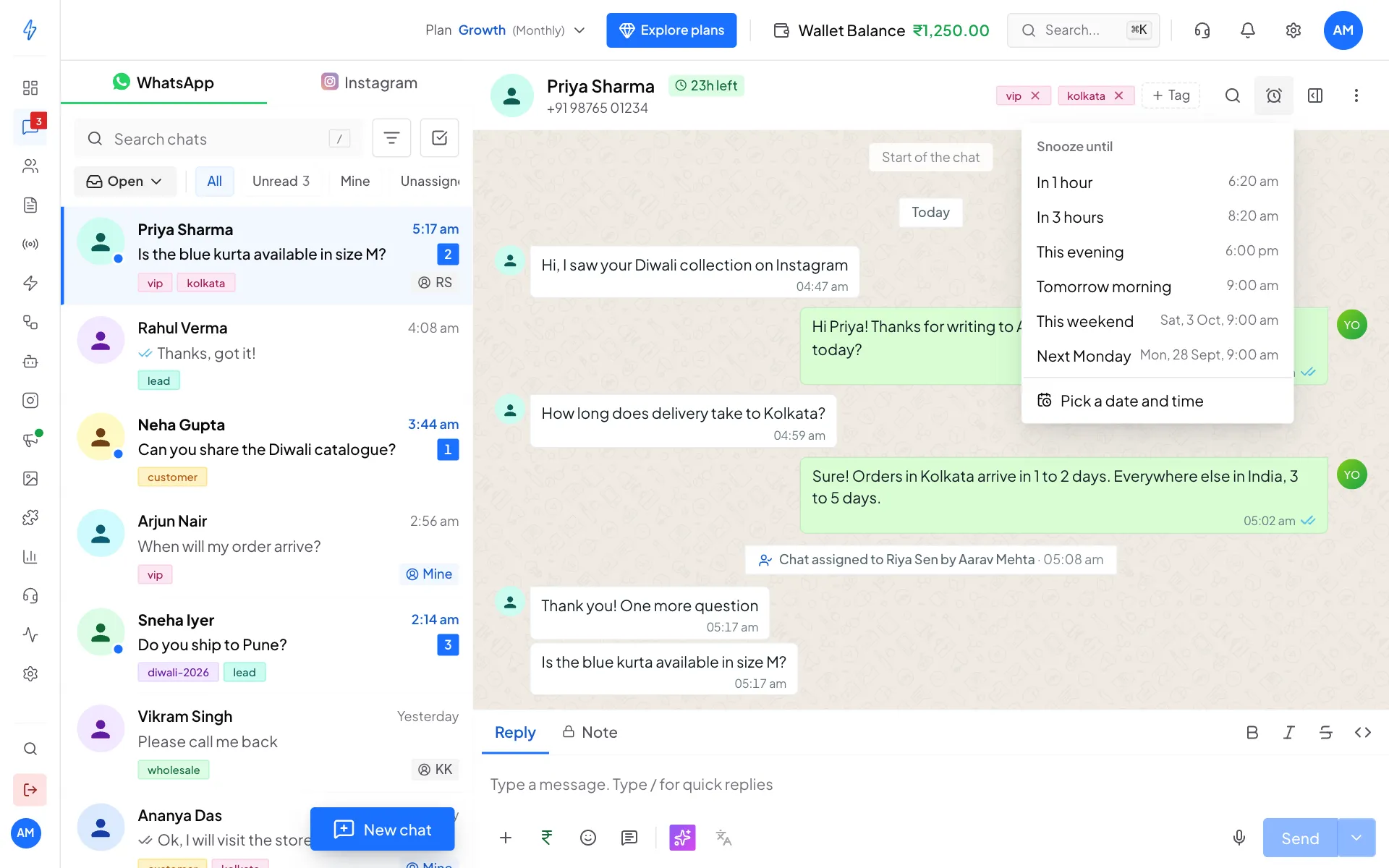
Pick when the chat should come back It comes back by itself
You will see Chat snoozed. The chat moves to Snoozed. It comes back to Open at that time, or sooner if the customer writes. To bring it back early, open it from Snoozed and click Wake up now.
Pin a chat
Open the chat, click More actions (the three dots) and click Pin to top. Pinned chats stay at the top of Open for your whole team. Click Unpin in the same menu to undo. You can also press P.
See how long a customer has waited
When the customer sent the last message and nobody has replied for 15 minutes or more, the chat row shows how long they have been waiting. The label turns orange after 1 hour and red after 4 hours, so the oldest questions stand out.
Select many chats
Click Select chats
Click the Select chats button (the square with a tick) next to the search box. Tick boxes appear on every chat.
Tick the chats
Click each chat you want, or click the box at the top left to Select all shown. The bar shows how many you picked, for example 3 selected.
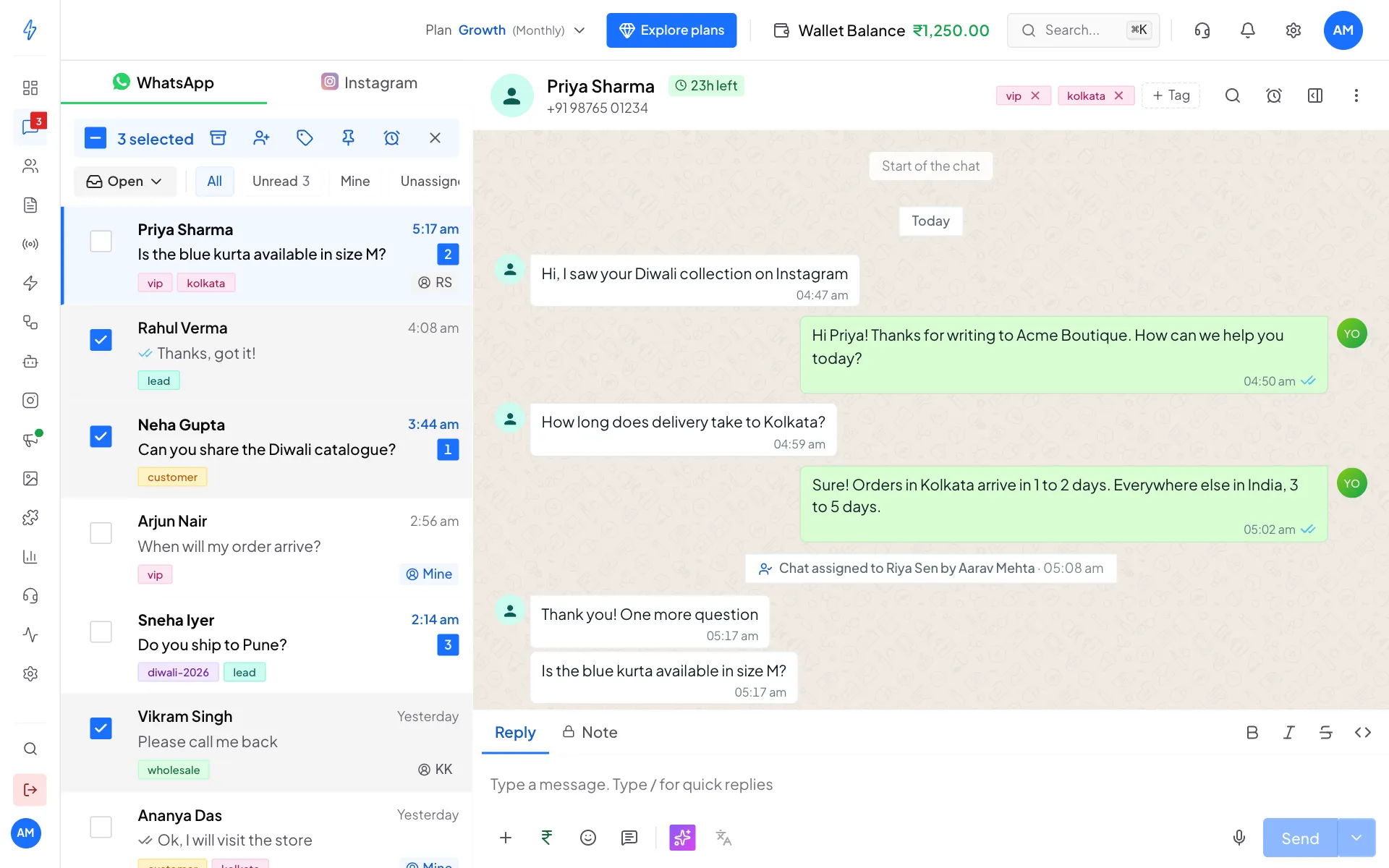
Tick chats, then pick an action in the bar Pick an action
Click a button in the bar: Resolve (or Reopen in Resolved), Assign, Add a tag, Pin or Snooze. One message tells you how many chats changed, for example Resolved 3 chats.
Finish
Click the x at the end of the bar to leave select mode.
Managers and agents can only take unassigned chats for themselves from the Assign button.
Search inside a chat
Open search
Open the chat and click the Search button (the magnifier) at the top right, or press Ctrl + K (Cmd + K on a Mac).
Type what you are looking for
Type at least 2 letters. Matching messages show newest first, with the word highlighted. Click a result to jump to that message.
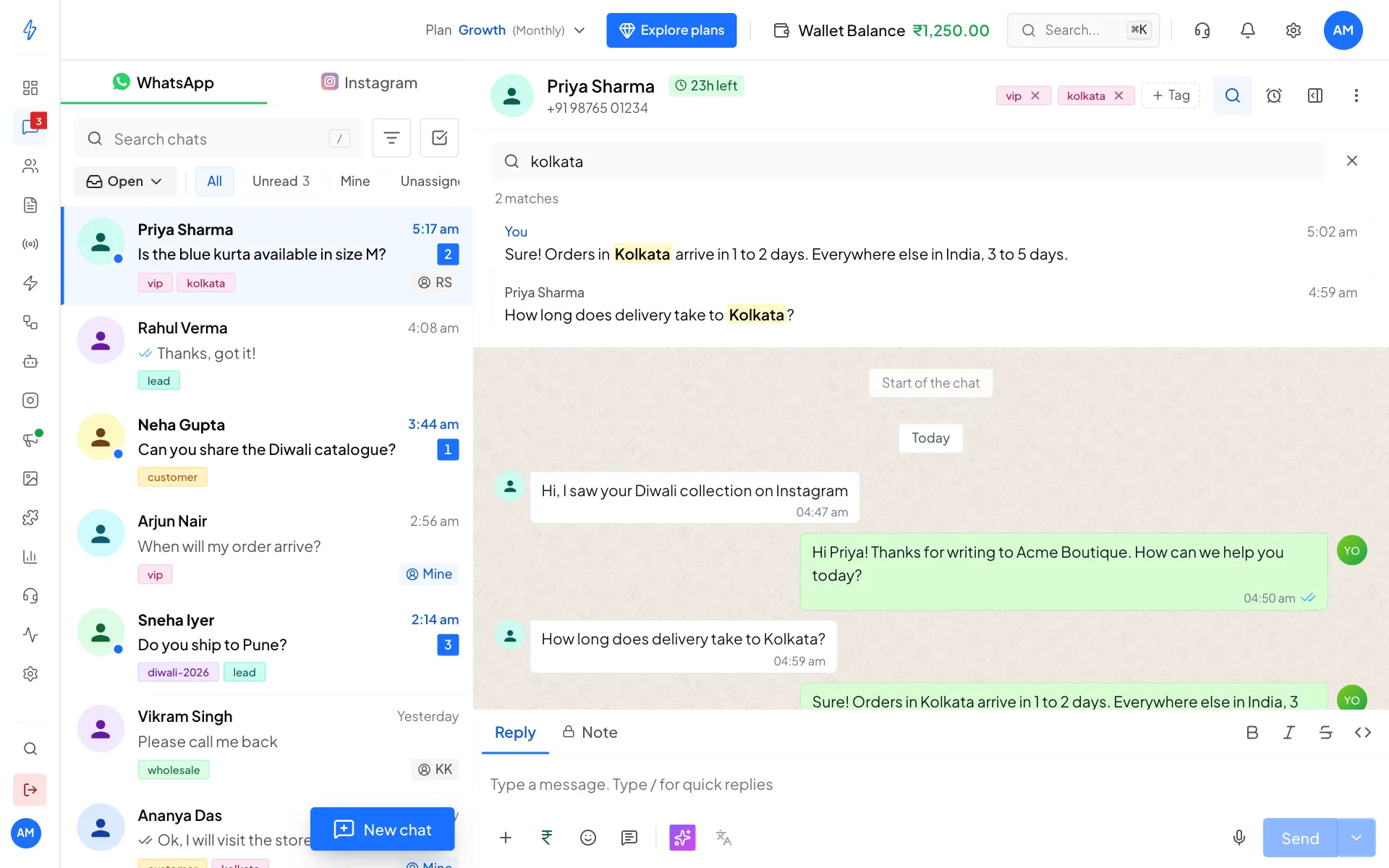
Find any message in a long chat
Send later
Write a reply now and have it go out at a set time, for example the next morning.
Type your message
Type a text message in the reply box.
Click the arrow next to Send
Click the small arrow on the right of Send (Send later) and pick a time, or click Pick a date and time, then Schedule.
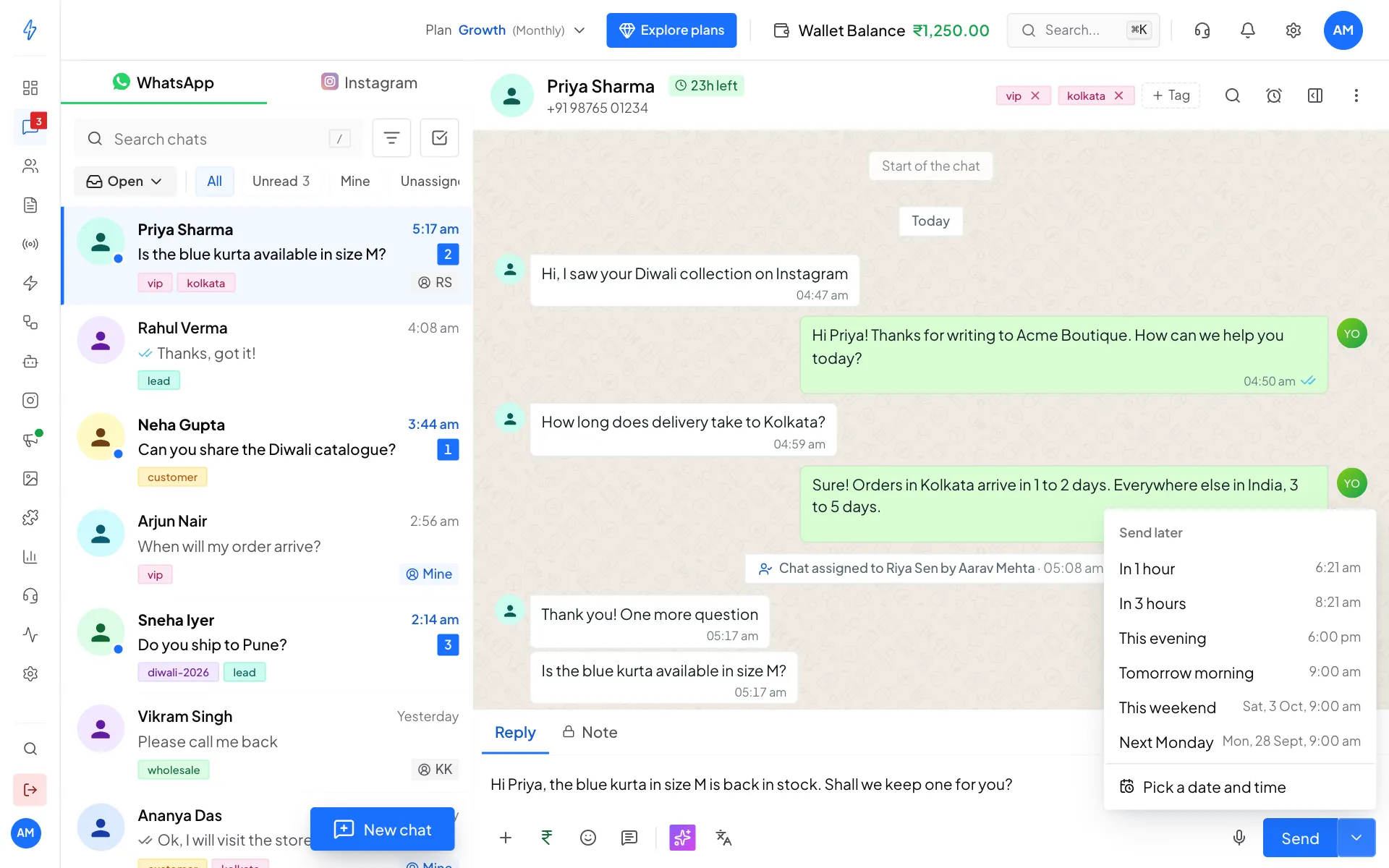
Pick when the message should go Check the scheduled message
The message waits in a strip above the reply box, with the time it will go. Click the x on it to cancel.
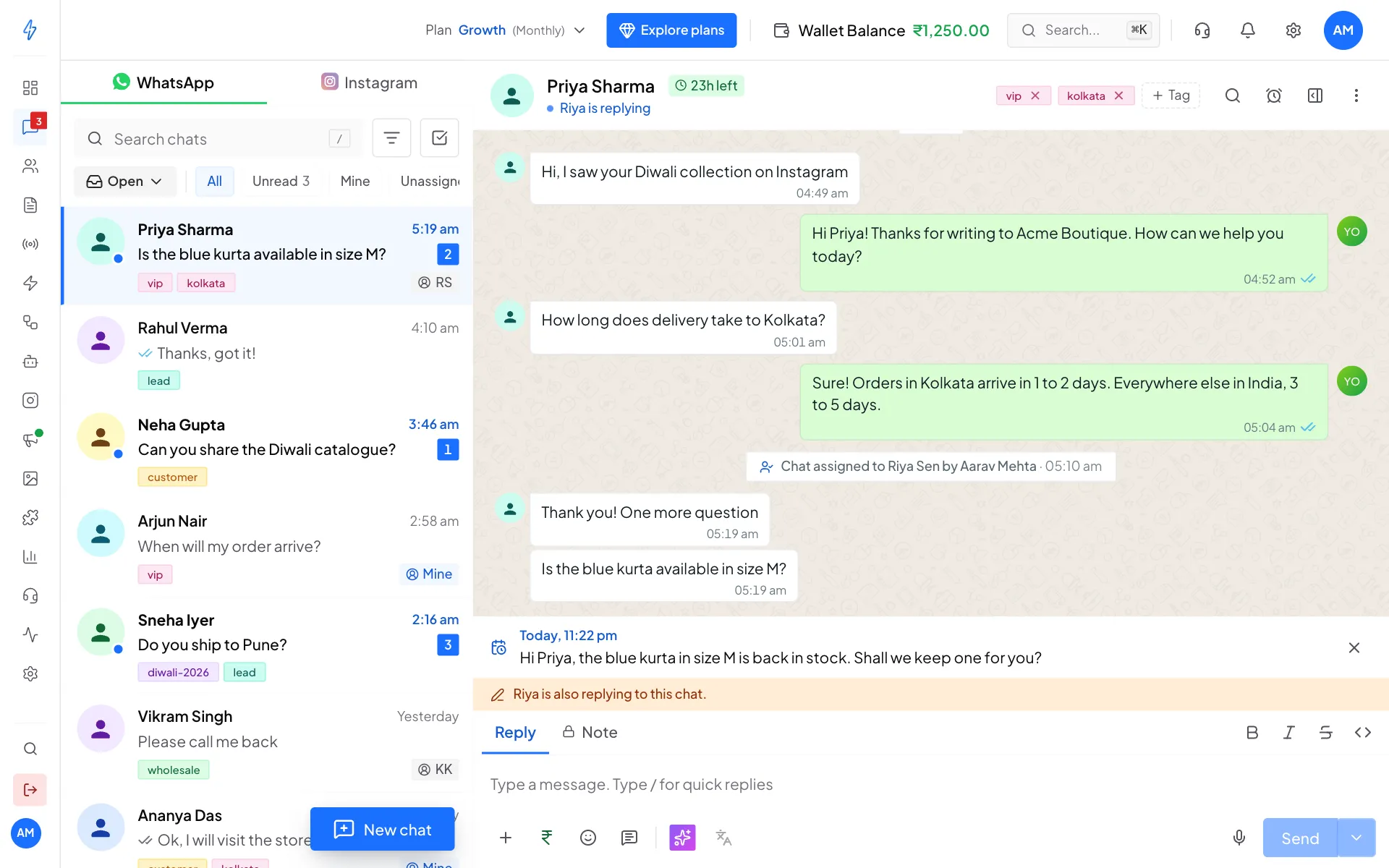
Scheduled messages wait above the reply box
A text message can only go out inside the 24-hour reply window, so you can schedule it up to just before the window closes. Later times are greyed out, with a note that says until when. To reach the customer after that, schedule a template, which can go out any time from 1 minute to 30 days ahead.
Schedule a template
A template is not limited to the 24-hour reply window, so you can schedule it for any time up to 30 days ahead, even when the window has closed.
Open the template
Click + next to the reply box and choose Template, or click Send a template when the window is closed. Pick a template and fill in its values and media.
Click the arrow next to Send message
Click the small arrow on the right of Send message (Send later) and pick a time, or click Pick a date and time, then Schedule.
The template waits in the same strip above the reply box, marked Template, with its name and the time it will go. Click the x on it to cancel. It is charged when it is sent, like any template. If your wallet balance is too low at that time, it is not sent and the strip tells you why. Click the x to remove it from the strip.
See when a teammate is in the same chat
When someone on your team opens the chat you are in, the top of the chat says so, for example Riya is viewing. When they type, it says Riya is replying, and a note above the reply box says Riya is also replying to this chat. This stops two people answering the same customer. You can see it in the picture above.
AI reply suggestions
Click the AI button
Click the purple AI button in the reply box, then click Suggest replies.
Pick a suggestion
You get three ideas based on the chat. Click one to put it in the reply box. Nothing is sent until you click Send, so you can change it first.
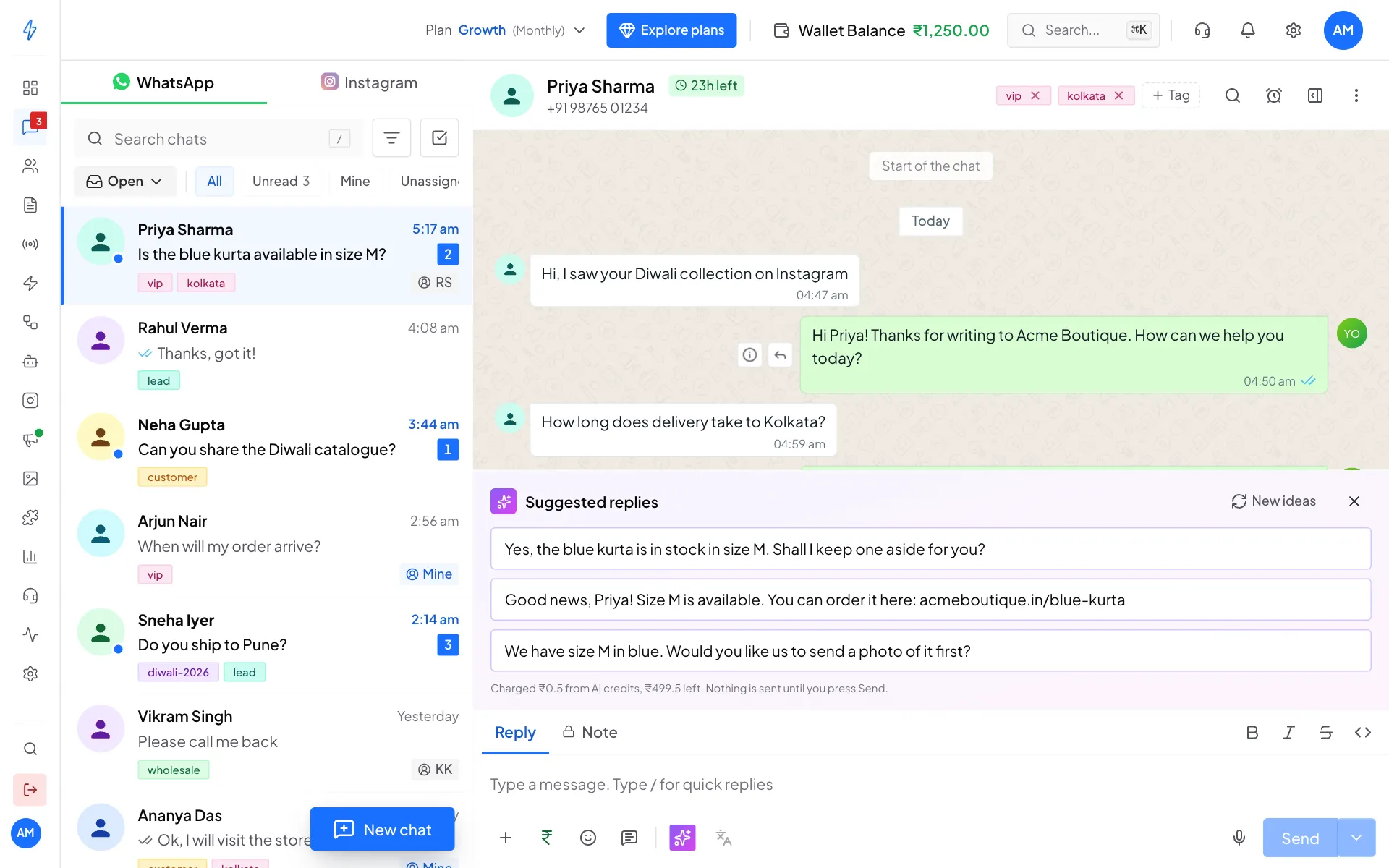
Three reply ideas from AI
The same AI menu can rewrite what you typed: Fix grammar, Make shorter, Make longer, Simplify, More professional, More friendly or More playful. The Translate button next to it puts your message into another language. Each use is paid from your AI credits, and the panel shows what it cost.
AI chat summary
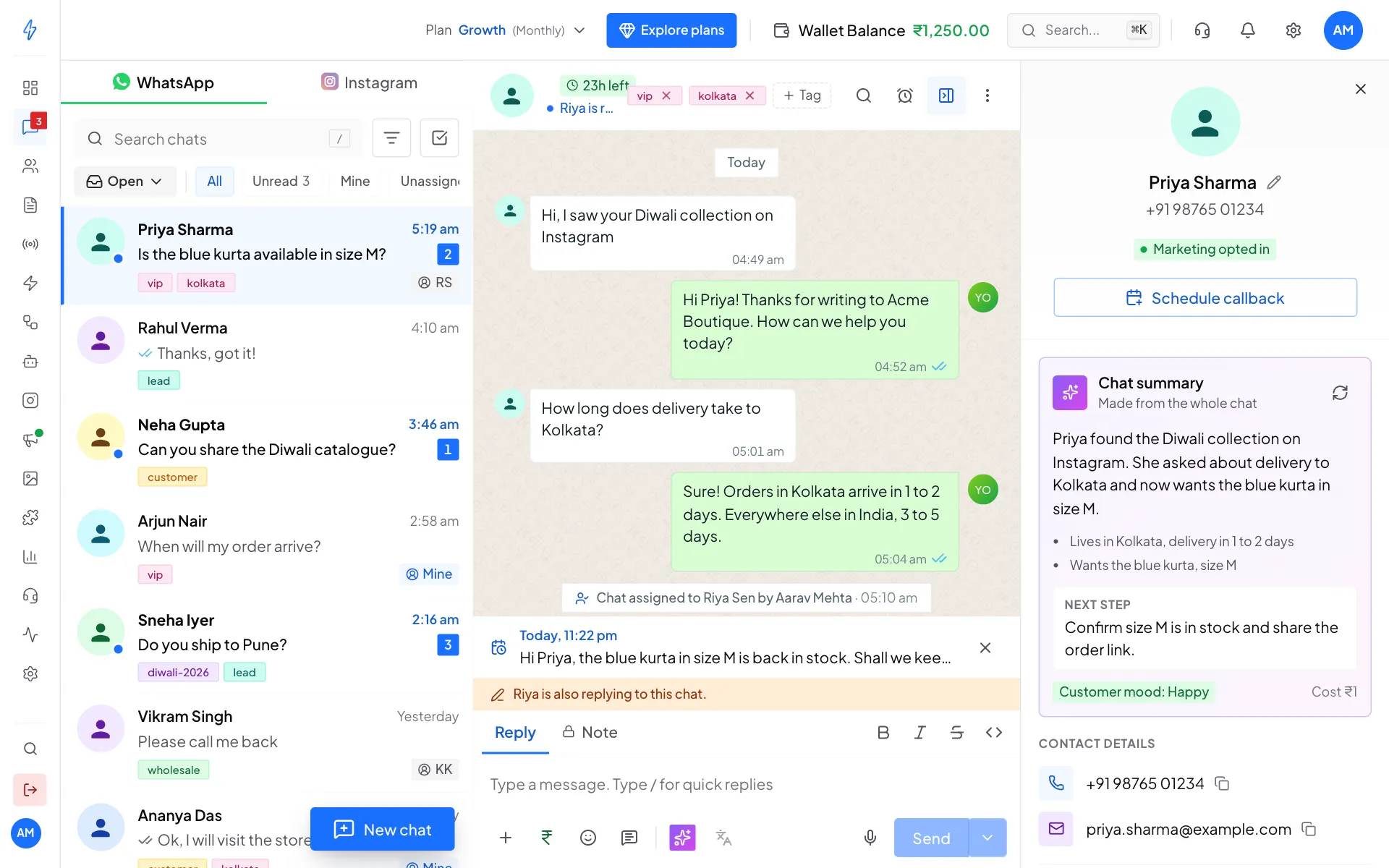
Open the contact panel (click the customer's name at the top of the chat) and click Summarize chat. You get a short summary, the key points, a suggested Next step and the Customer mood. Each summary is paid from your AI credits.
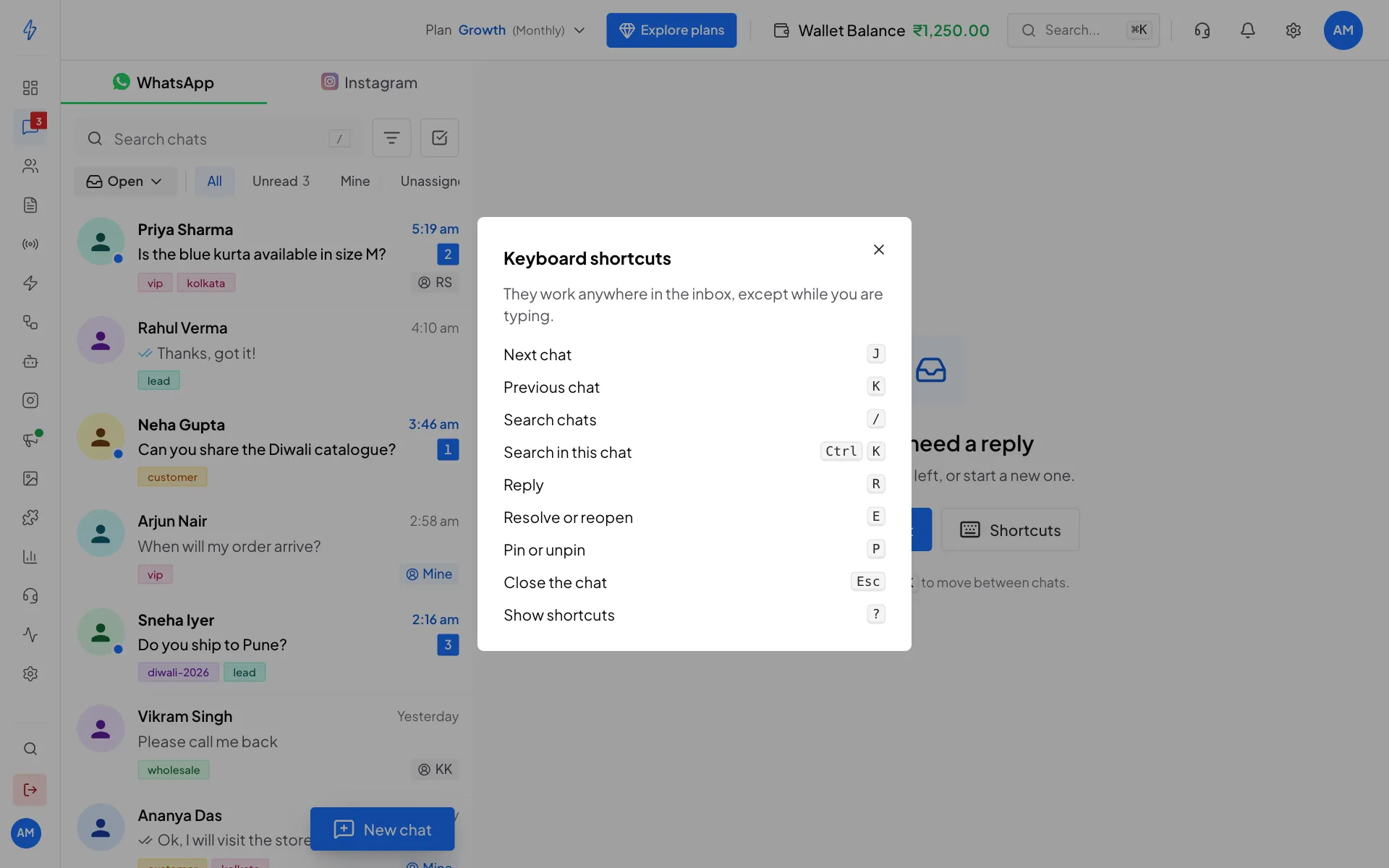
Keyboard shortcuts
Shortcuts work anywhere in the inbox, but not while you are typing in a box. Press ? to see them, or click Shortcuts when no chat is open.
How long chats are kept
If your plan removes inactive chats after a time, the end of the chat list says so, for example Inactive chats are removed after 3 months. Click Keep them longer to see plans that keep chats longer. If there is no such line, your chats are kept.