
Set up SMS
Setting up SMS takes three short steps: your DLT details, our telemarketer on your DLT portal, and your sender IDs. Keep your DLT portal open in another tab, because you copy details from it and add us to it.
Before you start, have your DLT registration ready. See What you need before you start. Only an owner or a manager can set up SMS.
Open the setup
Open Channels
Open Settings (the gear icon in the left sidebar or the top bar) and click Configure Channels.
Click Set up SMS
On the SMS card, click Set up SMS. If you started before, the button says Continue setup and opens at the first step not done yet.
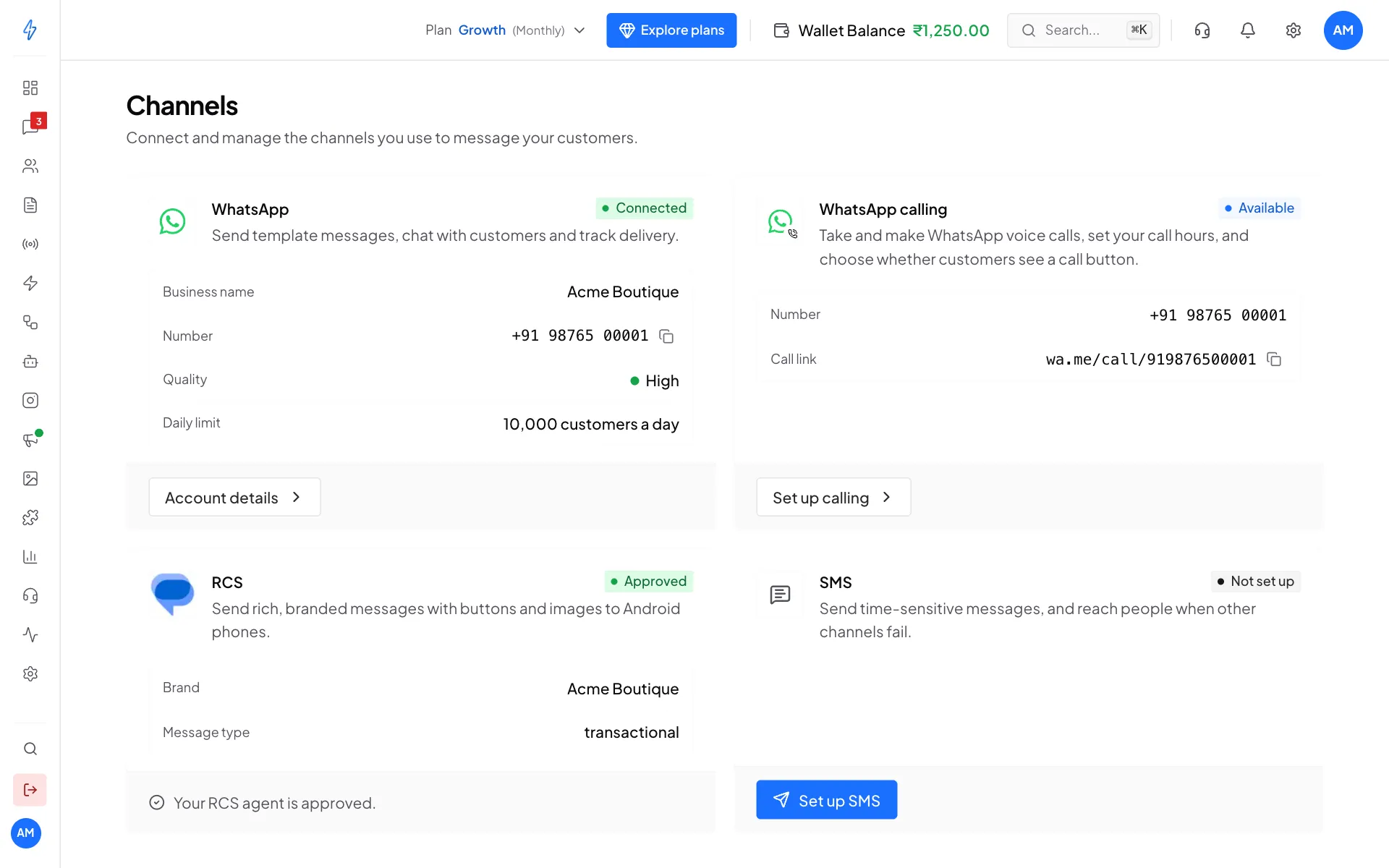
The SMS card before setup
Step 1: Your business on DLT
Enter the details from your DLT registration. You find them after signing in to your portal.
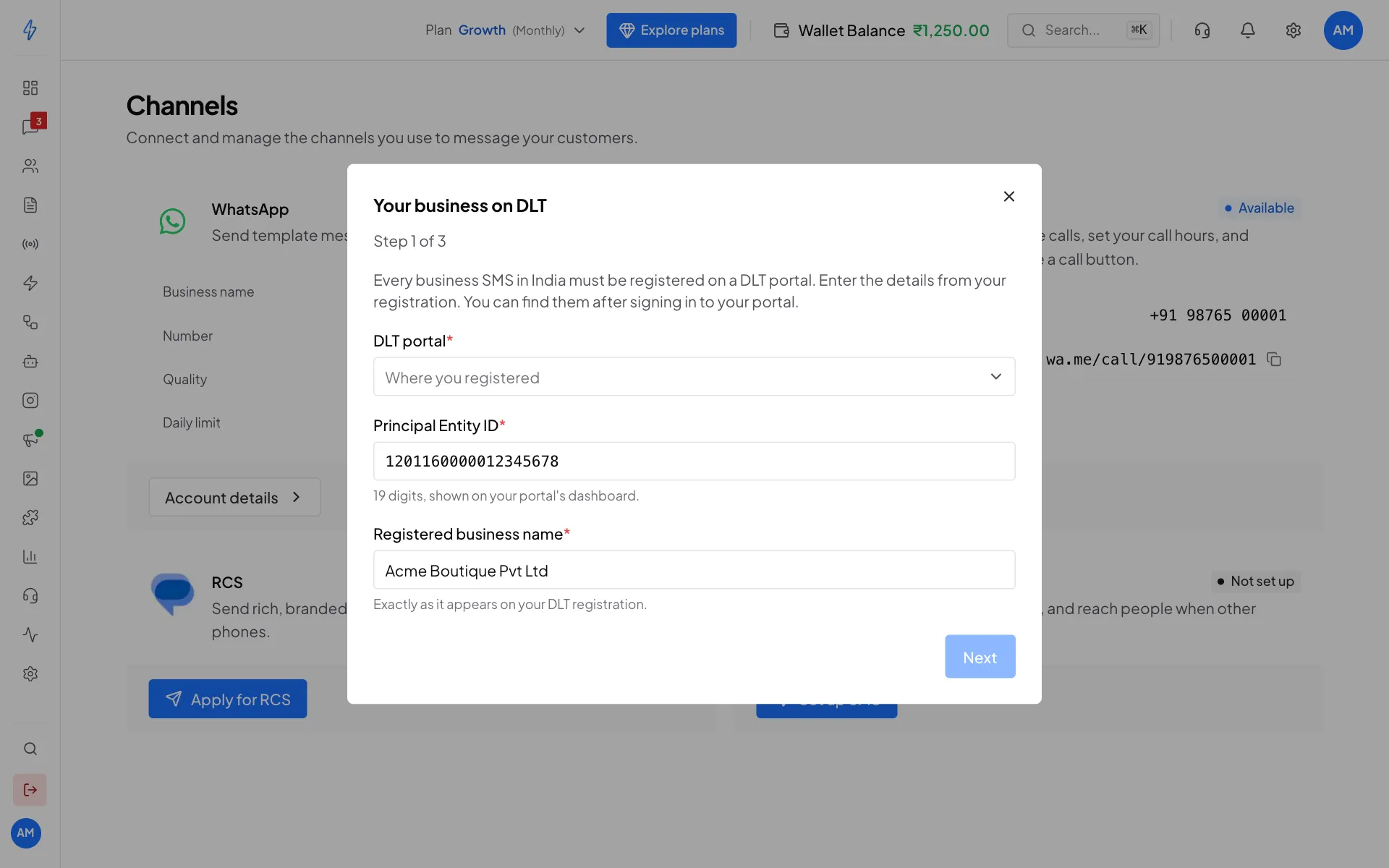
Click Next.
Step 2: Add us to your DLT chain
On DLT, every SMS travels through a chain of telemarketers from your business to the phone company. You add only our telemarketer to your chain on your DLT portal. We take care of the rest.
Copy our telemarketer's details
The app shows our telemarketer's name and ID. Click Copy name and Copy ID to copy them.
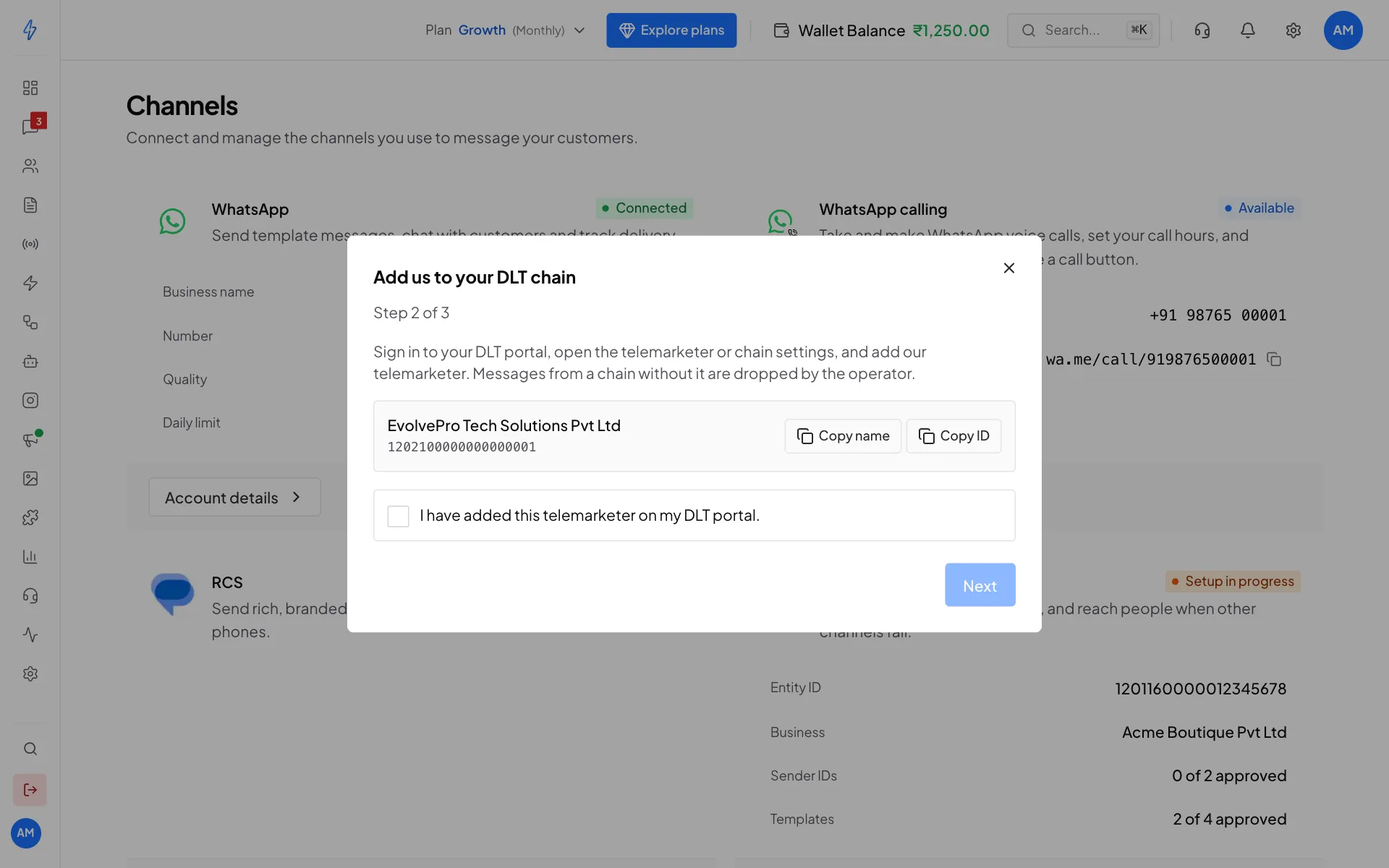
Step 2: copy our telemarketer's name and ID Add it on your DLT portal
Sign in to your DLT portal, open the telemarketer or chain settings, and add the telemarketer shown in the app.
Confirm in the app
Back in the app, tick I have added this telemarketer on my DLT portal and click Next. Your SMS card then shows In review.
The step that most often goes wrong
If our telemarketer is not in your chain, the phone company drops your SMS and it is never delivered. Check it is saved on your portal before you tick the box.
If the app says Chain details are not ready, please try again later.
Step 3: Your sender IDs
A sender ID (also called a header) is the 6-character name your customers see on the SMS, for example SHOPIN. Add each one you registered on your DLT portal. You can add as many as you need.
Type the Sender ID
Type the Sender ID, 6 letters or digits.
Pick its Type
Pick the Type, the same as on your portal: Promotional, Transactional, Service (implicit) or Service (explicit).
Click Add
Click Add. Repeat for each sender ID. A sender ID is ready as soon as you add it, so it shows Approved straight away. Check the spelling and type match your DLT portal before you click Add.
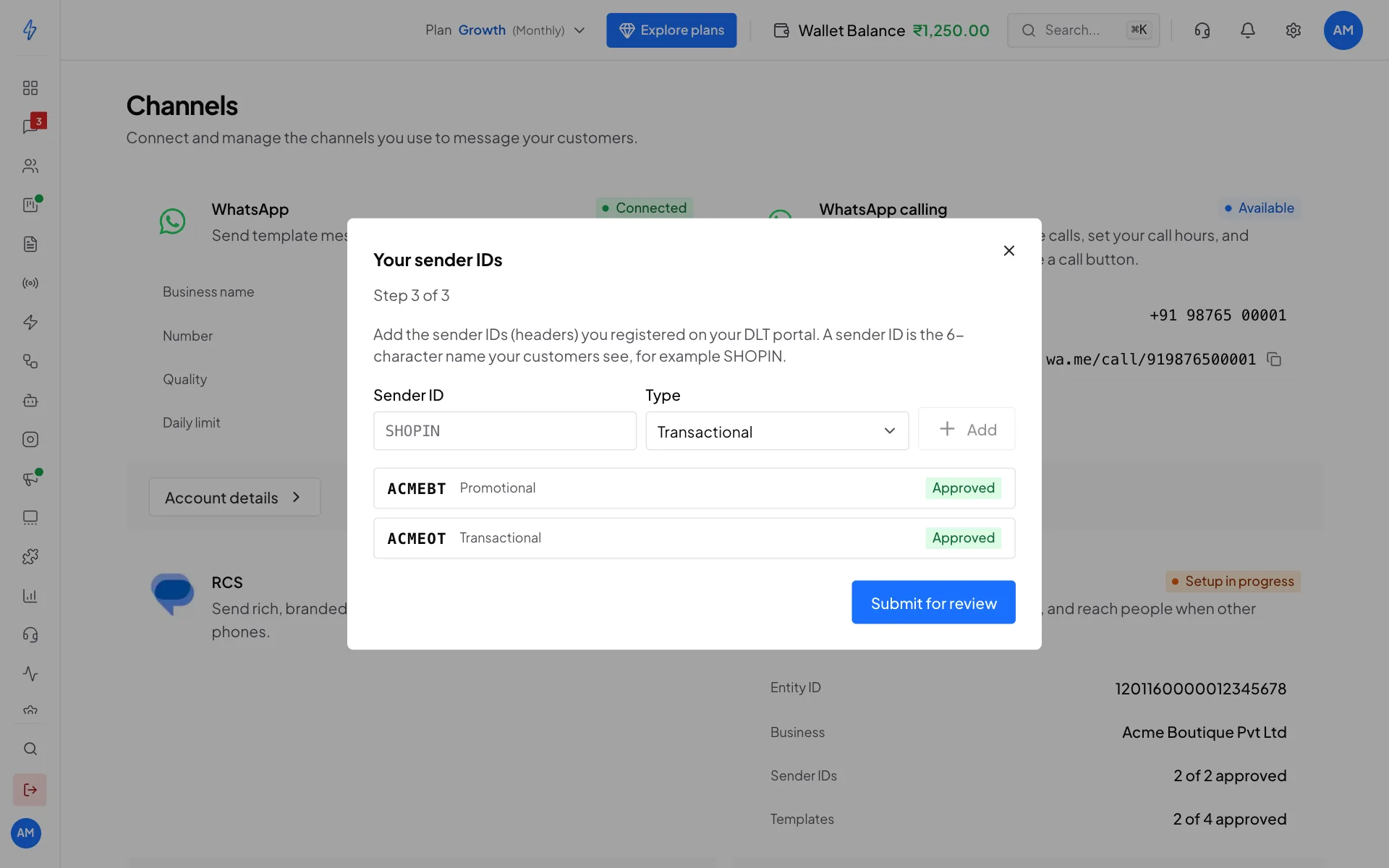
Step 3: add every sender ID you registered Submit
Click Submit for review.
Remove a sender ID
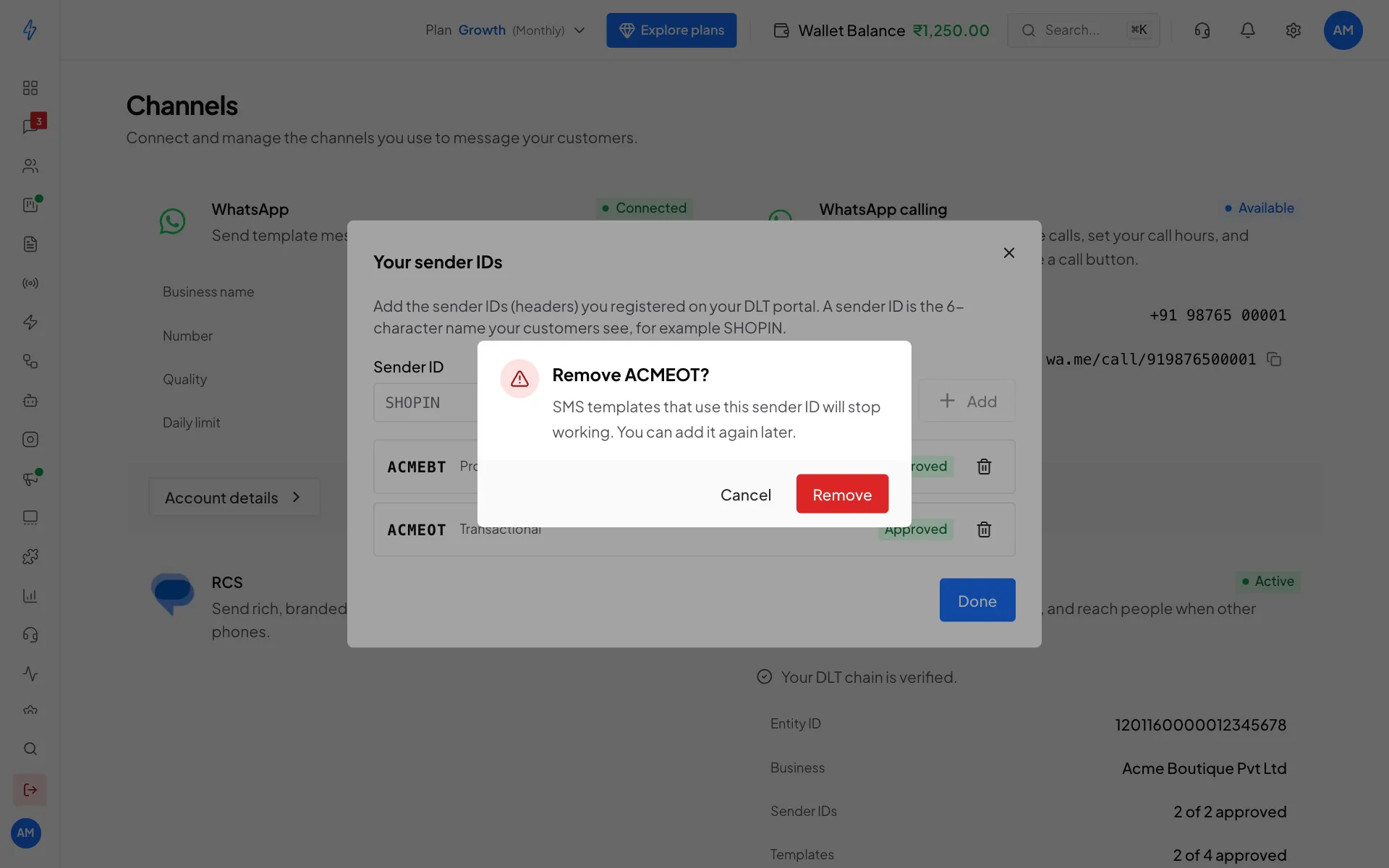
Added one by mistake, or stopped using it? Open Settings, click Configure Channels, then click Sender IDs on the SMS card. Click the bin icon next to the sender ID, then Remove. SMS templates that use it stop working. You can add it again later.
After you submit
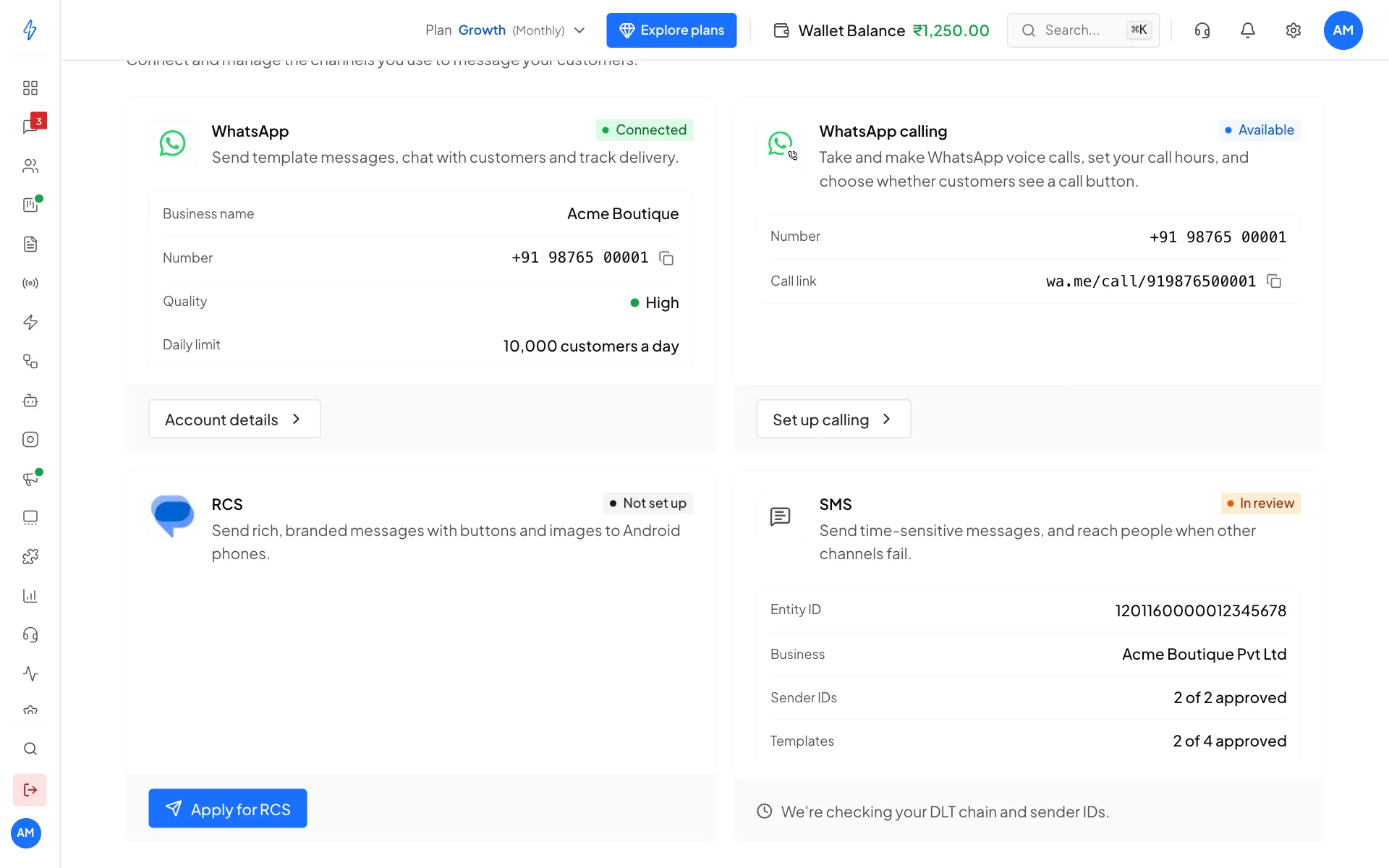
Once you confirm our telemarketer is on your DLT chain, the SMS card shows In review and We're checking your DLT chain and sender IDs. You do not need to do anything. We check your DLT chain and turn SMS on for you.
The card also shows your Entity ID, business name, and how many sender IDs and templates are approved.
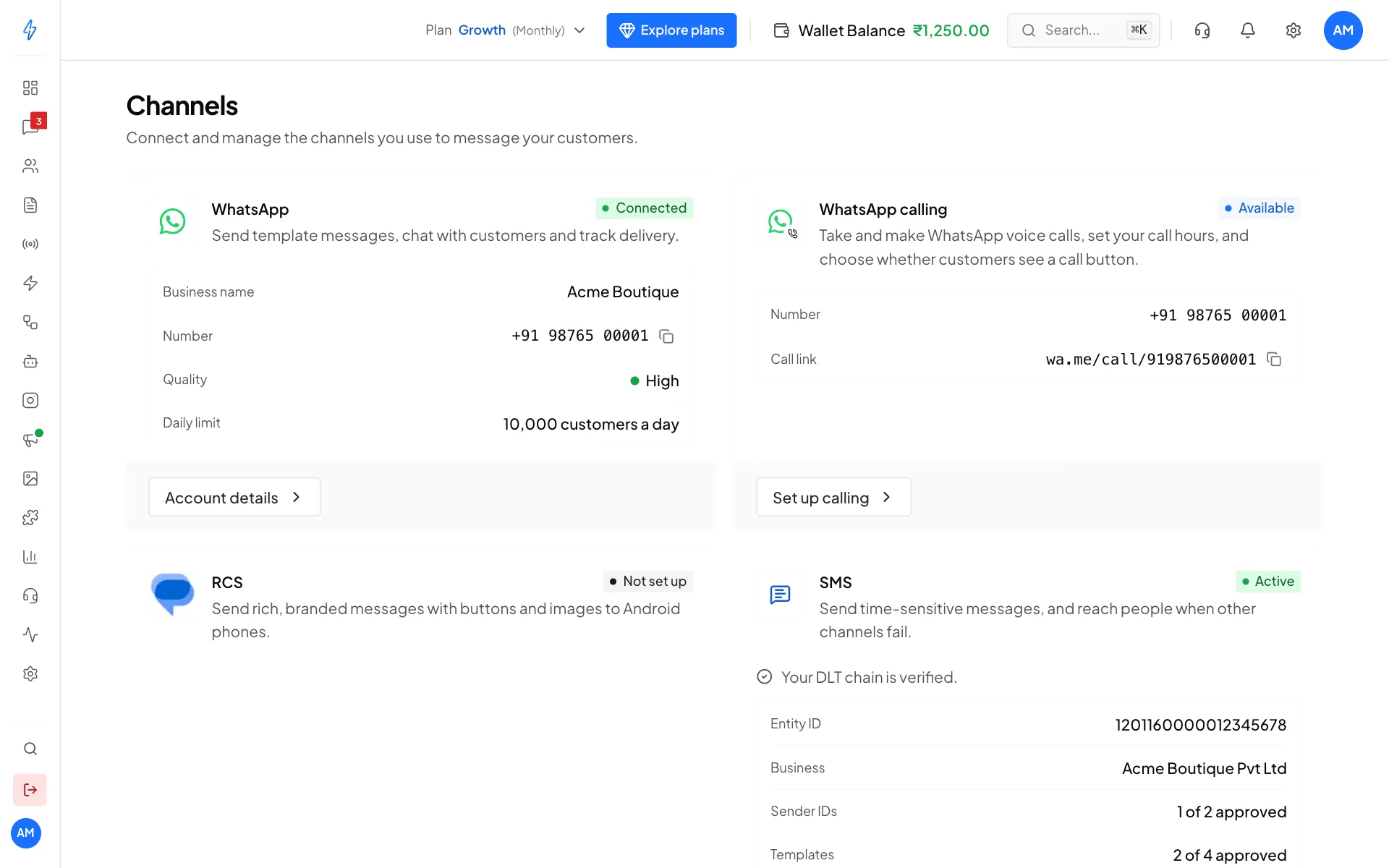
When we approve it, the card turns Active and shows Your DLT chain is verified. You can now send SMS.
You do not have to wait to add templates. You can add your SMS templates while your setup is in review, and verify them once it is active.
Delivery reports
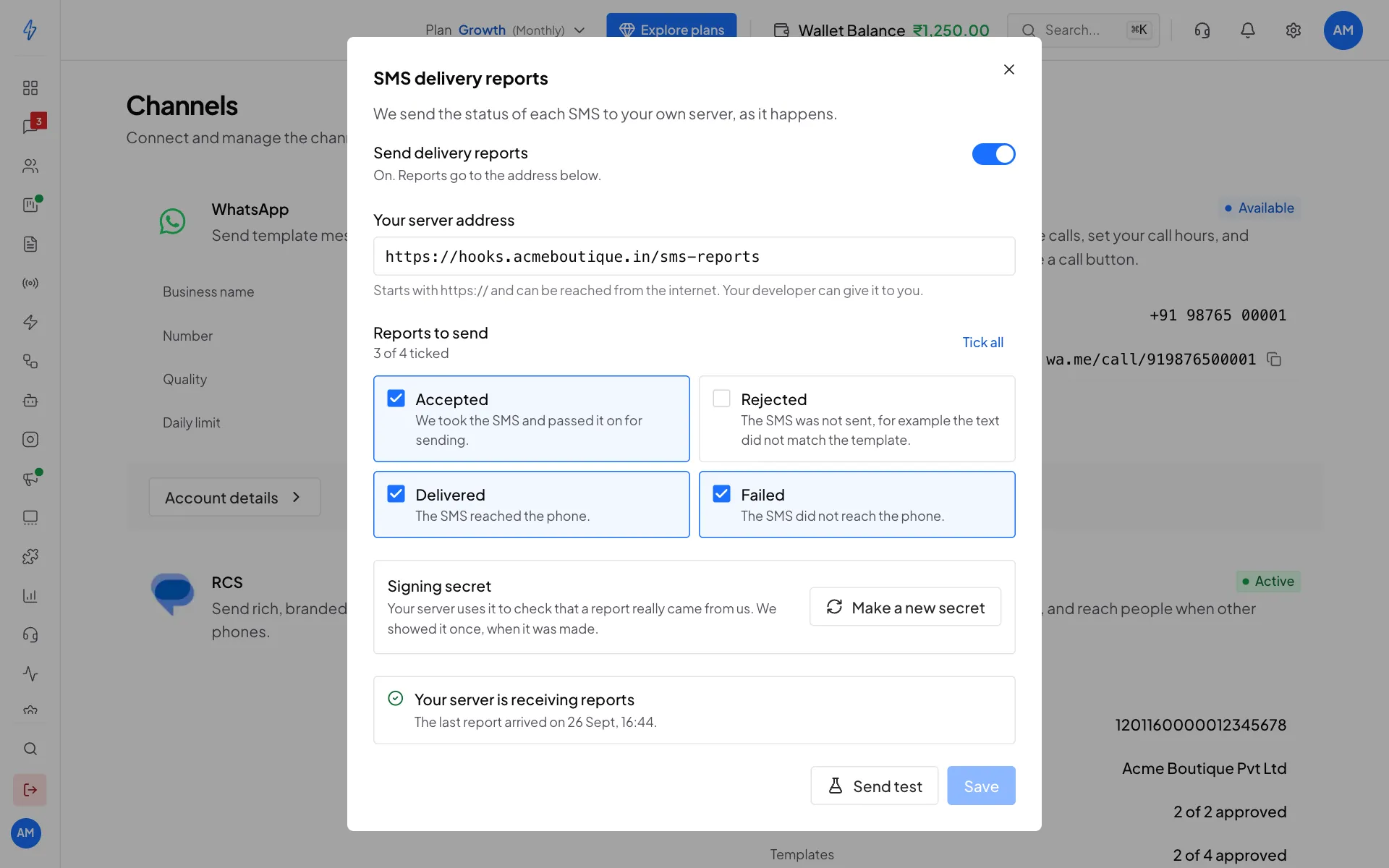
Want the status of each SMS sent to your own server as it happens, for example to update orders in your system? Once the SMS card is Active, an owner or a manager can click Delivery reports on it.
Add your server address
Paste the address on your server that should get the reports. It must start with
https://. Your developer can give it to you.Pick the reports
Tick the reports you want: Accepted, Rejected, Delivered and Failed. Leave them all ticked if you are not sure. There is no refund report: an SMS is charged when it is sent and not refunded if it is not delivered.
Save and copy the secret
Click Save. The first save shows a signing secret once. Copy it and give it to your developer. Their server uses it to check that each report came from us.
Send a test
Click Send test. The window shows whether your server got it.
If something is not right, the window says what in plain words. Click Fix it for me and it corrects what it can, such as a missing https://, and saves. It never switches reports back on for you.
To stop reports, switch off Send delivery reports and click Save. Lost the secret? Click Make a new secret. The old one stops working straight away, so give the new one to your developer.
For developers, the report format and the signature check are in SMS delivery reports.
SMS card statuses
"Sending is not open yet"
If the SMS card says Sending is not open yet. You can finish setup now., SMS sending is not switched on for your account yet. You can still finish the setup and add your templates. You can verify templates and send SMS as soon as sending opens.
Send from your own system
You can also send SMS from your website, app or CRM, with the same API key you use for WhatsApp. See SMS API.