
SMS templates
Every SMS you send uses a template you registered on your DLT portal. Add each template to the app once, then check it with one test SMS. After that it is Approved and ready to send.
You can add templates while your SMS setup is In review, and verify them once the SMS card is Active. Only an owner or a manager can add, verify or remove SMS templates.
Open SMS templates
Click Templates in the left sidebar, then click the SMS tab. Each template shows its name, DLT template ID, text, sender ID, type and status.
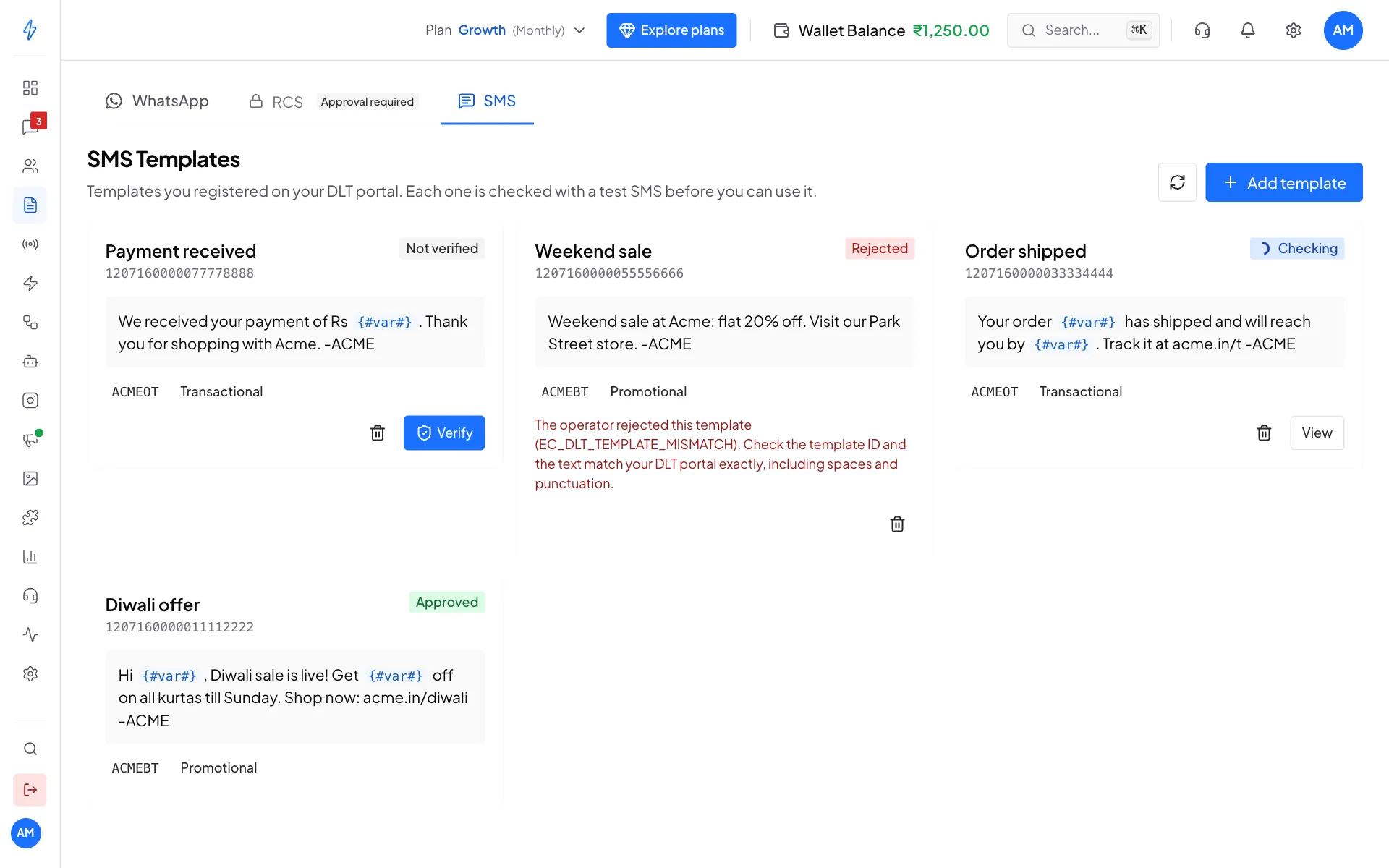
If SMS is not set up yet, the tab says so and links to the setup. See Set up SMS.
Add a template
Click Add template
Click Add template at the top right. The Add SMS template box opens.
Copy the details from your DLT portal
Fill in each field exactly as on your portal:
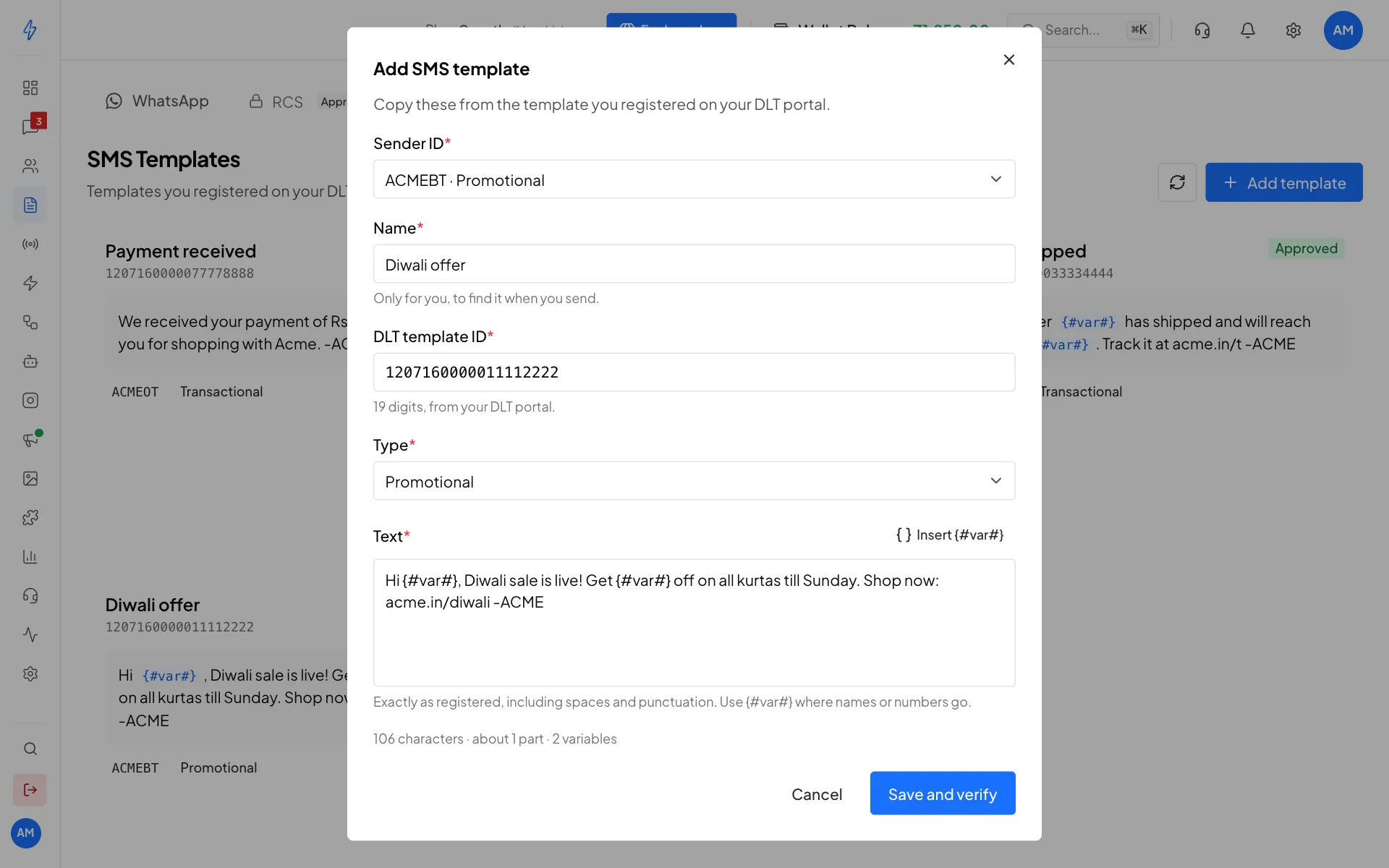
Copy every field exactly from your DLT portal Mark the variables
Write each part that changes (a name, an amount, an order number) as
{#var#}, the same way it is written on your DLT portal. Click Insert{#var#}to add one.Save and verify
Click Save and verify. The template is saved as Not verified, and the verify step opens.
Example text:
Dear {#var#}, your order {#var#} has been shipped. Track it at shop.in/t - SHOPINUnder the text, the app shows the number of characters, about how many SMS parts the message takes, and how many variables it has. Hindi, other Indian scripts and emoji make the message Unicode, which fits fewer characters in each part. See Pricing and billing.
Verify a template
Nobody can look up a DLT template by its ID, not us and not the phone companies. They check every SMS against your DLT registration when it is sent. So the only proof that a template matches is to send it once.
Choose the test number
In Send the test to, enter an Indian mobile number you can check now. Your own number is filled in for you.
Fill in the variables
Enter a value for each Variable, up to 30 characters each.
Check the preview and send
The Preview shows the message, the number of parts and what this test costs. Click Send test and verify.
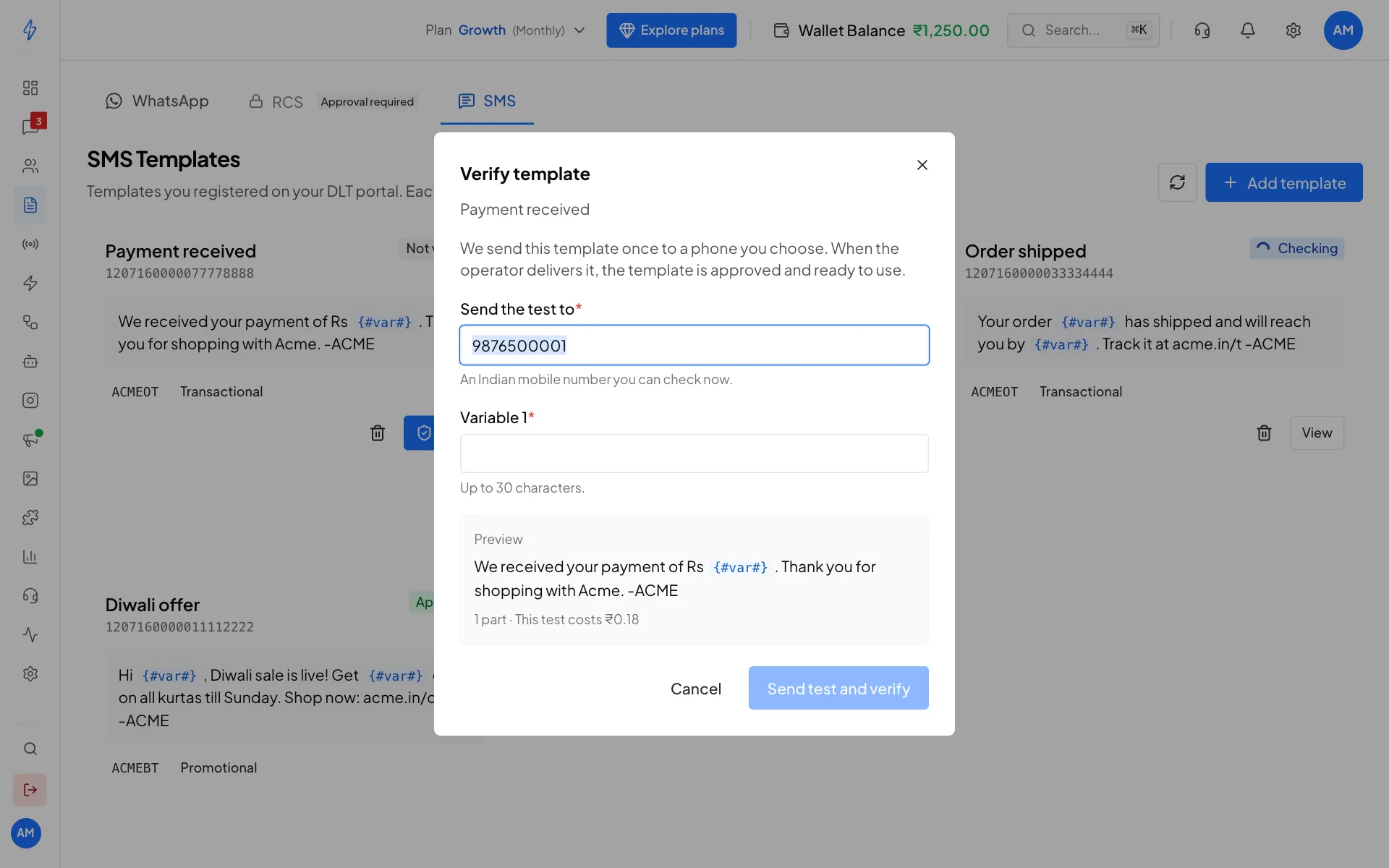
Verify a template by sending one test SMS
We send one real test SMS. It is charged to your wallet like any other SMS, at the price shown in the box.
You can close the box while it checks (Close, keep checking). The template shows Checking in the list and updates by itself when the result arrives.
The result
The result comes from the phone company's delivery report, usually within a few seconds.
Template statuses
Remove a template
Click the bin on a template, then Remove. This removes it from the app only. Your registration on the DLT portal does not change. Approved templates cannot be removed.
Using templates
- Any Approved template can be sent to one contact.
- Only Approved Promotional templates can be used in an SMS broadcast. This is a DLT rule.
- Any Approved template can be sent from your own system. See Send from your own system.
Send from your own system
Send any approved template from your website, app or CRM with the SMS API. You need the template's DLT template ID and one value for each {#var#}. See SMS API.