
What an AI assistant can do
A connected assistant works in your Splashify Pro account the way you would in the app: it reads your chats and reports, replies to customers, sends templates and runs broadcasts. It can only do what is on this page, and anything that costs money is charged to your wallet at your normal rates.
Permissions
When you connect an assistant, the Splashify Pro page lists what it will be able to do and see. You allow all of it or nothing. The last column shows what an assistant we have not checked yet gets (see Assistants we have not checked).
What it can do, by area
Account and money
- Show your business name, WhatsApp number and its status, so you can check which account is connected
- Show your wallet balance, low balance alert, recharges and charges
- Show your plan, its expiry date and features, and your invoices
- Show message reports (sent, delivered, read, failed) and spending for the last 7 or 30 days
Contacts and segments
- Find contacts by name, phone or email, and list archived or blocked contacts
- Show a contact with tags, custom fields, opt-out state and notes
- Add contacts, change names, emails and custom fields, add and remove tags, add private notes
- Block and unblock contacts, and restore archived contacts
- List, create and edit segments, see who is in a segment, and count it again
Chats
- List WhatsApp chats: open, snoozed, resolved, unread, or by search text
- Read the messages in a chat and search inside one chat
- Mark chats as read, close and reopen them, and assign them to a team member
- Start a chat with a number that has no chat yet
- Show your saved replies and the files in your media library
The assistant works with WhatsApp chats only. Instagram and RCS chats are not available to assistants yet.
Sending
- Send a text, a template with its variables, a file (image, video, audio or document) or a message with up to 3 reply buttons or a list
- Schedule a text or template in a chat for later, see what is scheduled and cancel it
A text, a file or buttons reach only people who wrote to you in the last 24 hours. For anyone else the assistant sends an approved template. Files are sent from a public link or from your media library.
Templates
- List your templates and filter by name, status, category or language
- Create a template and send it for review (text headers only, up to 20 a day)
- Refresh the review status and quality of your templates
- Show read, reply and click rates per template
Broadcasts
- List broadcasts with their status and counts, and show one with live progress and cost
- List the messages of a broadcast with each number and status
- Work out how many people a broadcast will reach and what it will cost, before anything is sent
- Start a broadcast now or schedule it, start a scheduled broadcast early, or cancel one
- Send a template again to a group of an earlier broadcast, for example the people who did not read it
Before every broadcast the assistant shows you the number of people and the estimated cost, and asks you to confirm that the people on the list agreed to get messages from you.
AI agents, Flows, team and support
- Show your AI agents and their settings, and your WhatsApp Flows
- Show your team members with their names and roles
- Open a support ticket with our team (up to 5 a day), read your tickets and reply to them
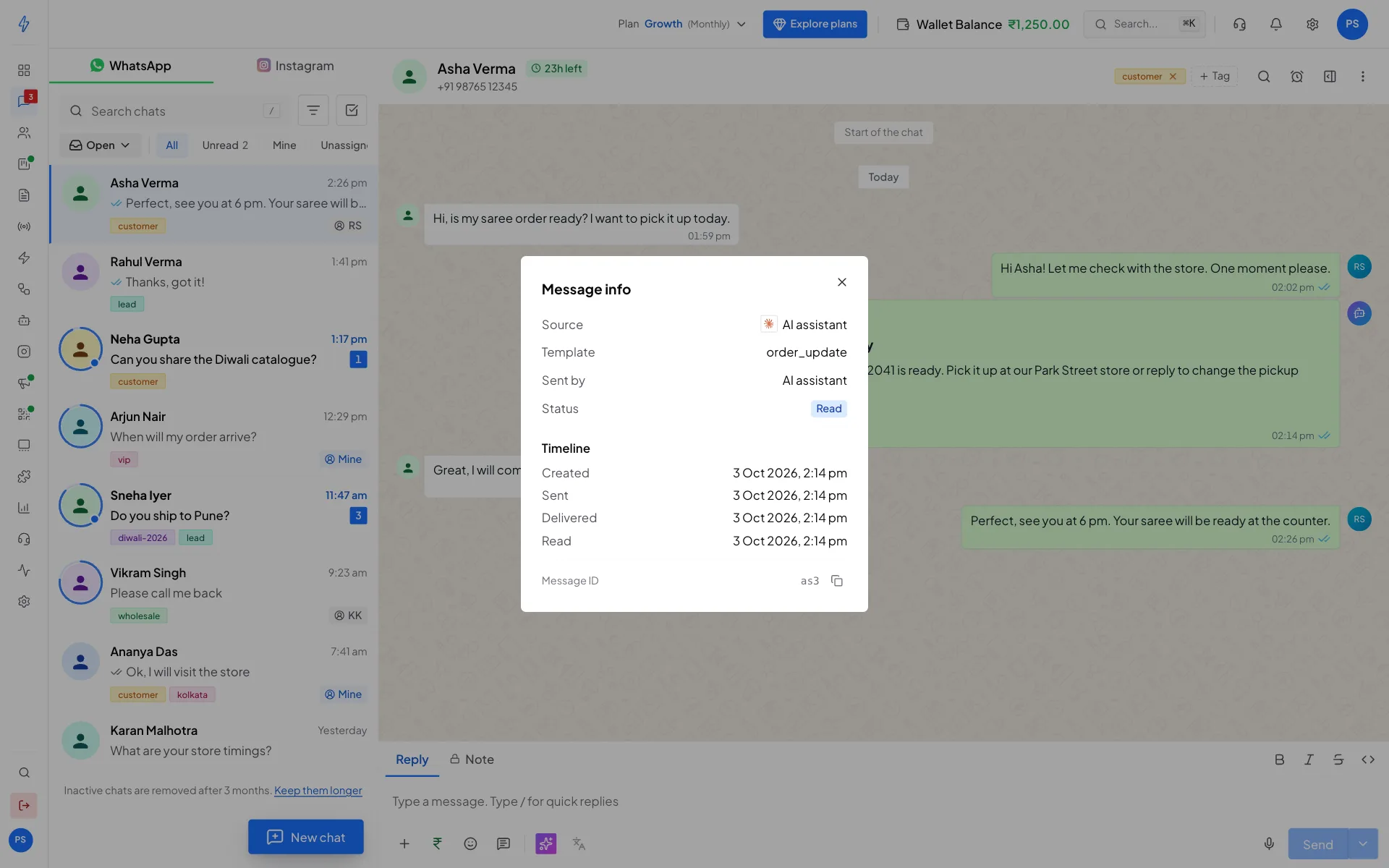
Messages the assistant sends show in your inbox with an AI assistant icon, and their Message info says AI assistant, with the assistant's logo while it is connected (ChatGPT, Claude, Cursor, Gemini and Windsurf), so you can tell them apart from your team's messages.
Example requests
Write to your assistant the way you would ask a colleague:
- "Show my unread WhatsApp chats from today."
- "Send the order_update template to 919876543210 with order 1234."
- "How much did I spend on WhatsApp last week?"
- "Schedule the Diwali offer broadcast to my VIP segment for Friday 10 AM."
- "Send the Diwali offer again to everyone who did not read it."
- "How did yesterday's broadcast do? How many people read it?"
- "Assign the chat with Rahul Jain to Neha and add a note that he wants a call back."
- "Add the tag VIP to Asha Verma."
- "Which of my templates are still in review?"
- "What is my wallet balance, and when does my plan end?"
- "Create a utility template that tells customers their order has shipped, with the order number as a variable."
- "Open a support ticket: my broadcast from this morning is stuck at 50%."
Give phone numbers with the country code and digits only, for example 919876543210 for an Indian number.
What it can not do
Some actions stay in the app, because they can not be undone or they change who can get into your account. An assistant can not:
- archive or delete contacts, or delete templates or segments;
- add, change or remove team members;
- change your WhatsApp number, account settings, allowed IPs, access tokens, single sign-on, connected apps or webhooks;
- recharge your wallet, pay, or change your plan;
- delete your account;
- restart a stuck broadcast (open a support ticket, or use the app);
- read your activity logs;
- change its own daily limits;
- send a location, a contact card, a reaction, a WhatsApp Flow or a catalog message;
- upload files (it sends files from a public link or from your media library);
- create templates with an image, video or document header;
- work with email, SMS, RCS, Instagram, calling, Voice AI, chatbots, payment links, store automations, drip campaigns or ads.
We plan to add more of these over time. For now, do them in the app at app.splashifypro.com.