
Send SMS and broadcasts
Once your SMS card is Active and you have at least one Approved template, you can send an SMS to one contact from the Contacts page, or a promotional broadcast to many contacts at once.
Not there yet? See Set up SMS and SMS templates.
Send to one contact
Open the contact's menu
Click Contacts in the left sidebar. On the contact's row, click the three dots, then Send SMS.
Pick the template
Under Template, choose an approved template.
Fill in the variables
Fill in each Variable, up to 30 characters each. Variable 1 starts with the contact's name. Change it if your template uses that slot for something else.
Check and send
The preview shows the message, the number of SMS parts and the cost. Click Send.
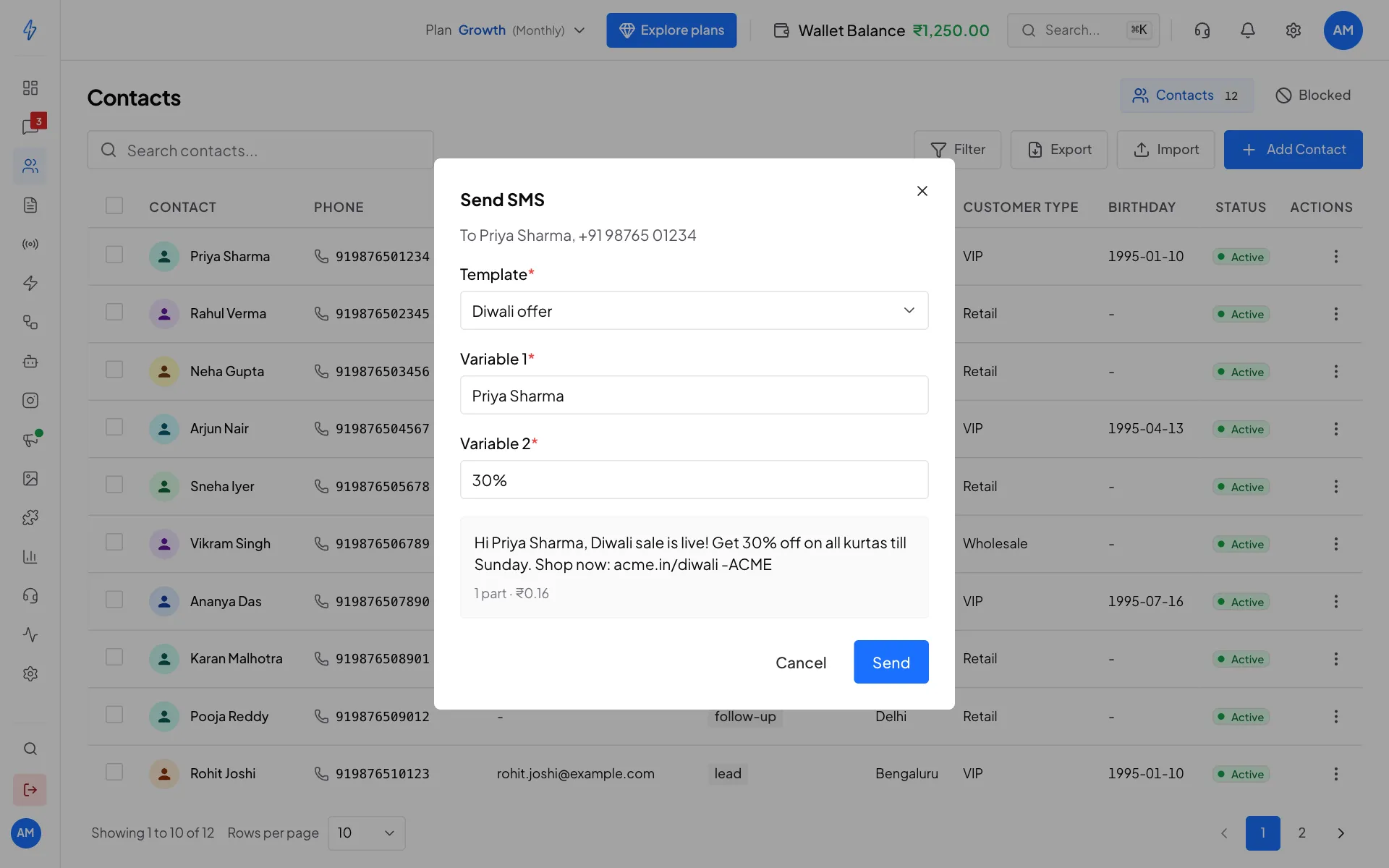
Send one SMS from a contact, with a preview and the cost
You will see SMS sent and the amount charged to your wallet.
Good to know:
- People who opted out of your messages cannot be sent SMS. The app says so and nothing is charged.
- Send SMS is not shown for blocked contacts.
- SMS goes to Indian mobile numbers only.
- Agents can send an SMS to a contact too.
Send an SMS broadcast
A broadcast sends one promotional SMS to everyone in the segments and tags you pick. Only an owner or a manager can create, start or cancel an SMS broadcast.
Open the SMS tab
Click Broadcasts in the left sidebar, then click the SMS tab.
Click New SMS broadcast
Click New SMS broadcast at the top right.
Fill in the message and audience
Type a Broadcast name, for example
Diwali offer. Pick an approved Promotional Template (broadcasts can only use promotional templates, a DLT rule). Then pick Segments, Tags, or both.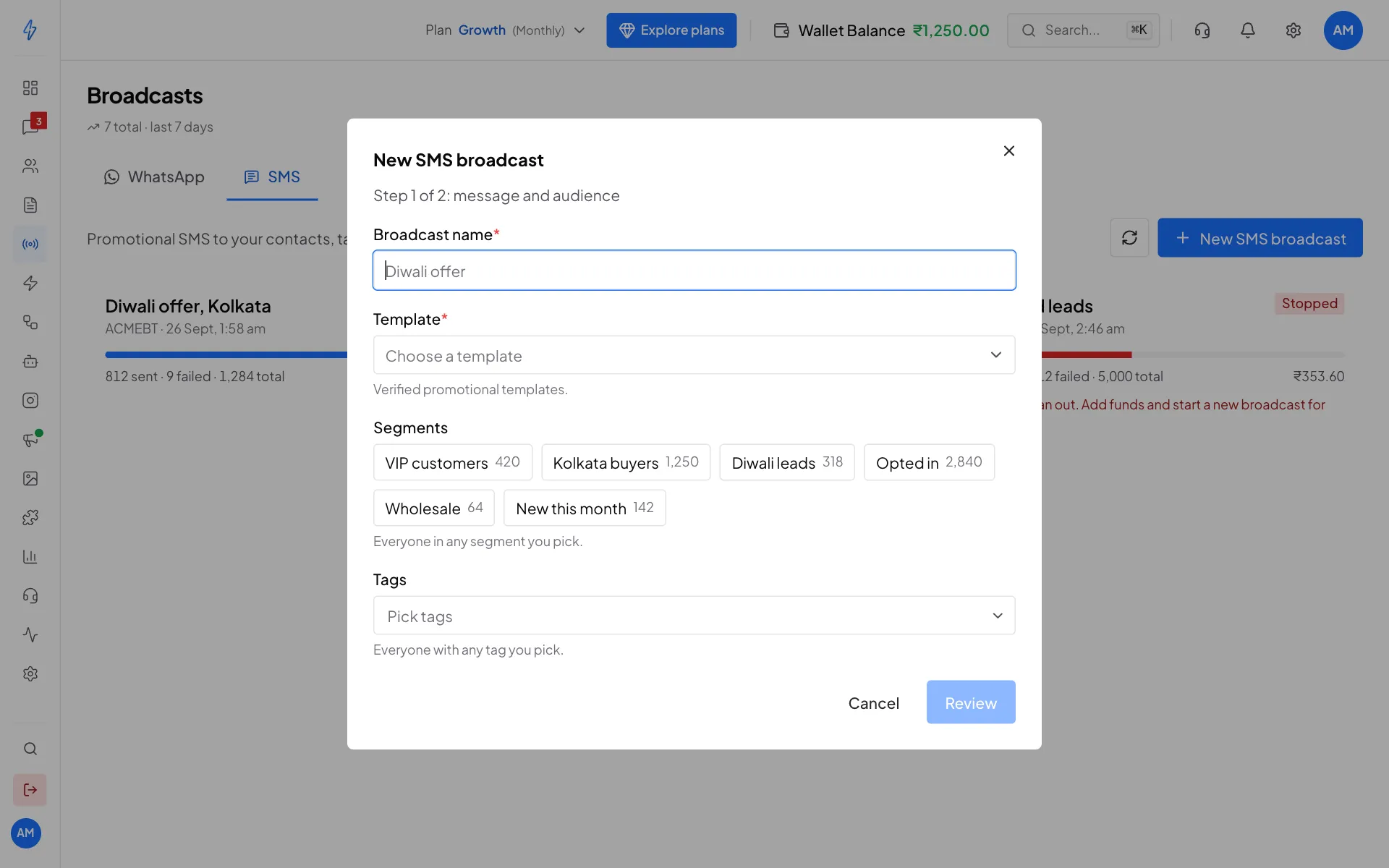
Pick a template, then segments or tags Set the variables
If the template has variables, choose where each one gets its value (see the table below). Then click Review.
Check the numbers
Step 2 of 2: review and send shows the Recipients, the SMS parts (what you pay for), the Estimated cost and your Wallet balance. Below it, Left out says who will not get it and why: opted out, blocked, not Indian mobiles, or missing a value.
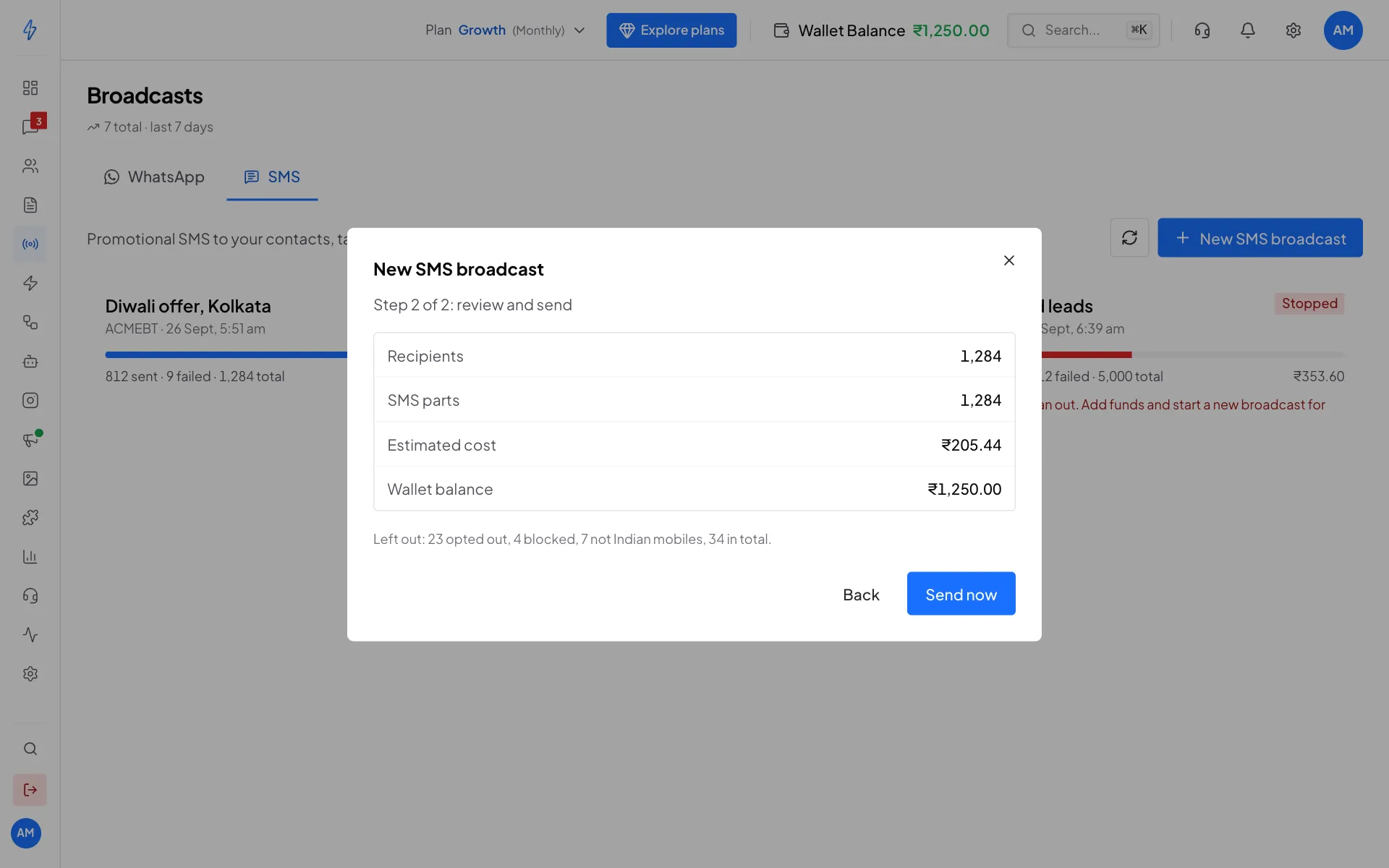
Check the recipients and the cost, then send Send
Click Send now. If your balance is too low, the button says Save without sending: the broadcast is saved as Not started. Add money to your wallet, then click Start on it in the list.
Everyone in any segment or tag you pick is included, and a person in more than one of them gets the SMS only once.
Where variables get their value
Each value can be up to 30 characters. A longer value, such as a long name, is cut to 30 characters.
The SMS broadcast list
Each broadcast in the SMS tab shows its sender ID, when it started, a progress bar, and sent, failed and total counts with the amount charged so far. The list refreshes by itself while a broadcast is sending.
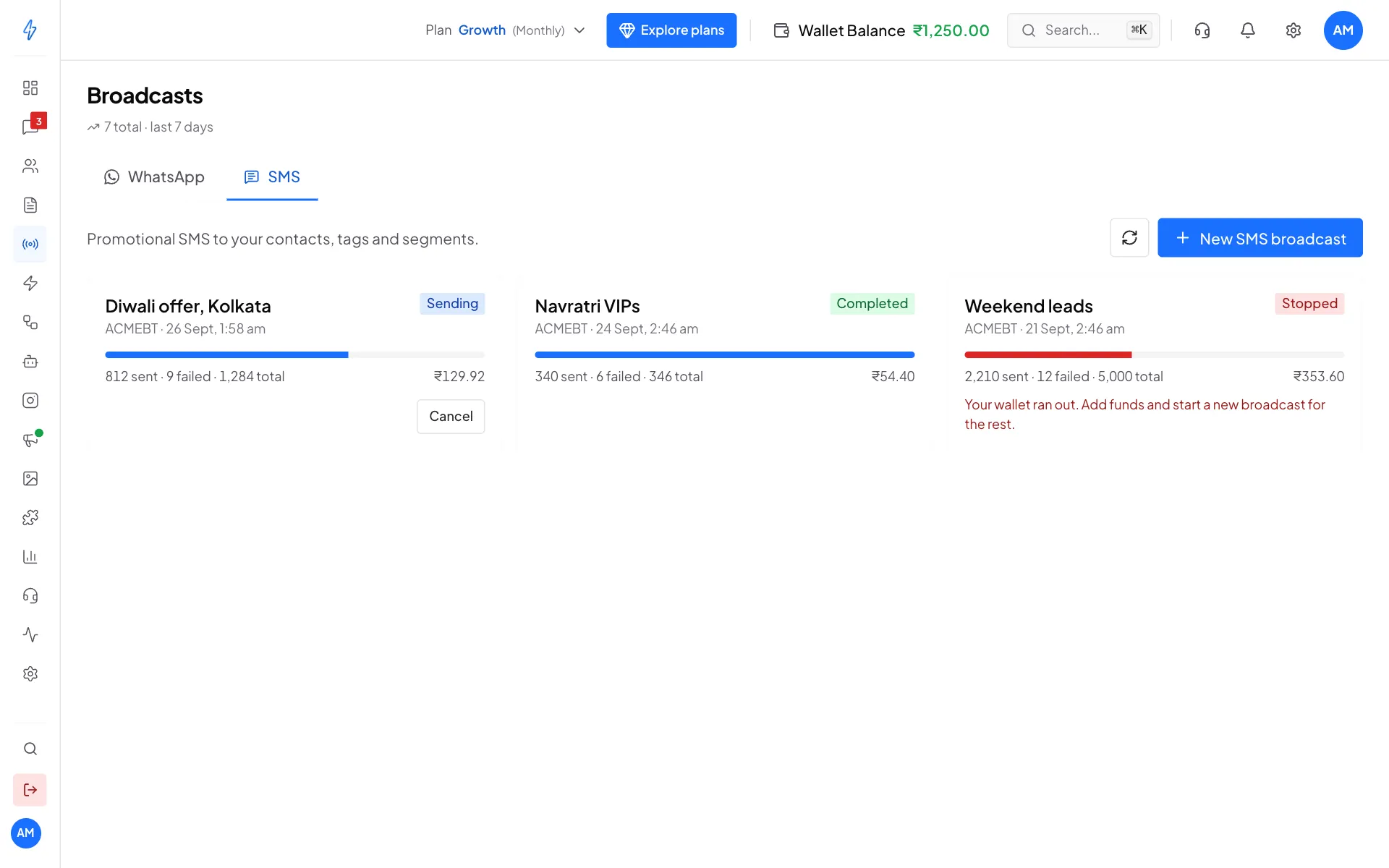
Cancel a broadcast
Click Cancel on a broadcast that is Not started, Queued or Sending, then confirm. SMS not sent yet do not go out. SMS already sent stay charged.
When a broadcast stops
If your wallet runs out while a broadcast is sending, it stops and shows Stopped with the reason. Add money, then create a new broadcast for the people who did not get it.