
Reading Responses
When a customer submits a flow, their answers arrive straight away and are stored with that flow. You can read them in the app, one row per customer, and download them as a spreadsheet.
Read the answers
Open the flow's responses
In the left sidebar, click Flows. In the Responses column, click the number of responses on the flow's row (for example 42 responses). You can also click ⋮ then View responses.
Read the table
Each row is one customer: their name and number, one column per question, and when it was Received. The boxes at the top show how many Responses came in, how many Questions the flow has, and the Flow status.
Type in Search by name or phone to find one customer's answers.
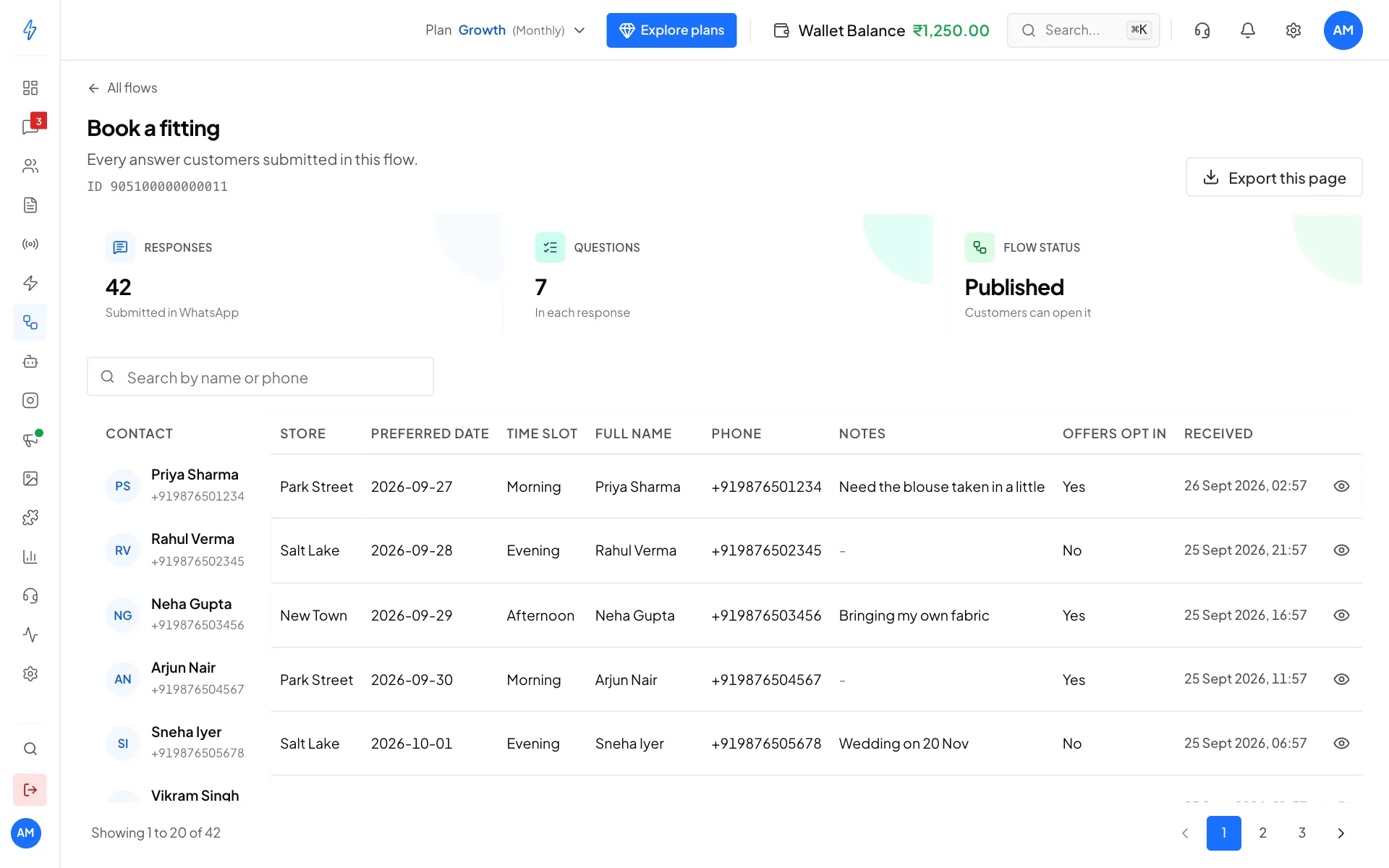
One row per customer, one column per question Open one answer sheet
Click a row, or the eye icon at its end. A window shows Response from the customer, with every question and answer in a list.
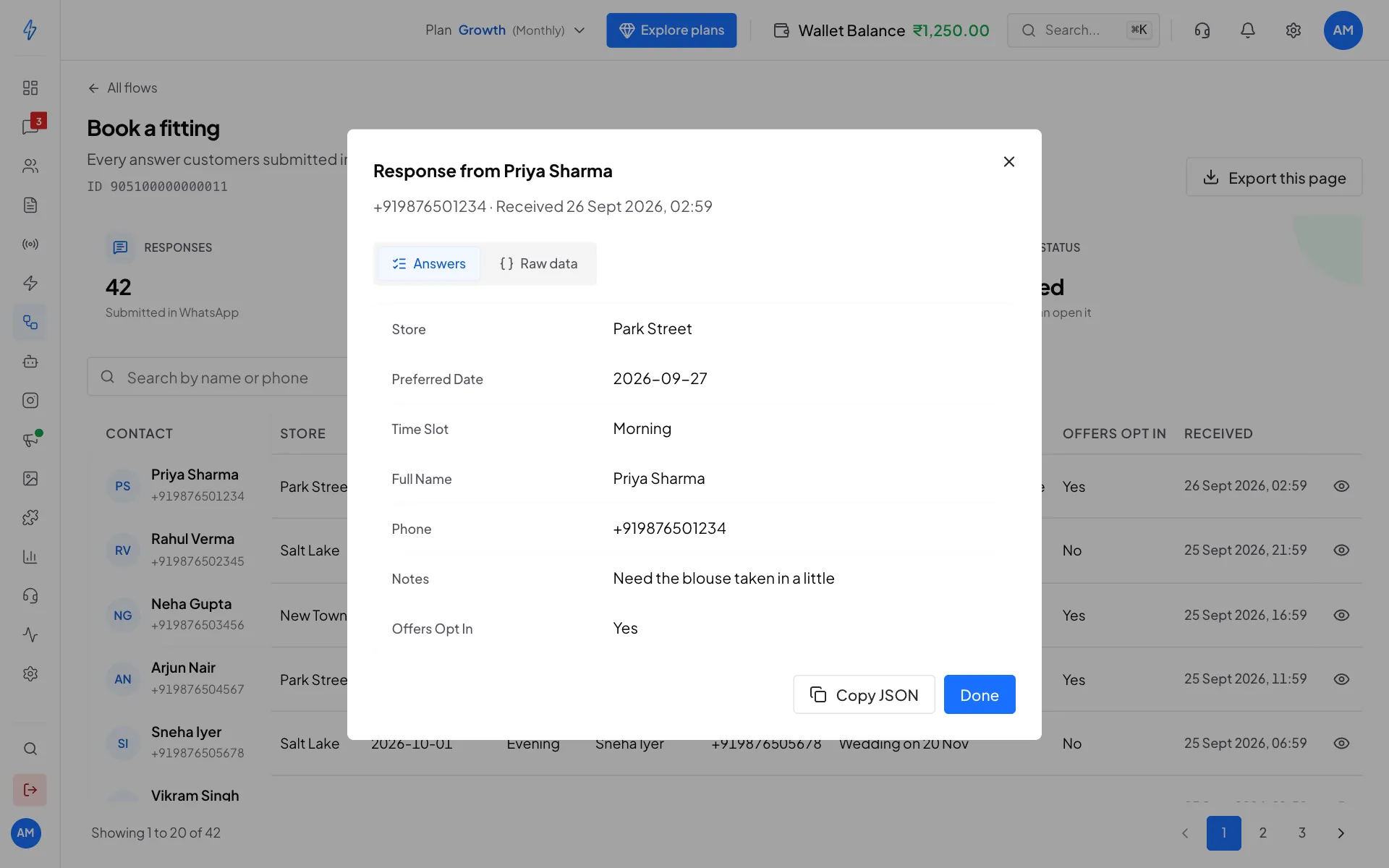
One customer's answers, easy to read See the raw data (optional)
Click Raw data in the same window to see the answers exactly as they arrived, with the Save answer as names. This helps when you connect the answers to another system. Copy JSON copies it.
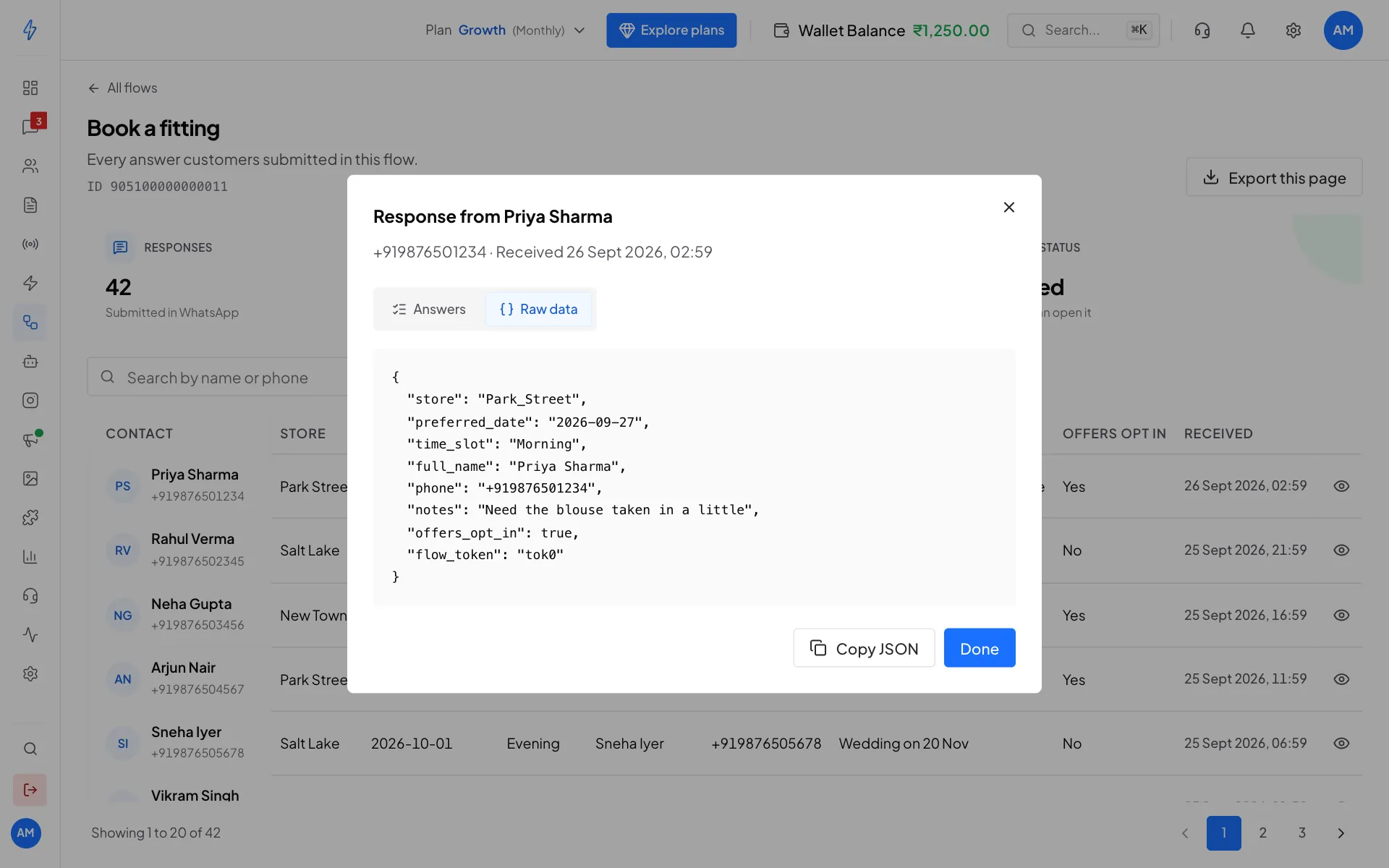
Raw data shows the exact names and values
Read answers in the chat
You can also read one customer's answers right in Messages. The flow you sent shows as a card with a WhatsApp Flow label, its text and its button. When the customer submits it, a Form reply bubble appears with the flow's name and how many answers it has.
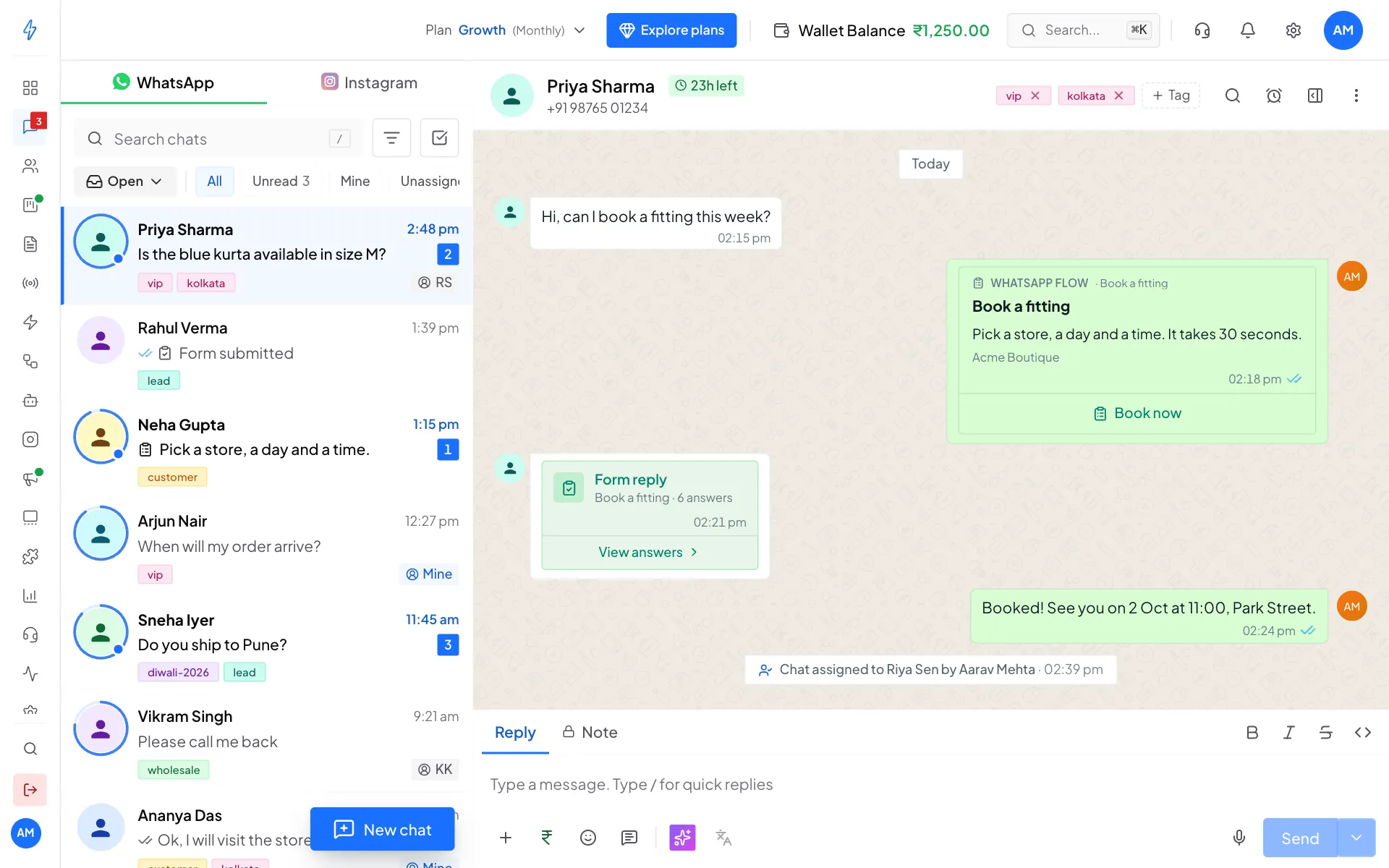
Click View answers on the bubble to see every answer. Dates, yes/no answers and lists are shown in plain words, and empty answers say Not answered.
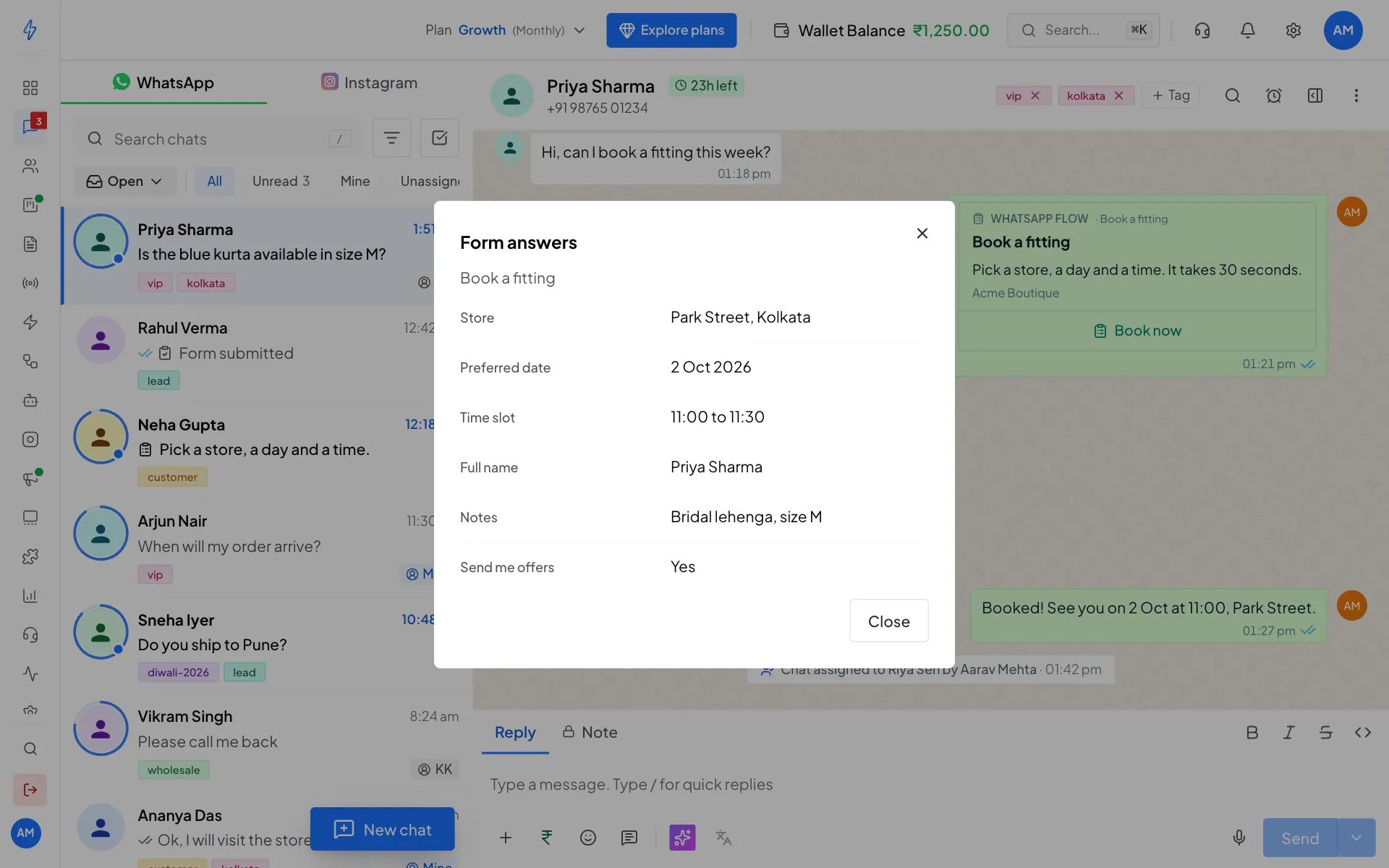
In the chat list, a reply shows as Form submitted. If a reply says Answers are not available for this reply, open the flow's Responses page to read it.
Download as a spreadsheet
Click Export CSV at the top right to download the responses as a CSV file, one row per customer and one column per question. It opens in Excel or Google Sheets.
When there is more than one page of responses, the button says Export all and downloads every response in one file, up to 5,000. If you have typed in the search box, the button says Export results and downloads only the responses that match.
How answers are named
Each answer is saved under the Save answer as name you gave the question in the editor. A question saved as preferred_date arrives as preferred_date. The table turns that into a readable heading like Preferred Date.
That is why the name matters: it is the label you, and any system you connect, will read. Changing the name in a draft changes it for every later answer, so settle on names before you publish.
For choice questions, the answer is the option's ID, not the words the customer saw. The app tidies common IDs for you (so Park_Street shows as Park Street), and Raw data shows the real value.
Sending answers somewhere automatically
Flow answers come through the same webhook as every other incoming message, as an interactive message of type nfm_reply. If you already receive message webhooks, you already receive flow answers.
See the Public API documentation for the webhook payload.
Several flows on one webhook
The answer does not include the flow's ID. If you run several flows through one webhook, add a question that identifies the flow, or tell them apart by their answer names.
If answers are not arriving
- Check the flow is published. Answers sent while testing a draft are test data.
- Check your WhatsApp Business account is subscribed to message webhooks.
- Check the customer reached the last screen and tapped its button. Closing the form halfway sends nothing.