
Building Screens
The flow editor is where you write the questions your customers answer. You change the form on the left and in the middle, and the phone on the right shows exactly what the customer will see.
To open the editor, click Flows in the left sidebar, then click a draft flow in the list (or use ⋮ then Edit flow).
The editor at a glance
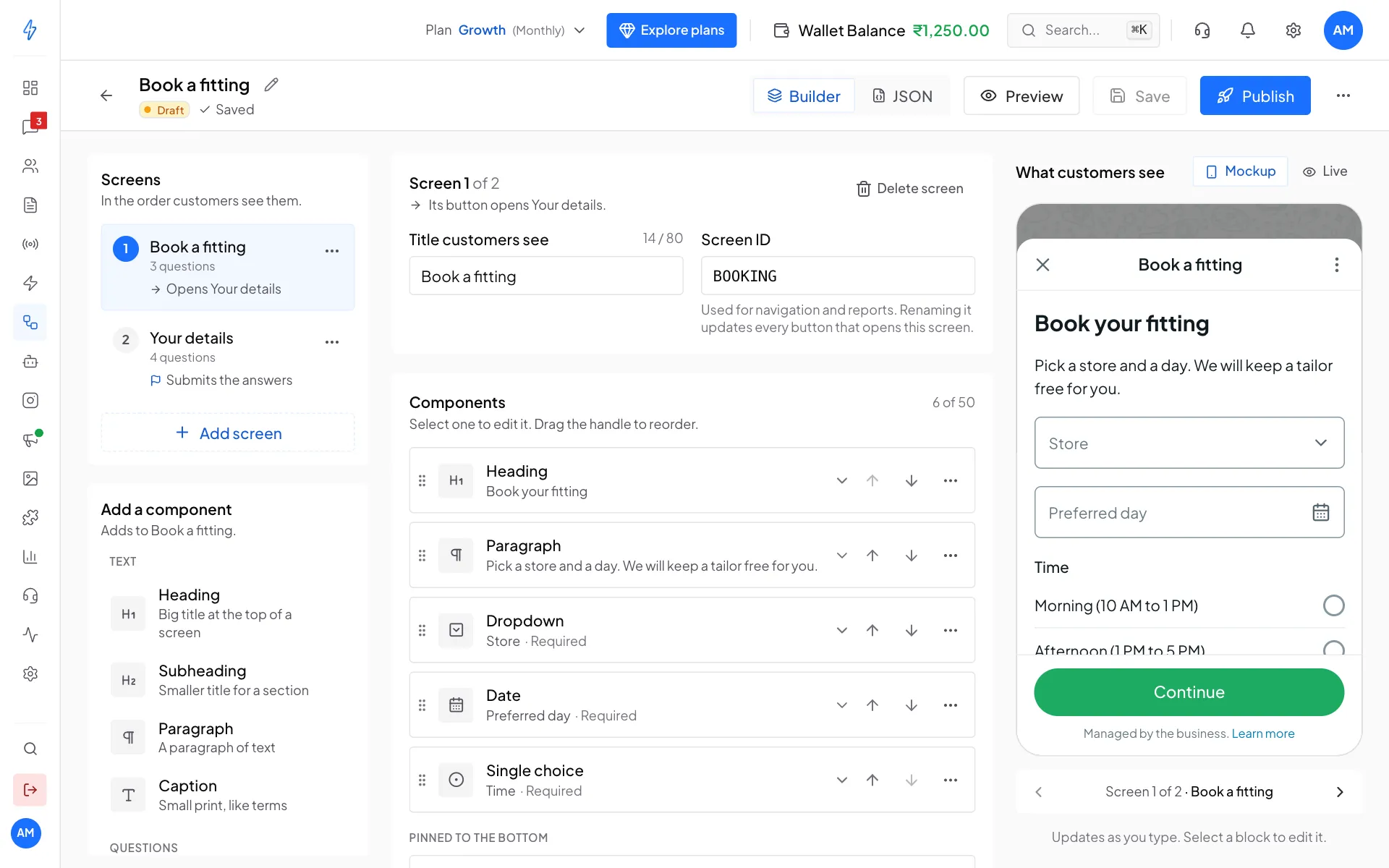
- Screens (left, top): every page of the form, in the order customers see them.
- Add a component (left, below): everything you can put on a screen.
- Components (middle): what is on the screen you picked, top to bottom.
- Mockup (right): a phone that shows what customers see and updates as you type. You can fill it in and click through it.
- The top bar shows the flow's name and status, and holds Builder, JSON, Save and Publish.
Change a question
Pick the screen
Under Screens, click the screen you want to change. The middle column shows its title and its components.
Click the question
In Components, click the question you want to change. It opens right there.
Edit its settings
Change what you need:
- Question or label: the words the customer reads.
- Options: for dropdowns and choice lists. Type over an option, click the bin to remove one, or click Add option.
- Save answer as: the name the answer is saved under (see below).
- Required: turn on if the customer must answer before moving on.
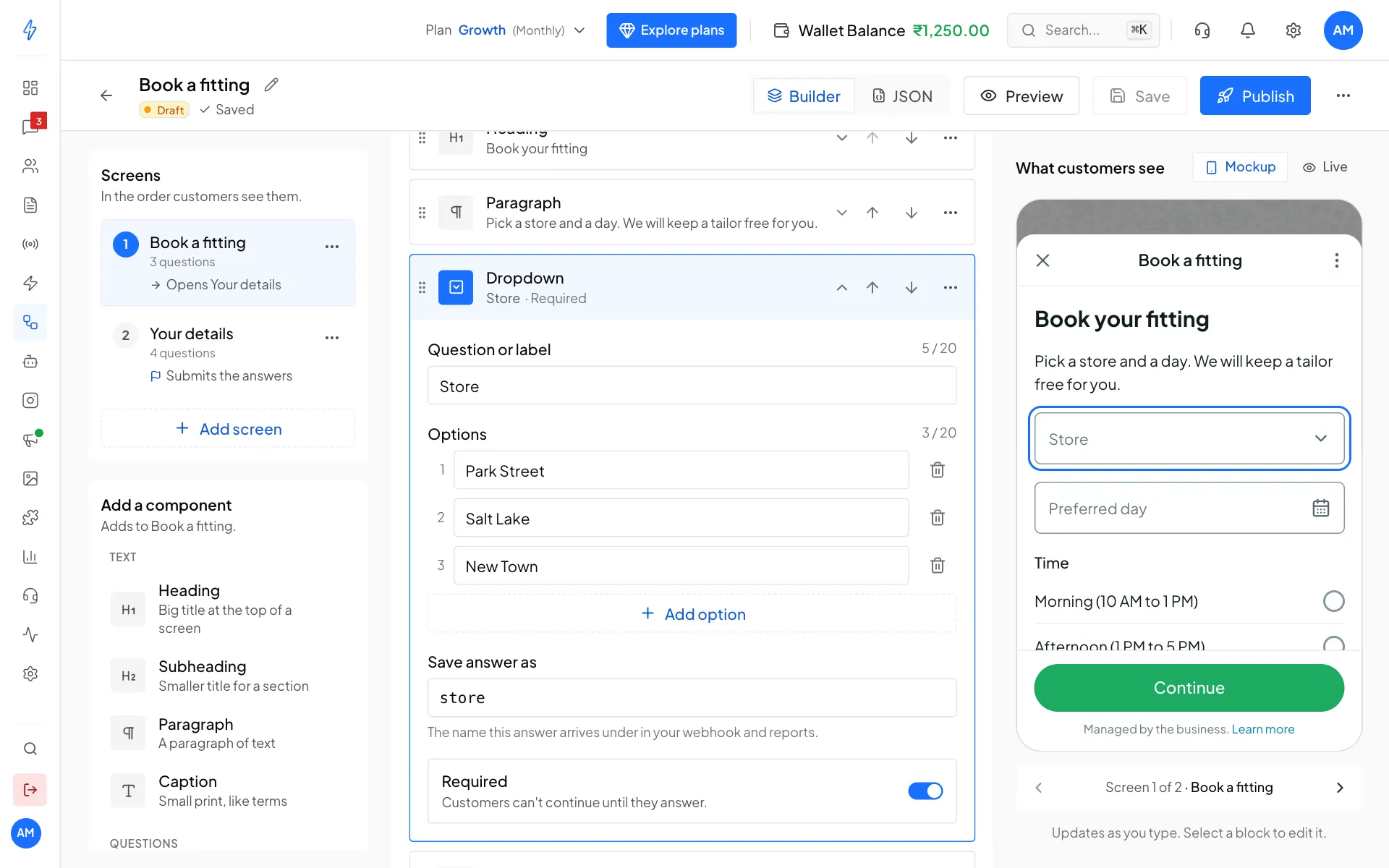
Click a question to edit its label, options, answer name and whether it is required
Add a question
Click a component on the left
Under Add a component, click what you want to add, for example Text field under Questions. It is added to the current screen, just above the button, and opens for editing.
Write the question
Type the question in Question or label, for example Outfit to be fitted. For a text field, pick the Expected answer (text, number, email, phone and so on). WhatsApp then checks the format and shows the right keyboard.
Name the answer
Change Save answer as to a short, clear name like
outfit. The top bar now says Unsaved changes.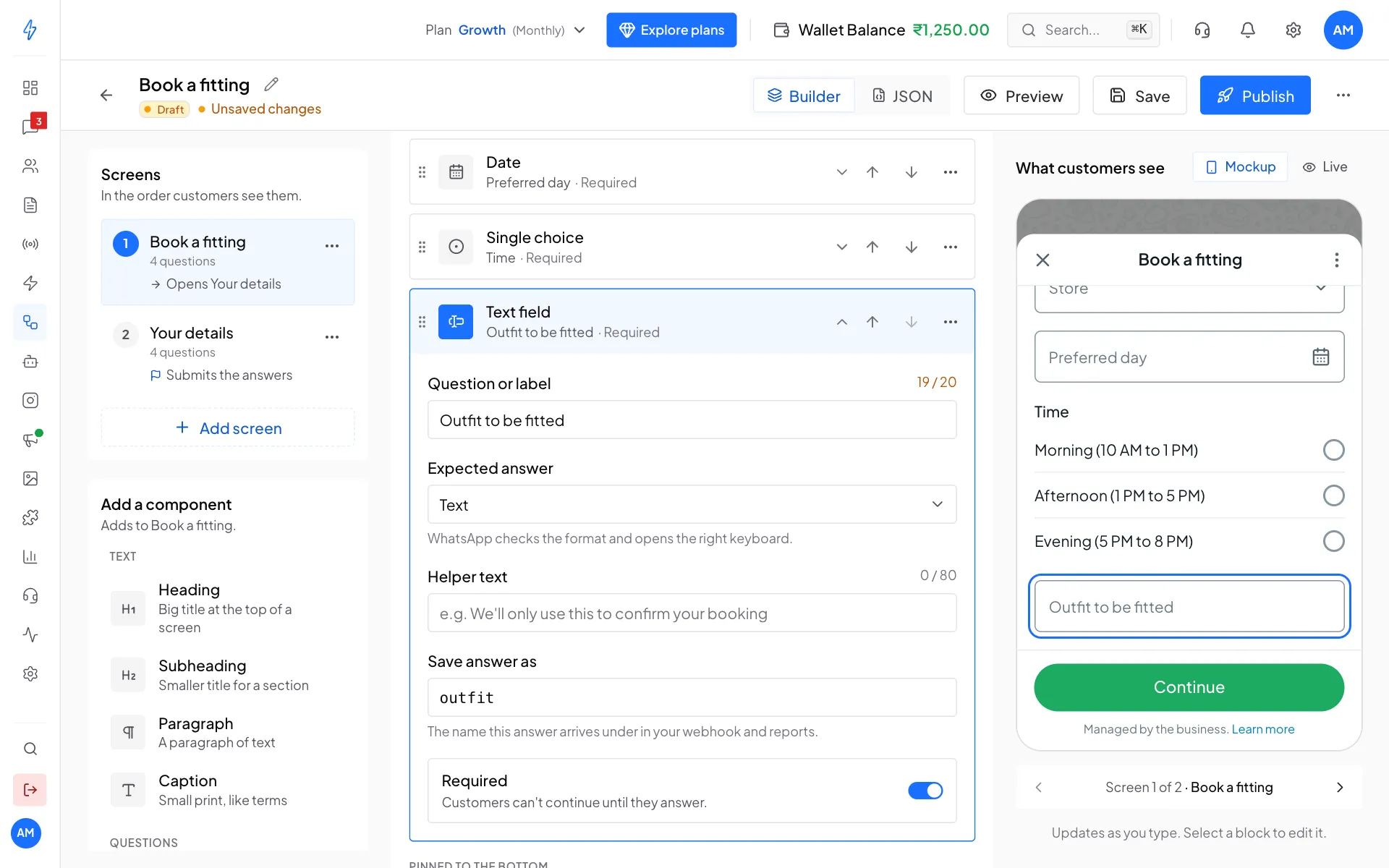
A new question, added above the button and shown in the phone preview Click Save
Click Save in the top bar. The label changes to Saved.
What you can add
Meta's advice for choices:
- Use a Dropdown only when there are eight or more options
- Use Single choice when there is one answer
- Use Multiple choice when there can be several
- Put the most likely answer first. You can add up to 20 options.
Move, copy or delete a question
- Drag a question by its handle (the dotted grip on the left) to move it.
- Or use the up and down arrows on the row, one step at a time.
- The ⋯ button on the row has Duplicate and Delete.
The button always stays last. WhatsApp pins it to the bottom of the screen.
Save answer as: the name that matters
Every question has a Save answer as name. That is the label the answer arrives under in your responses and your reports, so pick a name a person understands later: email, preferred_date, budget.
Names are made lowercase and kept unique for you. Every question is added to the submission automatically, so there is no extra step to "connect" a question to the answers.
Screens and the button
Each screen ends with one button.
- On any screen except the last, the button opens the next screen.
- On the last screen, the button submits the flow and sends every answer to you.
Add a screen
Under Screens, click Add screen. The new screen becomes the last one, and the screen before it now opens it. You never wire this up by hand.
Name the screen
In the middle column, fill in Title customers see. The Screen ID is an internal name. If you rename it, every button that opens that screen is updated for you.
Label the button
Click Button at the bottom of the component list and change Button text. Say what happens next, like Confirm booking, not Submit. On the last screen, When tapped shows Submits the flow and the list of answers that will be sent.
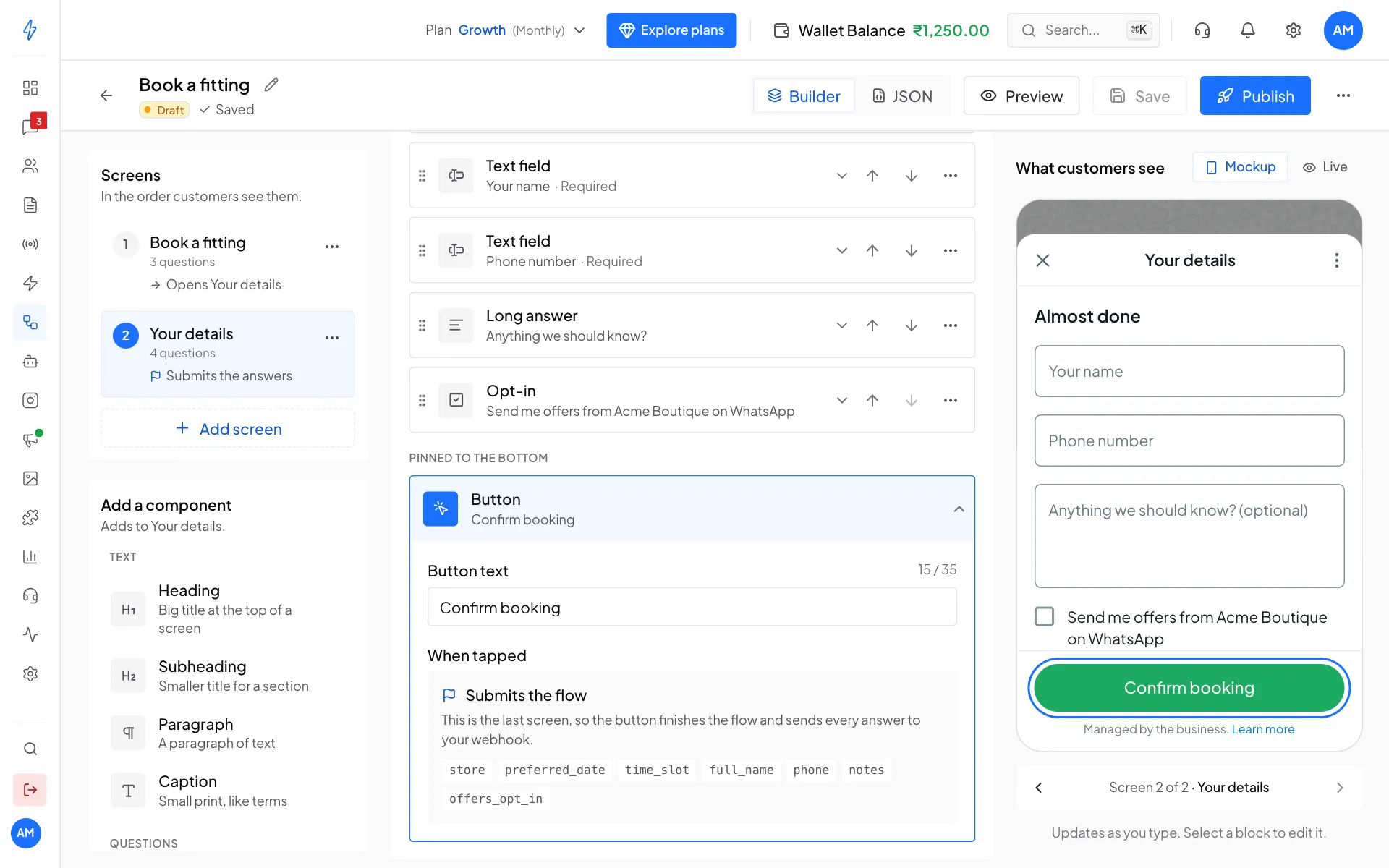
On the last screen the button submits the flow
To rename or remove a screen, click the ⋯ next to it under Screens, then Rename or Delete screen. Anything that opened a deleted screen opens the next one instead.
Try your flow in the Mockup
The right column shows the Mockup: the flow the way it opens in WhatsApp, and it works. Fill it in the way a customer would:
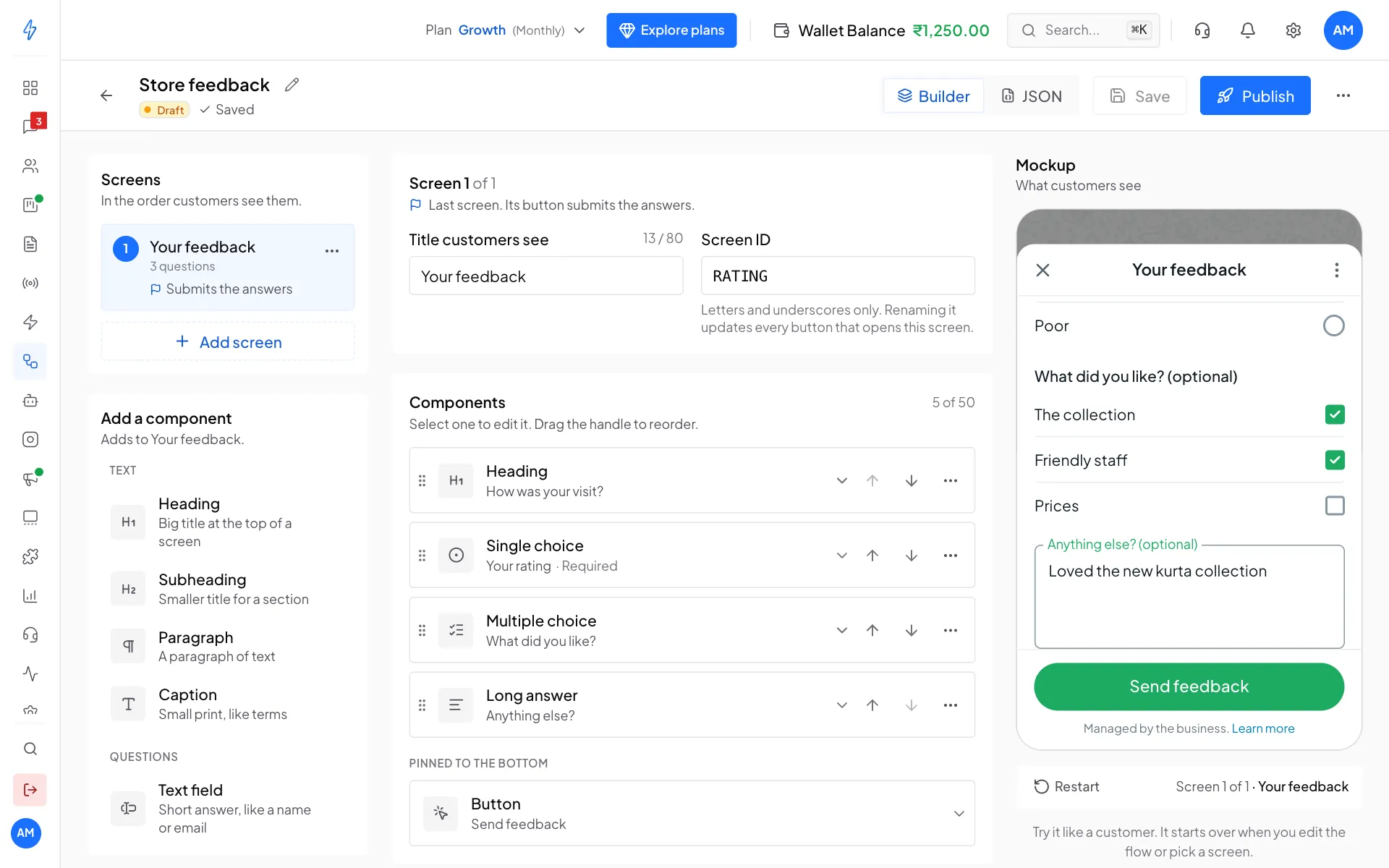
- Type in the fields, open the lists, tick the options and pick dates. A file picker takes a file from your computer and only shows its name; nothing is uploaded.
- The button at the bottom stays grey until every required question is answered, just like in WhatsApp. Then it takes you to the next screen with your answers carried over.
- Use the back arrow at the top to go back. What you typed is kept.
- On the last screen, a Sent sheet shows the answers you would receive. Click Start again to try once more.
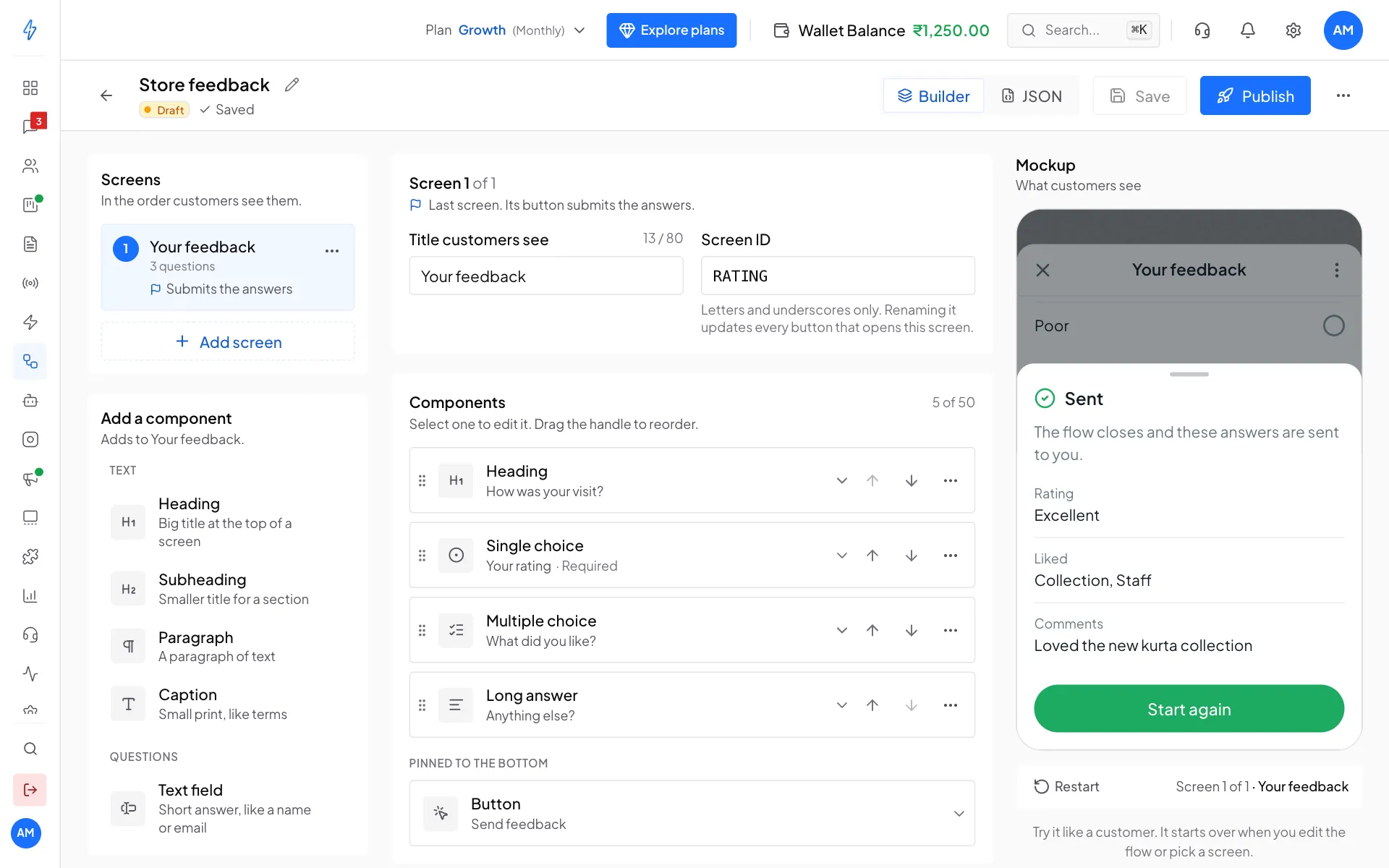
- To start over at any time, click Restart under the phone, or click the X at the top and then Close. Under the phone you also see which screen you are on, for example Screen 2 of 3.
The Mockup opens on the screen you are editing and starts again whenever you change the flow or pick another screen under Screens. If a step needs your own server, the Mockup skips it with sample data and says so under the phone.
On a phone or a small screen, open the ... menu and click Try the flow.
JSON view
Click JSON in the top bar to see the whole flow as code. This is for advanced work the builder does not cover, such as conditions, images or connecting your own server. Most people never need it.
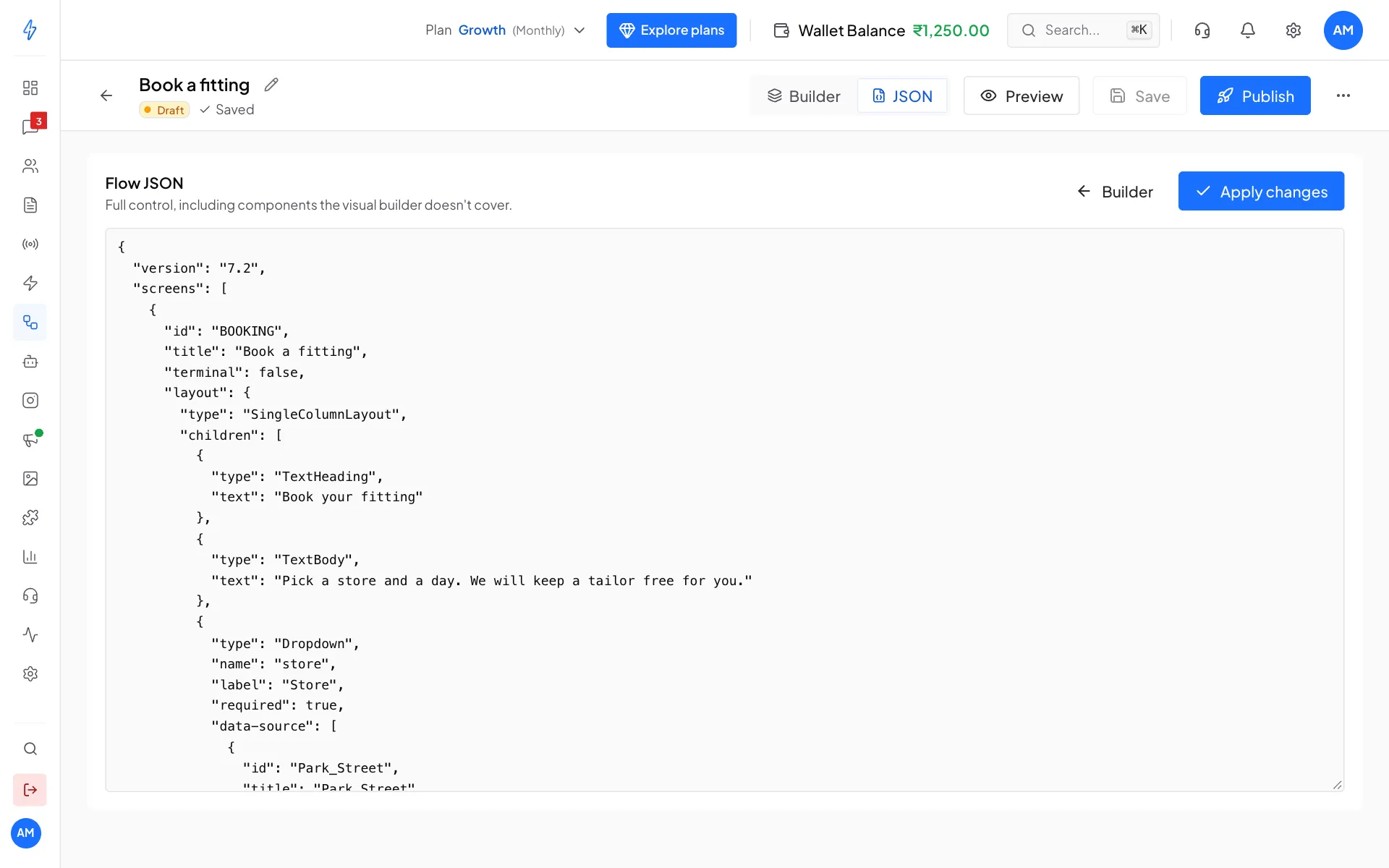
Click Apply changes to check your edits and load them into the builder, or Builder to go back. Anything the builder does not understand is kept as it is and shows in the list as Edit in the JSON editor.
Saving and problems
Save stores your draft with WhatsApp. If something needs fixing, a red to fix button appears in the top bar (for example 2 to fix). Click it to see the list and jump straight to each problem. The draft is still saved, but WhatsApp will not publish it until the problems are fixed.
If you try to leave with unsaved changes, the editor asks Leave without saving? first.