
Use Splashify Pro in AI assistants
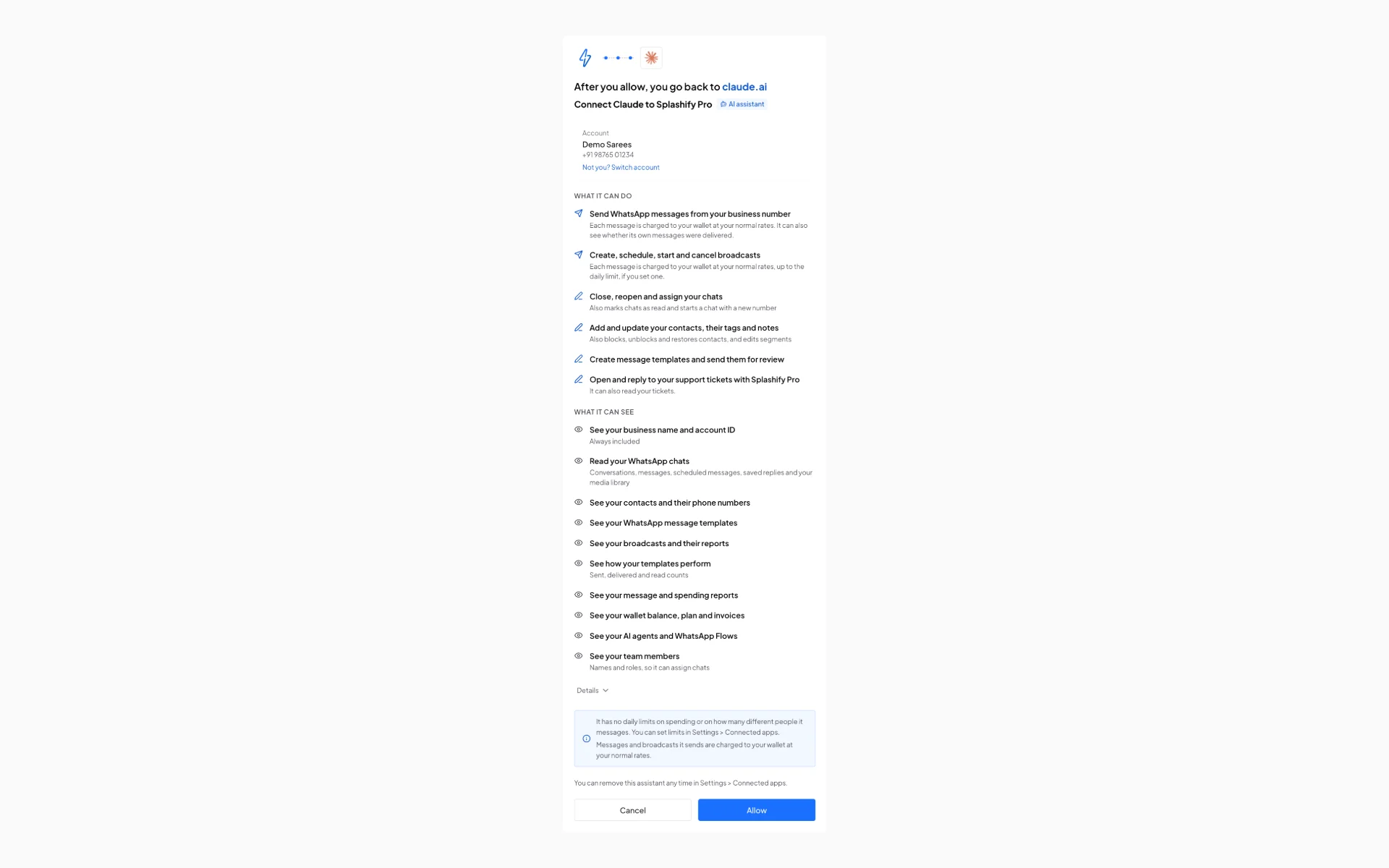
Add one link to your AI assistant, sign in to Splashify Pro and click Allow. Your assistant can then work in your Splashify Pro account for you: read your chats and reports, reply to customers, send templates and run broadcasts, all from a normal conversation.
The link
Add this address to your AI assistant as a connector. Some apps call it a custom connector, a custom app or a remote MCP server.
https://mcp.splashifypro.com/mcpYou do not need an API key, a Client ID or a developer account. Your assistant opens a Splashify Pro page where you sign in, check what it asks for and click Allow. The steps for each app are in Connect your AI assistant.
Which assistants work
- Claude, on the web, in the desktop app and in the mobile app
- ChatGPT on the web, with developer mode
- Claude Code
- Cursor
- VS Code, in Copilot Chat agent mode
- Gemini CLI
- Devin Desktop (formerly Windsurf)
- Any other app that can add a remote MCP server with sign-in (OAuth)
Claude, ChatGPT and assistants that run on your own computer get the full set of permissions. Any other assistant that runs on the web starts with read-only access: it can see your reports, templates, broadcasts and wallet, but it can not send anything or see your contacts and chats until we have checked it. See Assistants we have not checked.
What it can do
- Show your WhatsApp chats, read messages, reply, and close or assign chats
- Find, add and update contacts, tags, notes and segments
- Send a template, a text, a file or reply buttons to a customer, now or later
- Create, schedule, start and cancel broadcasts, and send one again to the people who did not read it
- Create templates and send them for review
- Show your wallet, plan, invoices, message reports and spending
- Open and answer support tickets with our team
The full list, with example requests and what it can not do, is in What it can do.
What it costs
Messages and broadcasts it sends are charged to your wallet at your normal rates. Using the connector itself is free.
An assistant has no daily limits when you connect it. In Settings > Connected apps you can give each assistant a daily spending limit and a limit on how many different people it messages a day, or take them off again. The assistant can not change them. See Charges, safety and removing access.
Who can connect
Only the account owner of a Splashify Pro account at app.splashifypro.com can connect an AI assistant. Team members can not.
Your plan must include API access, the same as for your API key and other connected apps. If it does not, the Splashify Pro page says so and links to the plans. To check, open Settings > Developer: the Request limit card says Your plan does not include API access when your plan does not have it. A feature your plan does not include stays locked for the assistant too.
The connector works with Splashify Pro accounts at app.splashifypro.com only. It does not connect Splashify Pro Email accounts.
Prefer the command line?
The splashify CLI, the Claude Code plugin and the OpenClaw skill still work with a personal access token. You do not need them to use the connector.
Read next
- Connect your AI assistant: the steps for Claude, ChatGPT, Claude Code, Cursor, VS Code, Gemini CLI, Devin Desktop and other apps.
- What it can do: every permission, example requests and what it can not do.
- Charges, safety and removing access: daily limits, safety tips and how to remove an assistant.
- Troubleshooting: what each message means and how to fix it.