
Set up your catalog
Connect your Meta product catalog once, and your products show up in the app, ready to send in chats and bots. You also choose whether customers see a shop icon and a cart in WhatsApp.
Connect your catalog
Open Commerce
Click Settings (the gear icon) in the top bar or near the bottom of the left sidebar. In the Settings box, under Analytics & Commerce, click Commerce. You will see Connect your product catalog.
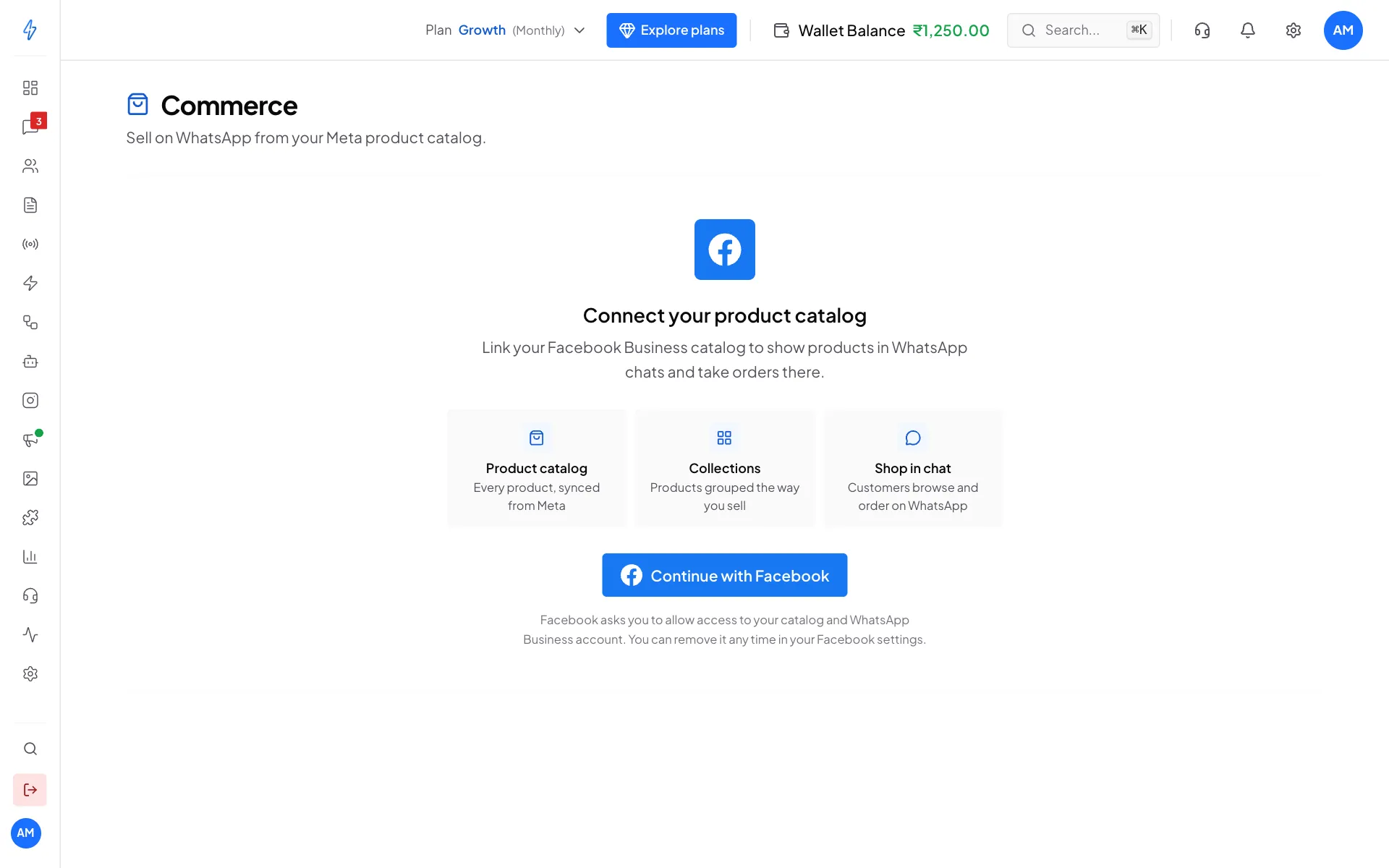
Click Continue with Facebook Click Continue with Facebook
Click Continue with Facebook. A Facebook window opens.
Sign in and allow access
In the Facebook window, sign in and follow the steps for your business. Allow every permission Facebook asks for (your catalog and your WhatsApp Business account). You can remove this access any time in your Facebook settings.
Check that it is connected
The window closes and you see Connected: "Your catalog is now linked to WhatsApp." The page now shows two cards:
- Connection: your WhatsApp number and your Meta catalog, each marked Connected, with how many products and collections you have.
- What customers see: the Storefront icon and Shopping cart switches.
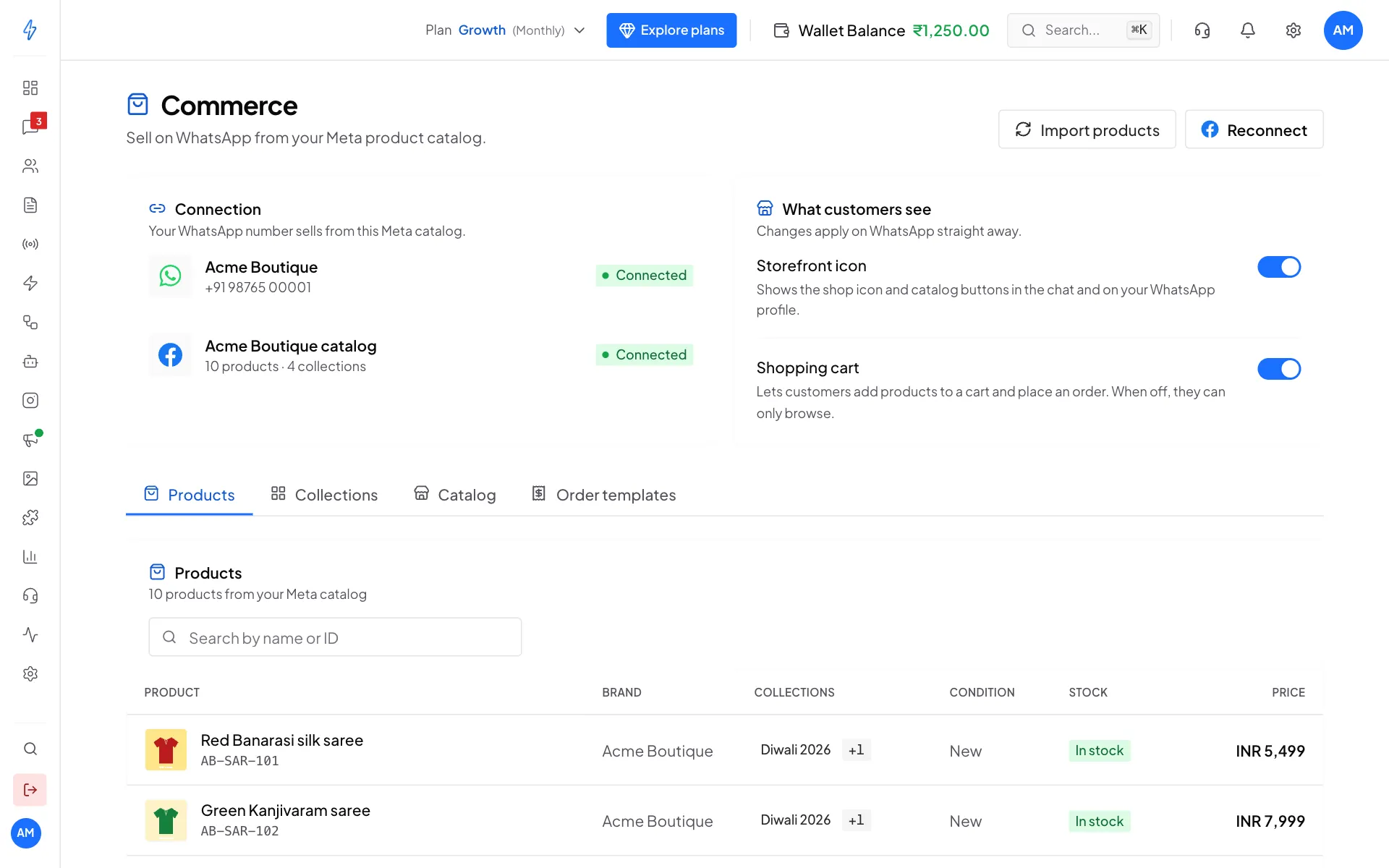
Your catalog is connected
You can only connect one catalog per WhatsApp Business account. The same catalog can be used by several phone numbers on that account.
No catalog yet?
Create one in Meta Commerce Manager and add your products first. If your number is connected but no catalog is linked, the page says Link a product catalog. Click Continue with Facebook and pick the catalog.
See your products
Below the cards are four tabs:
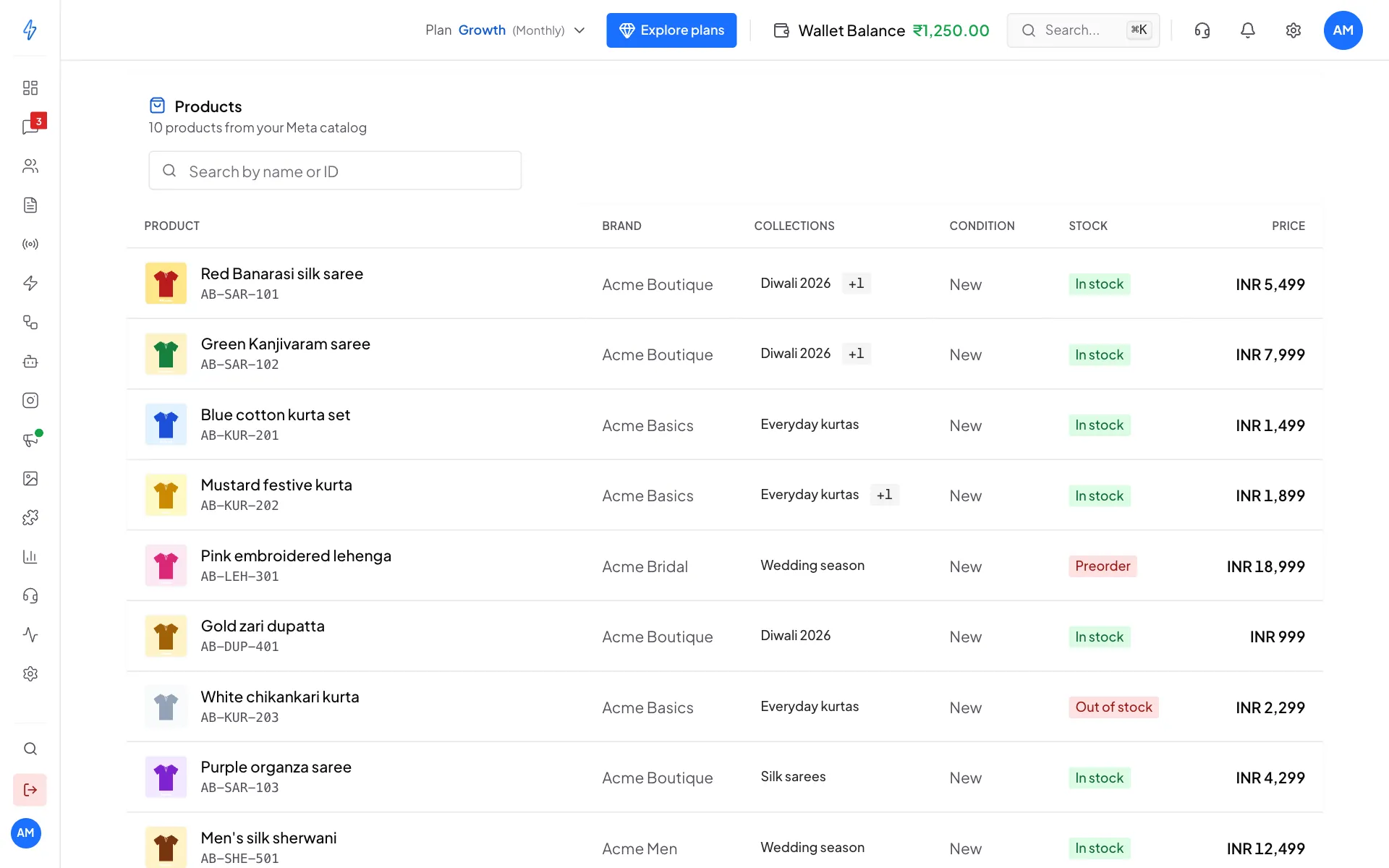
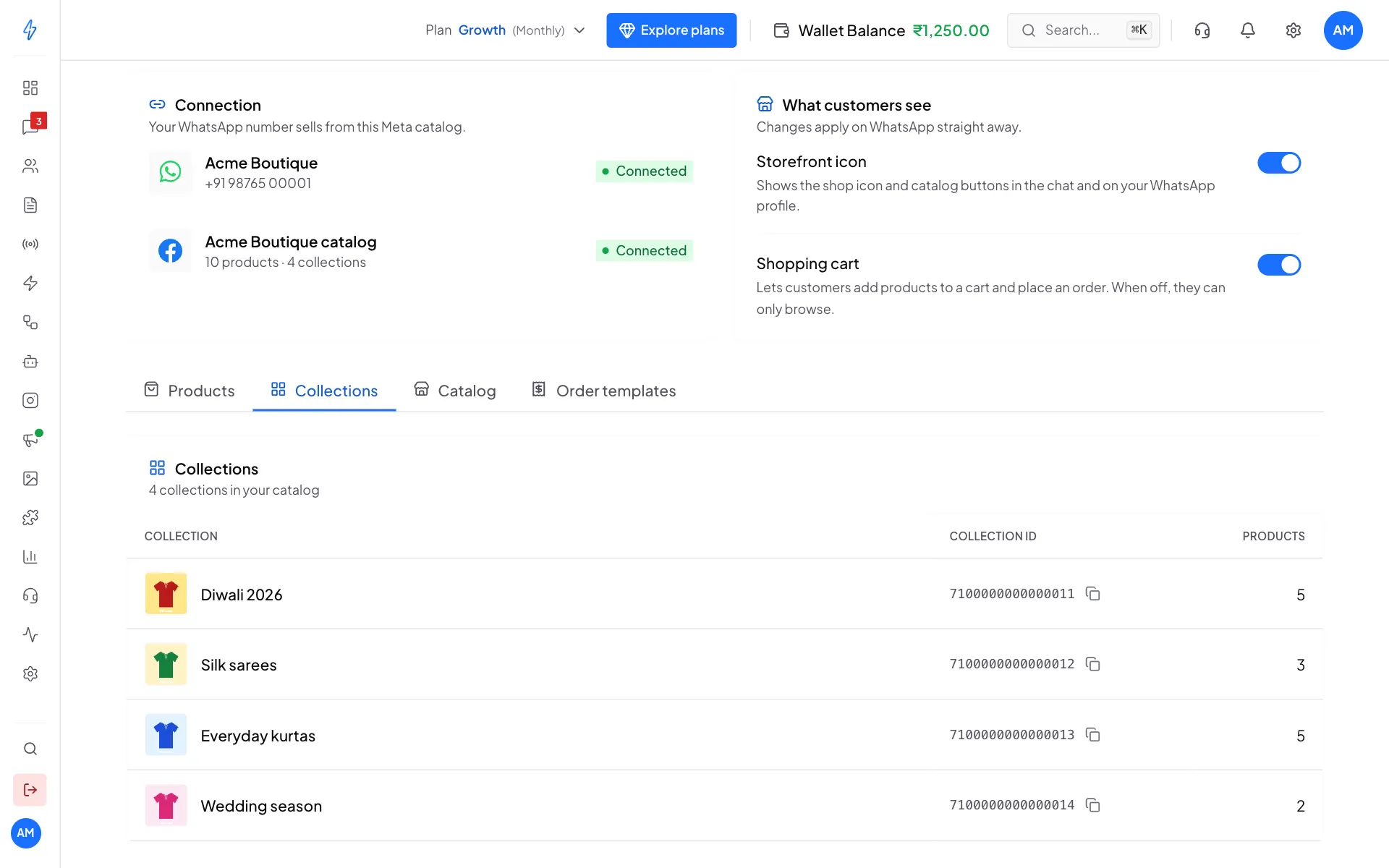
Bring in new products
Products are imported when you connect. When you add or change products in Commerce Manager later, click Import products at the top right. You will see Importing your catalog. Large catalogs take a minute or so, and the list refreshes by itself.
The app reads your catalog, it does not edit it
Adding products, changing prices and uploading pictures all happen in Meta Commerce Manager. Import products brings those changes into the app.
Choose what customers see
The two switches in What customers see change your shop on WhatsApp straight away, for every chat. You will see a message like Storefront icon turned on.
Storefront icon
Shows the shop icon and catalog buttons in the chat and on your WhatsApp profile.
Meta turns this off by default. That is the usual reason a business has products but customers cannot see a shop. Switch it on here.
When it is off, catalog links and the View catalog button show an "Invalid catalog link" warning to the customer.
Shopping cart
Lets customers add products to a cart and place an order.
Meta turns this on by default. When it is off, customers can still browse products and see details, but there are no cart buttons.
What customers get
Reconnect
Click Reconnect at the top right to sign in with Facebook again, for example to pick a different catalog or give missing permissions.
If something is wrong
Next, see Send products in chat.