
Ice breakers and menu
Ice breakers are questions people can tap when they open a chat with you, before they type anything. The persistent menu is a set of shortcuts that stays inside every chat. Both help new customers start talking to you.
Both live on the Ice breakers & menu tab. They change your Instagram profile, so they apply to every chat. You do not attach them to a bot.
Set up ice breakers
Open the tab
In the left sidebar, click Instagram, then the Ice breakers & menu tab. The Ice breakers card is on the left and the Persistent menu card is on the right.
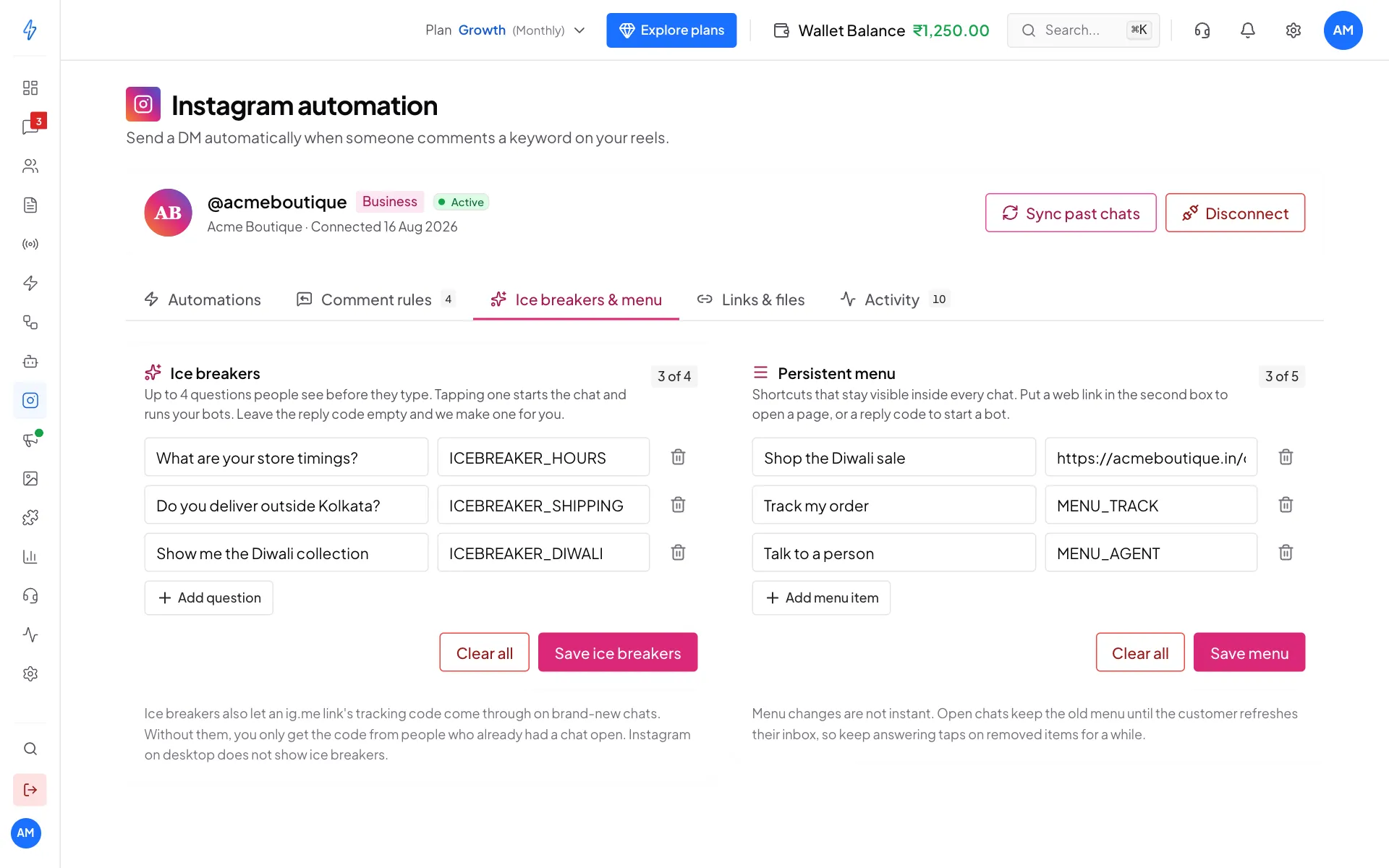
Ice breakers on the left, menu on the right Type your questions
In the first box of each row, type a question customers often ask, like "What are your store timings?". The second box is the Reply code (optional). You can leave it empty.
Click Add question for another row. You can have up to 4 questions. The counter at the top right shows how many you have, for example 3 of 4.
Save
Click Save ice breakers. You will see Ice breakers saved.
What happens when someone taps a question
- The question is sent to you as the customer's message.
- The chat opens, so you (or your bot) can reply for the next 24 hours.
- Your default Instagram bot runs. A greeting such as Welcome new DMs answers it. Your team can also answer in Messages.
Ice breakers and ig.me links
Ice breakers also let the tracking code of an ig.me link reach you from brand-new customers. Without ice breakers, you only get the tracking code from people who already had a chat with you. If you use ig.me links for campaigns, set up ice breakers first.
Set up the persistent menu
Type the button text
In the Persistent menu card, type what the customer sees in Button text, for example "Shop the Diwali sale".
Add a link or a reply code
In the second box, Link or reply code:
- Put a web link (starting with
https://) to open a page. - Put anything else, like
MENU_TRACK, to start a bot. Leave it empty and a code is made for you.
- Put a web link (starting with
Add more items
Click Add menu item. You can have up to 5 items.
Save
Click Save menu. You will see Menu saved.
Menu changes are not instant
New chats get the new menu straight away. Chats that are already open keep the old menu until the customer refreshes their Instagram inbox. After you remove a menu item, keep answering taps on it for a while.
Good and bad menu items
Meta's own advice:
- Do use it for your main features: store timings, locations, products, "Talk to a person".
- Do keep it short. Five items is the most, not the goal.
- Don't put "Menu" in the menu.
- Don't add general actions like "Restart".
- Don't spend the top places on About, Terms or Privacy.
Remove a row or clear everything
- To remove one question or menu item, click the bin at the end of its row, then click Save ice breakers or Save menu. Saving always replaces the whole list on Instagram.
- To remove all of them, click Clear all on that card, then Clear in the box that opens.
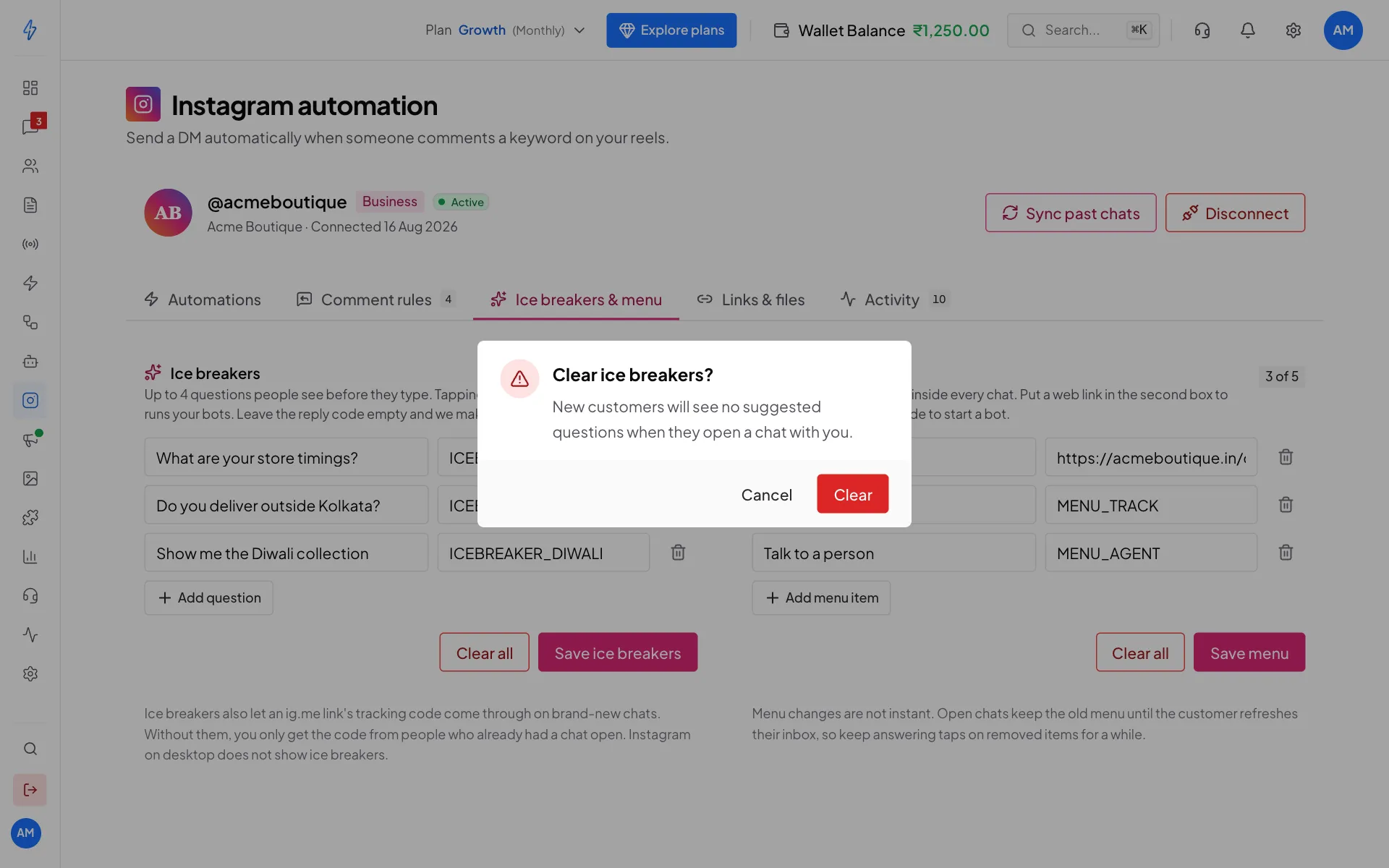
Limits
- Ice breakers and the menu do not show on Instagram on a computer, only in the mobile app.
- The menu is the same for everyone. It cannot change per customer.
If Instagram cannot be reached
The tab shows your last saved copy with a yellow note: Showing your last saved copy because Instagram could not be reached. Saving will try again. You do not need to do anything. Save when you are ready.