
Meta AI agent
Meta AI is Meta's own AI, answering your customers on your WhatsApp number. You teach it about your business here in Splashify Pro, try it for free, and choose who it answers. Every chat still shows in your inbox, so your team can step in at any time.
What it is
A Meta AI agent is a kind of Chat AI agent. Meta runs the AI: it reads what customers type and replies in its own words, from what you teach it.
- It needs a number connected straight to Meta. If your WhatsApp number is connected another way, the app tells you. Contact support to move your number.
- Your inbox keeps every chat. You get a copy of every message in Messages. Its replies show with the Meta AI logo, next to your team's replies.
- One per account. It answers on your WhatsApp number only, not on Instagram.
To set up Splashify AI instead, see Chat AI agent.
Before you start
Accept Meta's AI terms
Meta asks you to accept its terms once, in your Meta account. Do this before you create the agent.
- Open WhatsApp Manager.
- Pick your WhatsApp account.
- Open the Meta Business Agent tab.
- Accept the terms.
If they are not accepted yet, the app shows Accept Meta's AI terms first with these same steps. Accept them, come back and click Check again.
Add money to your wallet
Meta AI is charged from your main Wallet Balance as it replies, so it cannot be switched on while your wallet is empty. To top up, click the words Wallet Balance in the top bar.
Who can set it up
Only the account owner or an admin can create, change, switch on or remove Meta AI. Other team members can open it and see how it is set up. The Meta AI page needs a tablet or a computer.
Create it
Start a new agent
In the left sidebar, click AI Agents & Bots, then Create agent. Click Chat AI agent, then Next.
Pick Meta AI
Under Which AI?, click Meta AI, then Next.
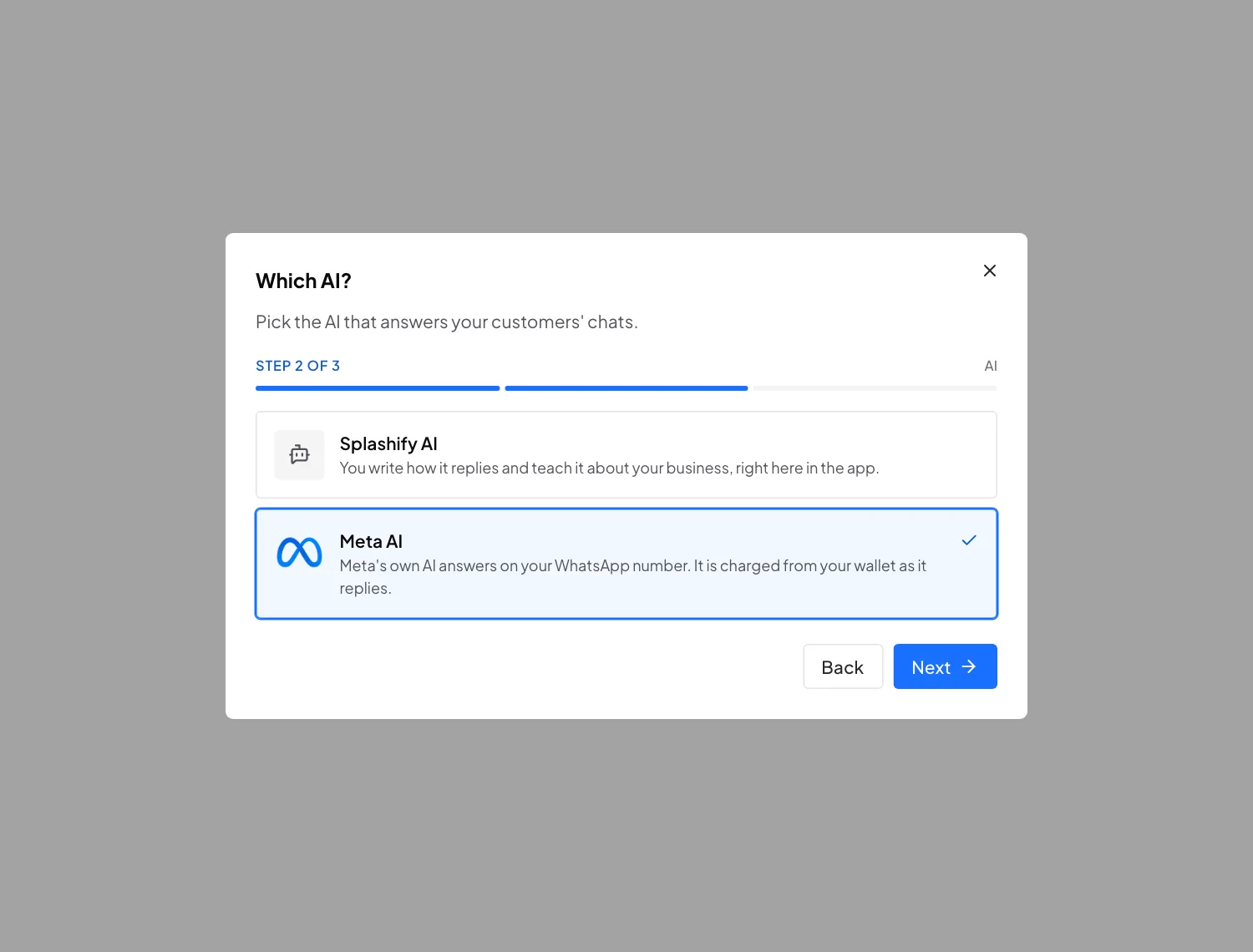
Pick Meta AI to let Meta's own AI answer Name it
The name Meta AI agent is filled in for you. Change it if you like (only your team sees it), then click Create agent.
The app first asks Meta if your number can use its AI, then sets it up and opens its page. You see Meta AI agent created. It starts switched Off, and answers only your test phones.
If something is in the way, the window says what, and the button changes to Check again. Fix it, then click Check again. See If something does not work.
If you already have a Meta AI agent, the app opens it instead. You find it later in AI Agents & Bots: it is listed as a Chat AI agent, with a blue Meta AI tag next to its name. Click its row to open it.
The Meta AI page
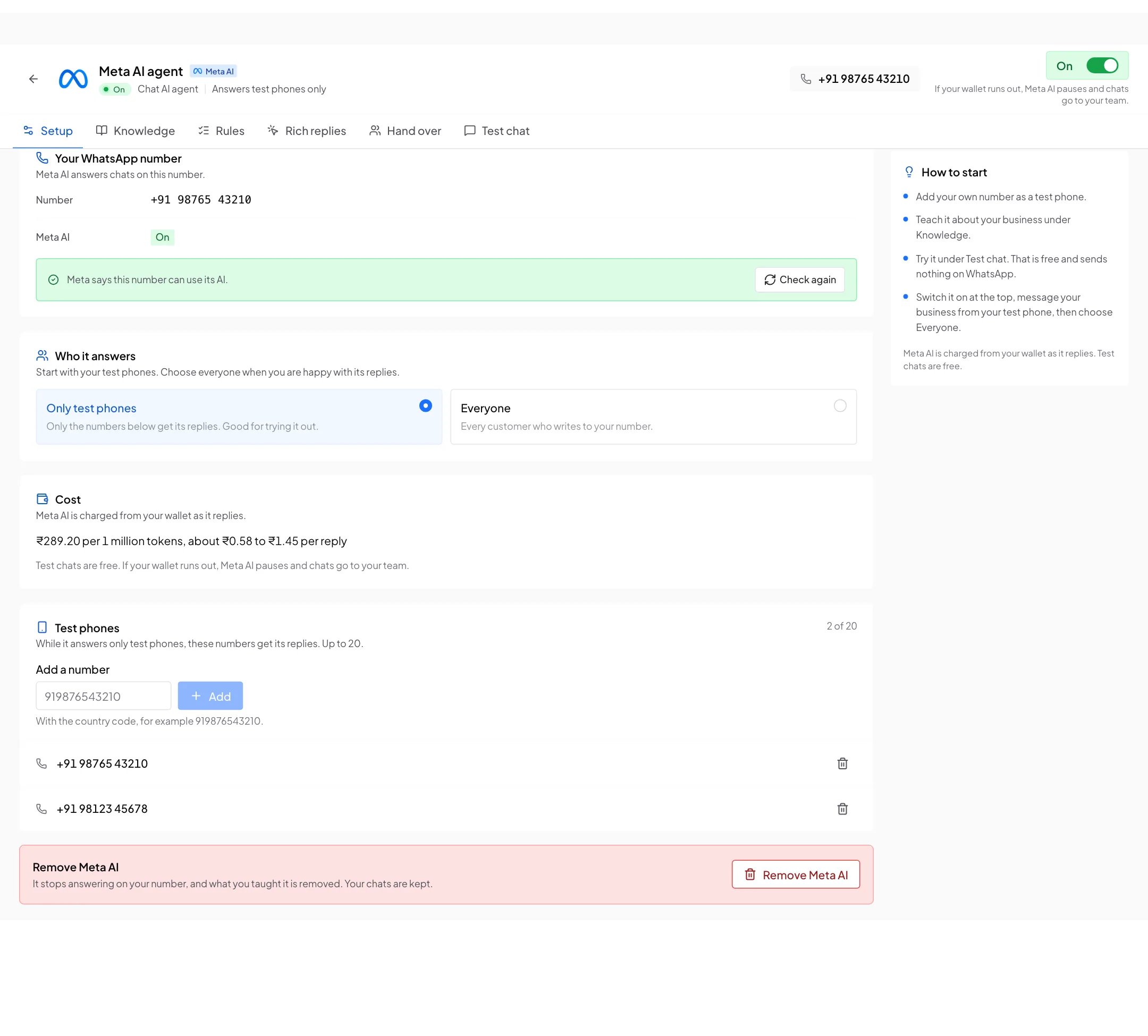
At the top you see its name, On or Off, who it answers (Answers test phones only or Answers everyone), your WhatsApp number and the On and Off switch. Below are six tabs: Setup, Knowledge, Rules, Rich replies, Hand over and Test chat.
On the Setup tab, under Your WhatsApp number, it says Meta says this number can use its AI. when all is ready.
Teach it
Meta keeps everything you add here, and Meta AI answers from it. Try each change in Test chat.
Knowledge
Click the Knowledge tab. It has four parts.
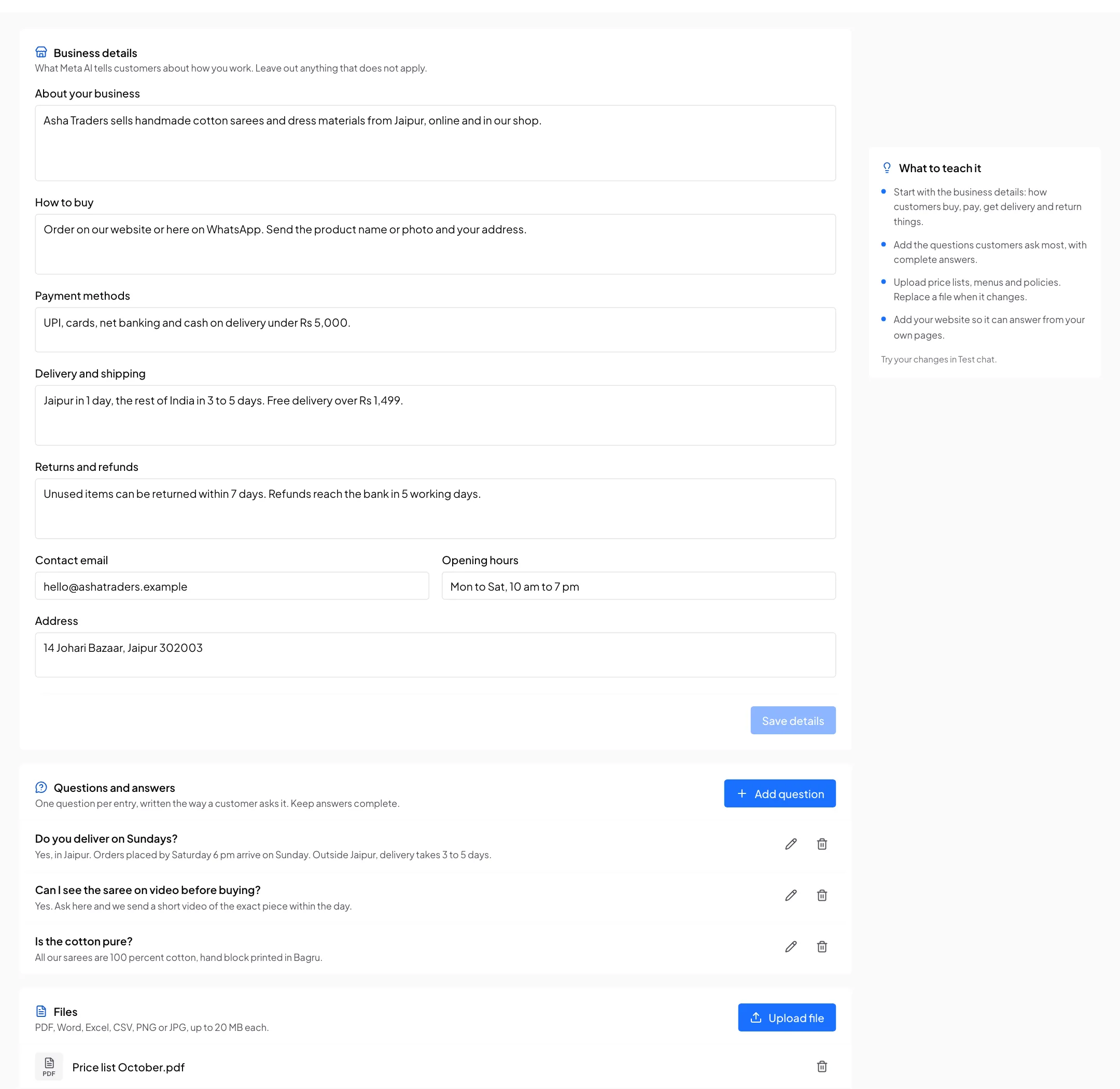
- Business details: fill in About your business, How to buy, Payment methods, Delivery and shipping, Returns and refunds, Contact email, Opening hours and Address. Leave out anything that does not apply. Click Save details.
- Questions and answers: click Add question. Write one Question the way a customer asks it, for example Do you deliver on Sundays?, and a complete Answer. Click Add question.
- Files: click Upload file. PDF, Word, Excel, CSV, PNG and JPG files work, up to 20 MB each. Good files: price lists, menus and policies. When a file changes, delete the old one with the bin icon and upload the new one.
- Websites: click Add website and type the full Web address, starting with https://. To read only part of your site, add Only pages containing (for example /products) or Skip pages containing (for example /blog), and press Enter after each one. Meta then reads your site, which can take a few minutes. Each website shows Waiting, Reading, Done, Nothing found or Failed.
Rules
A rule tells the AI what to do in one situation, in your own words. Click Rules, then Add rule.
Click Add rule. Meta checks each rule before the AI uses it. The status next to its name tells you where it is:
When you edit a rule, Meta checks it again.
One situation per rule
Keep each rule short, and say exactly when it applies, for example a customer asks for a refund after 7 days.
Rich replies
A rich reply is a button, a list, cards, a location or a WhatsApp Flow that the AI sends when it helps more than text. Click Rich replies, then Add rich reply.
Pick what it sends
Under What it sends, pick Link button, Photo, List, Reply buttons, Location pin, Ask for location, Cards with links, Cards with reply buttons or WhatsApp Flow.
For a WhatsApp Flow, also pick the Flow. Only published Flows can be sent. See Publish a flow.
Name it
Give it a Name, for example Track order button.
Say when and what to send
Under When and what to send, say when to send it and exactly what goes in it: the text, the button label and the link. For example: If a customer asks how to track an order, send a button with text Track your order, label Track, and link to your tracking page.
Click Add rich reply.
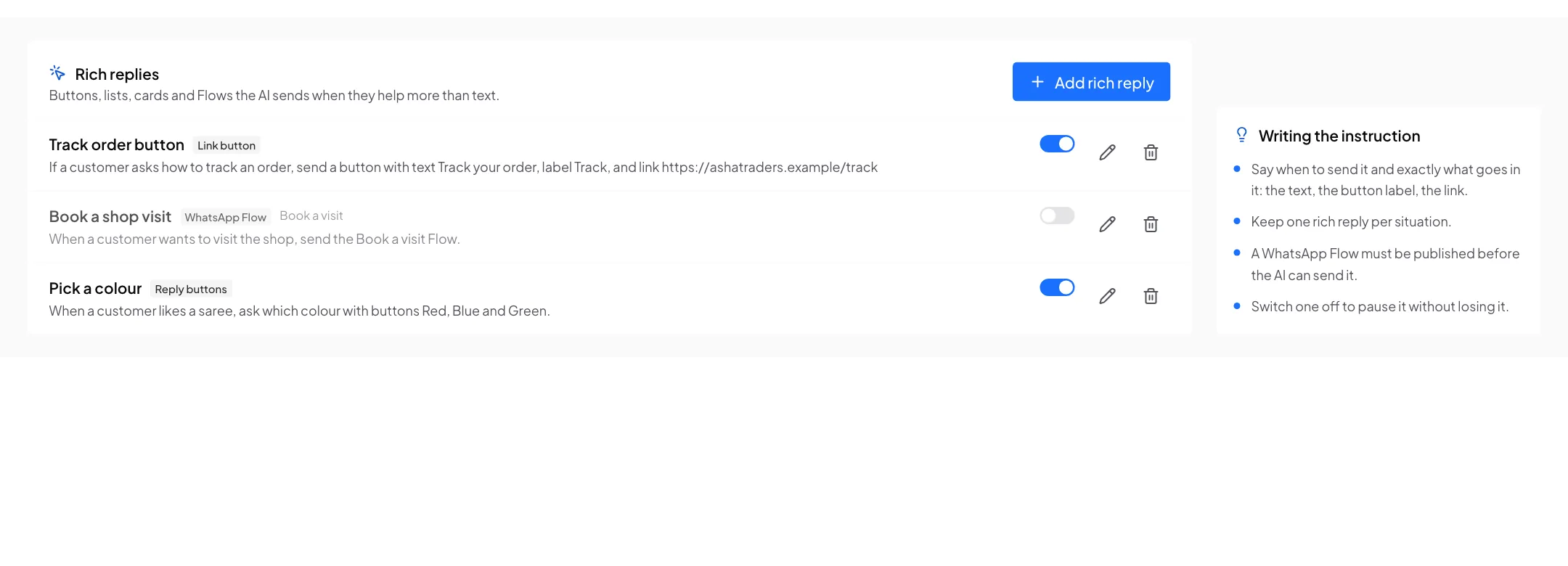
Use the switch on its row to pause a rich reply without losing it. When you edit one, you can change its name and what it says, but not the kind of reply or its Flow.
Try it free, then switch it on
Go step by step: a free test chat first, then your own phones, then everyone.
1. Test chat (free)
Click Test chat. Write as a customer would, or click a question under Try asking. Test chats are free, and nothing is sent on WhatsApp.
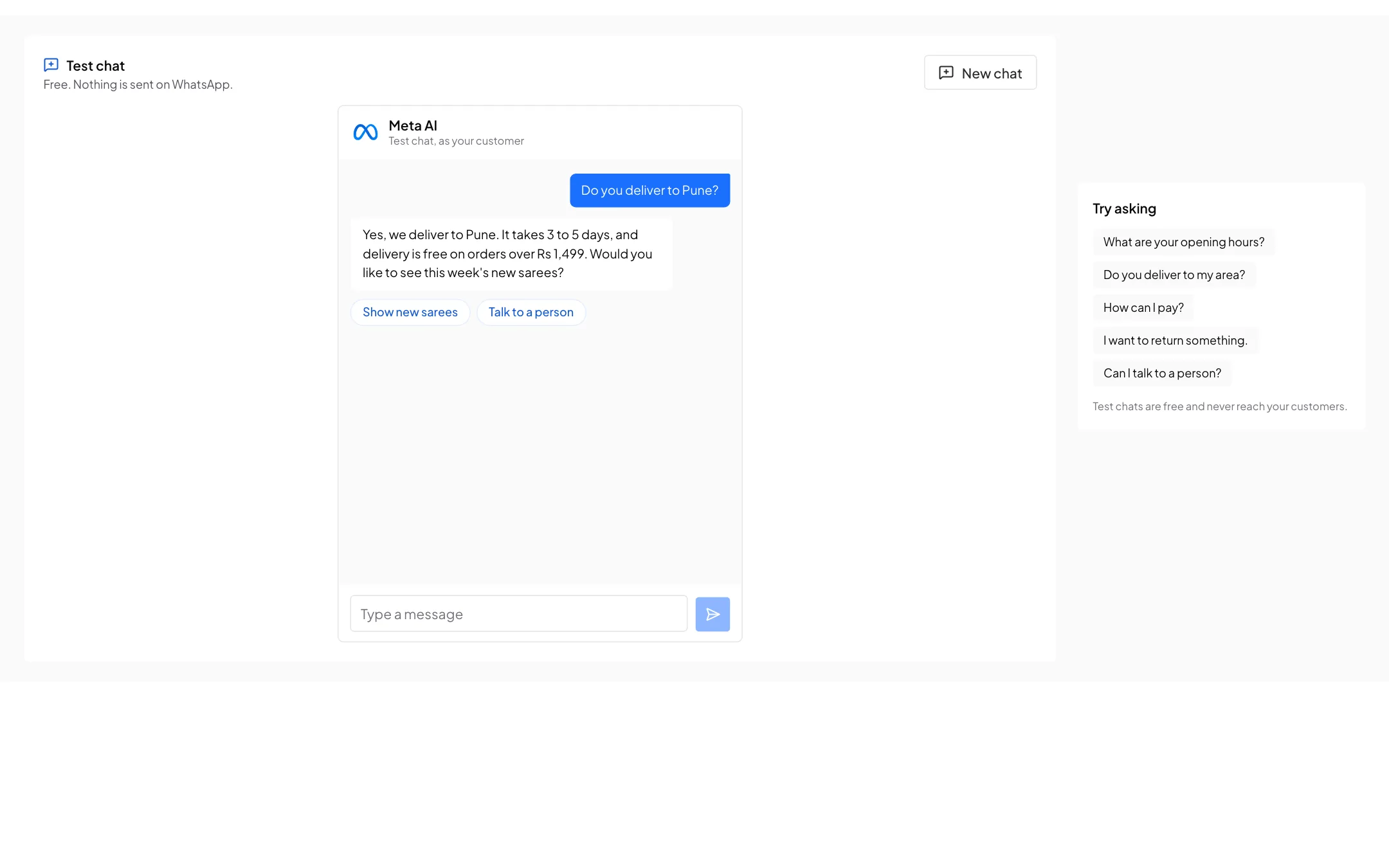
- Where the AI would pass the chat to your team, a note says Meta AI would hand this chat to your team here.
- Meta AI chose not to reply. means it decided not to answer that message.
- Click New chat to start again.
If an answer is wrong, add the missing fact under Knowledge or a rule under Rules, then ask again.
2. Your test phones
Add a test phone
On the Setup tab, under Test phones, type your own number with the country code, for example 919876543210, and click Add. You can add up to 20 numbers.
Switch it on
Click the Off switch at the top right. It turns green and says On. While Only test phones is picked under Who it answers, only these numbers get its replies. All your other customers are answered as before.
Message your business
From your test phone, send a message to your business number on WhatsApp, and check the replies.
Replies Meta AI sends on WhatsApp are charged from your wallet. Test chat is free.
3. Everyone
When you are happy with its replies, open Setup and, under Who it answers, pick Everyone. Meta AI now answers every customer who writes to your number, and the top of the page says Answers everyone.
Hand over to your team
Click Hand over. It has three parts. Click Save under each part you change.
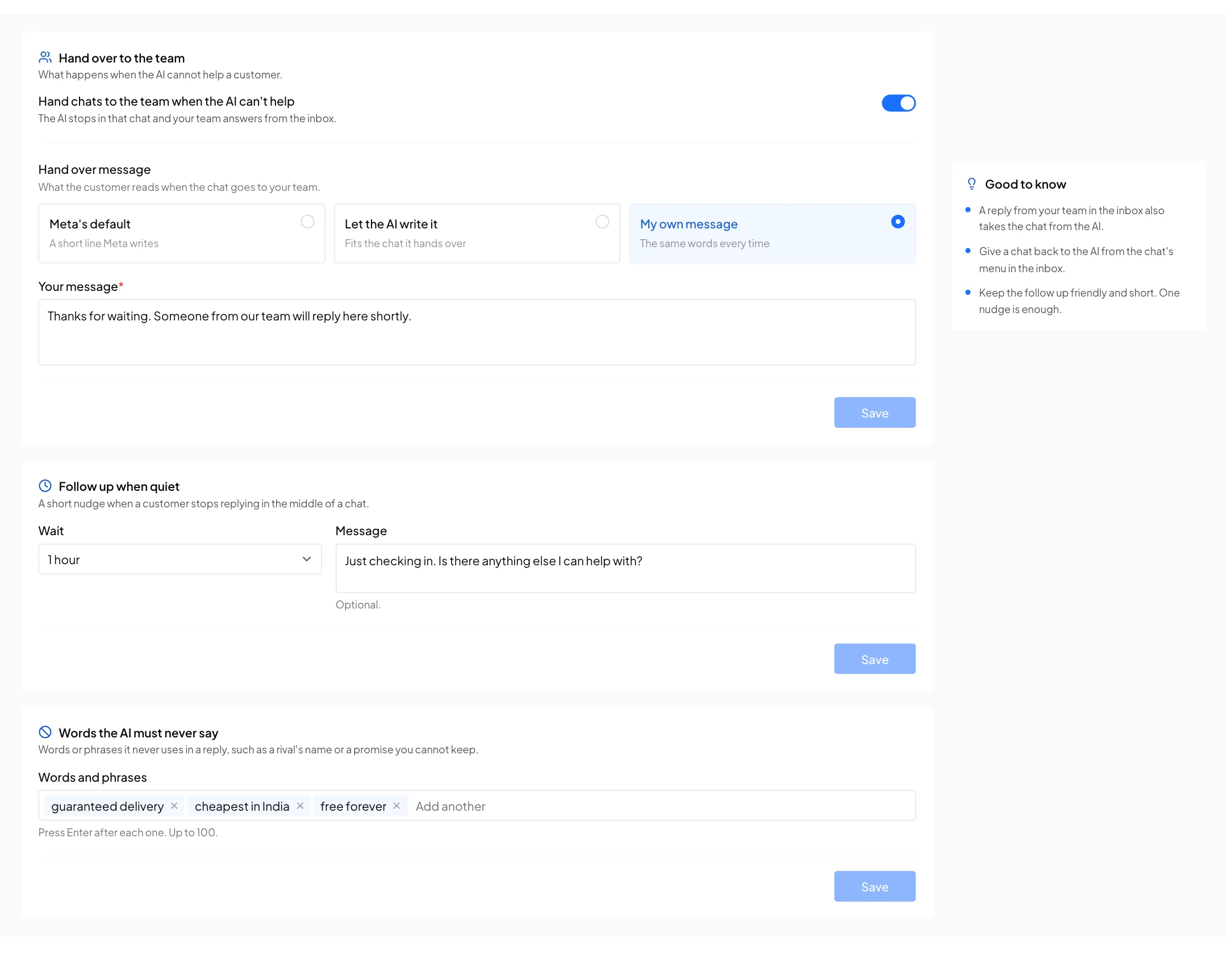
- Hand over to the team: turn on Hand chats to the team when the AI can't help. The AI stops in that chat and your team answers from the inbox. Then pick the Hand over message the customer reads:
- Meta's default: a short line Meta writes.
- Let the AI write it: it fits the chat it hands over.
- My own message: the same words every time, for example Thanks for waiting. A member of our team will reply here shortly.
- Follow up when quiet: one short nudge when a customer stops replying in the middle of a chat. Pick a Wait, from 5 minutes to 1 day, and write a Message if you like, for example Just checking in. Is there anything else I can help with? Pick Off to turn it off.
- Words the AI must never say: words or phrases it never uses in a reply, such as a rival's name or a promise you cannot keep, for example guaranteed delivery. Press Enter after each one. You can add up to 100.
In your inbox
Every chat Meta AI answers is in Messages, with its replies marked with the Meta AI logo.
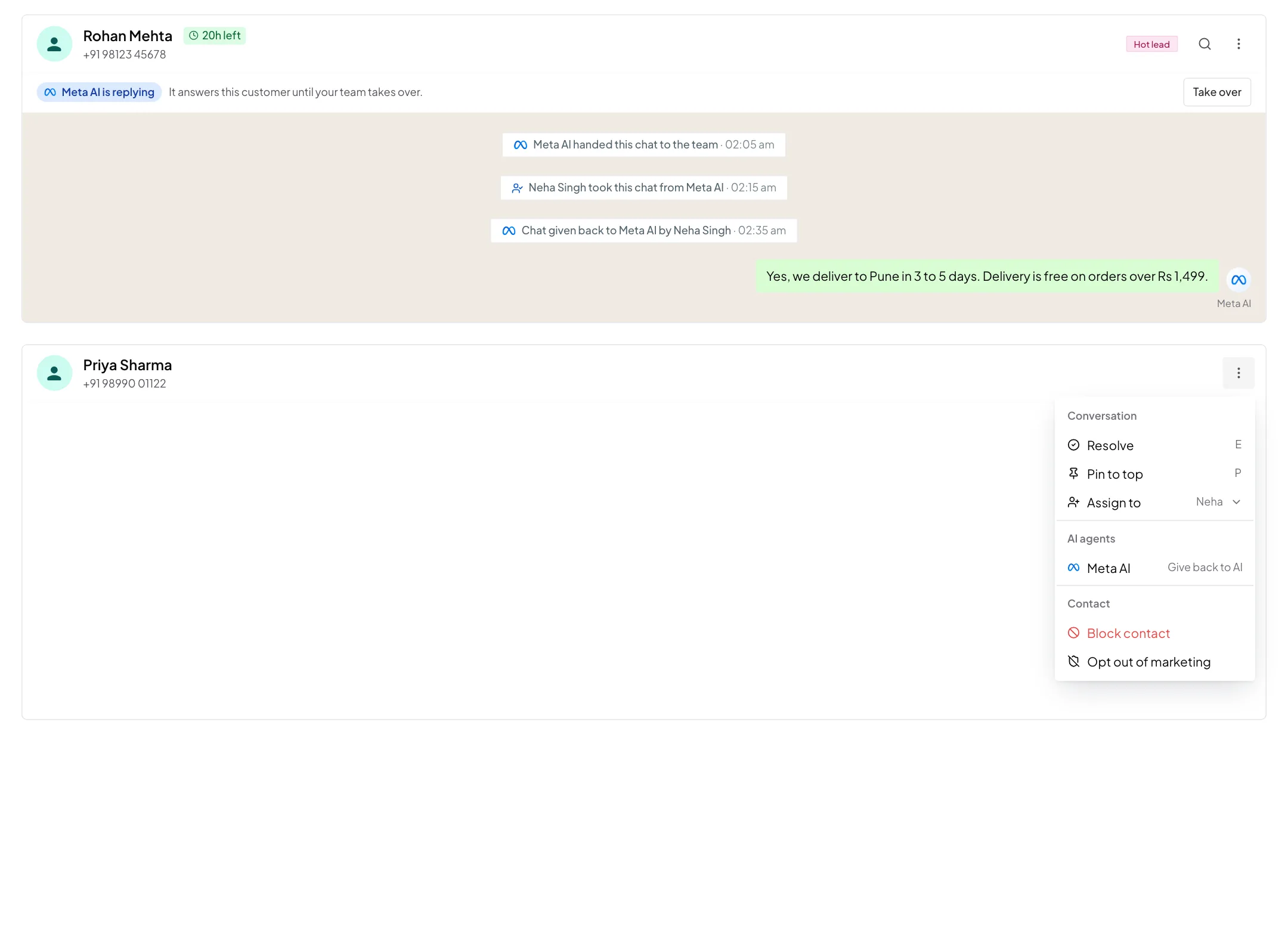
- Meta AI is replying: this line shows under the chat's name while Meta AI answers that customer. Click Take over to answer yourself. Meta AI stops replying to that customer.
- A reply from your team also takes the chat. When anyone on your team replies in the chat, Meta AI steps back.
- Give back to AI: to let Meta AI answer that customer again, click ⋮ at the top right of the chat. Under AI agents, click Meta AI (Give back to AI).
- Notes in the chat show what happened, for example Meta AI handed this chat to the team or Aarav took this chat from Meta AI.
If Meta does not let your number use Take over, the app says Reply to take over. Just send a reply in the chat: Meta AI stops for that customer as soon as you reply.
Alerts
You are not alerted about new messages in chats Meta AI is answering. You are alerted when Meta AI hands a chat to your team, for example Meta AI handed this chat to your team.
One AI at a time
Your account can have one Meta AI agent and one Splashify AI agent, but only one of them can be on at a time. If you try to switch one on while the other is on, the app tells you, for example Meta AI is on. Switch it off first: only one AI agent can be on at a time. Switch the other one off first.
While Meta AI answers a chat, these stay quiet in that chat, so a customer never gets two answers to one message:
- your workflow bots
- your welcome and off-hours messages
When Meta AI answers Everyone, that is every chat. While it answers Only test phones, it is only the chats with your test phones. Your other customers get your bots and messages as before.
Turn it off or remove it
- Switch it off: click the On switch at the top of the Meta AI page, then Switch off. Or, in AI Agents & Bots, click ⋮ on its row, then Deactivate. It stops replying, and your team answers every chat. What you taught it is kept.
- Remove it: at the bottom of the Setup tab, click Remove Meta AI, then confirm. Meta AI stops answering on your number, and what you taught it is removed at Meta. Your chats are kept. This cannot be undone. To use it again, create a Chat AI agent and pick Meta AI.
What it costs
Meta AI is charged from your main Wallet Balance as it replies.
- Your price is on the Setup tab, in the Cost card: the price per 1 million tokens, and about how much one reply costs. A token is a small piece of text, about 4 letters.
- Test chat is free.
- In Track expenses, its charges show as lines such as Meta AI replies (12), 19 Oct, 3 PM: the replies it sent in that hour.
- If your wallet runs out, Meta AI pauses and chats go to your team. Add money and it starts answering again within about an hour.
For the cost of your other AI features, see AI credits and pricing.