
Catalog chatbot blocks
Four bot steps send products without anyone on your team: your whole catalog, one product, several products, or a product carousel. Use them to answer "show me your sarees" at any hour.
They send exactly what you can send by hand from a chat. See Send products in chat for how each looks to the customer. You need a connected catalog first. These steps work in WhatsApp bots only.
Add a catalog step to a bot
Open your bot
In the left sidebar, click AI Agents & Bots, then open your WhatsApp workflow bot. See Build a chatbot if you are new to bots.
Find the catalog steps
In the step list on the left, under Send messages, scroll to Send catalog message, Send single product, Send multi-product and Send product carousel.
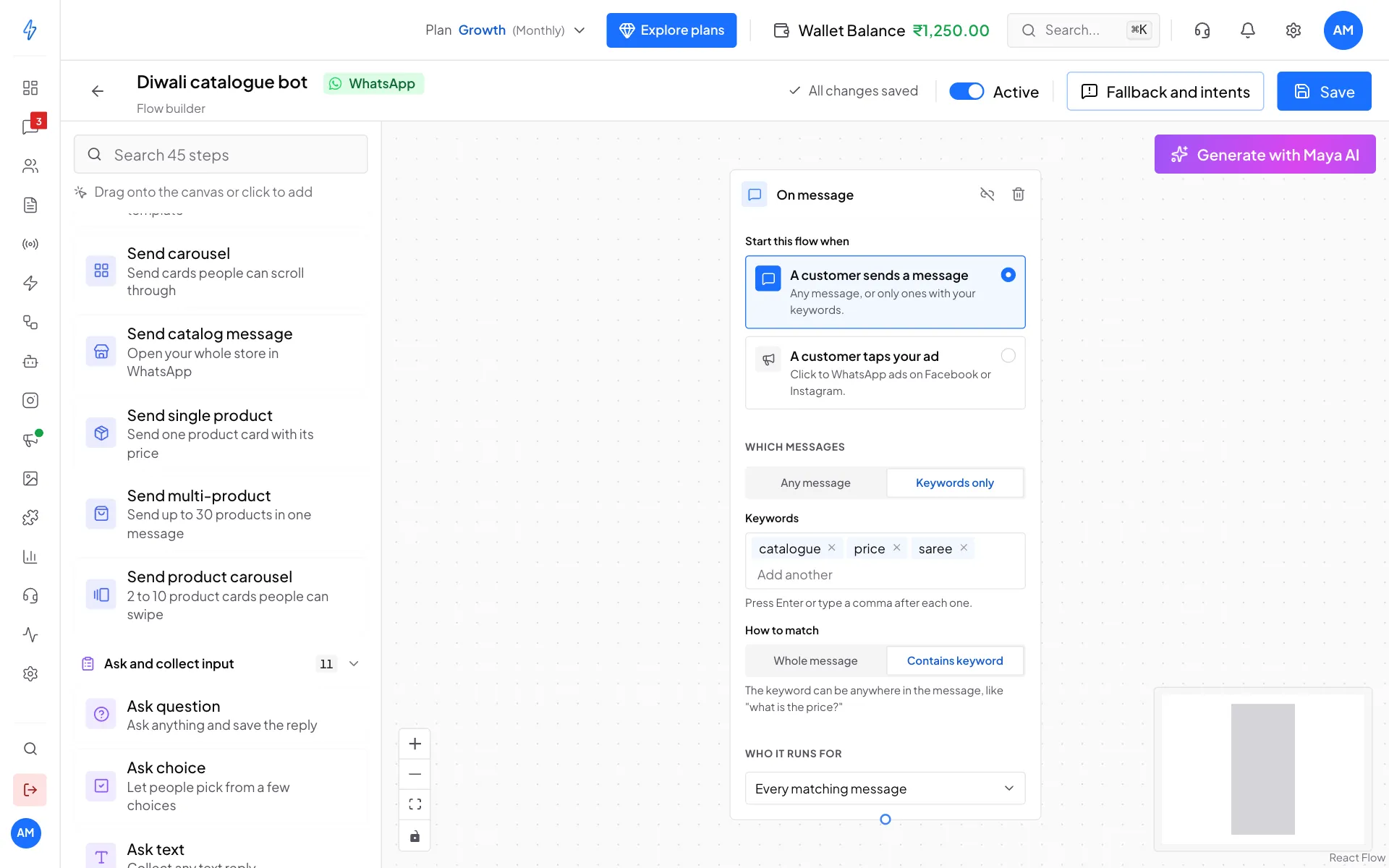
The four catalog steps in the step list Add it and connect it
Drag the step onto the canvas, or click it. Connect it after the step that should come before it, for example the On message trigger.
Fill in the step
Write the Message, add a Footer if you like, and pick the products. For Send multi-product you can also type a List heading.
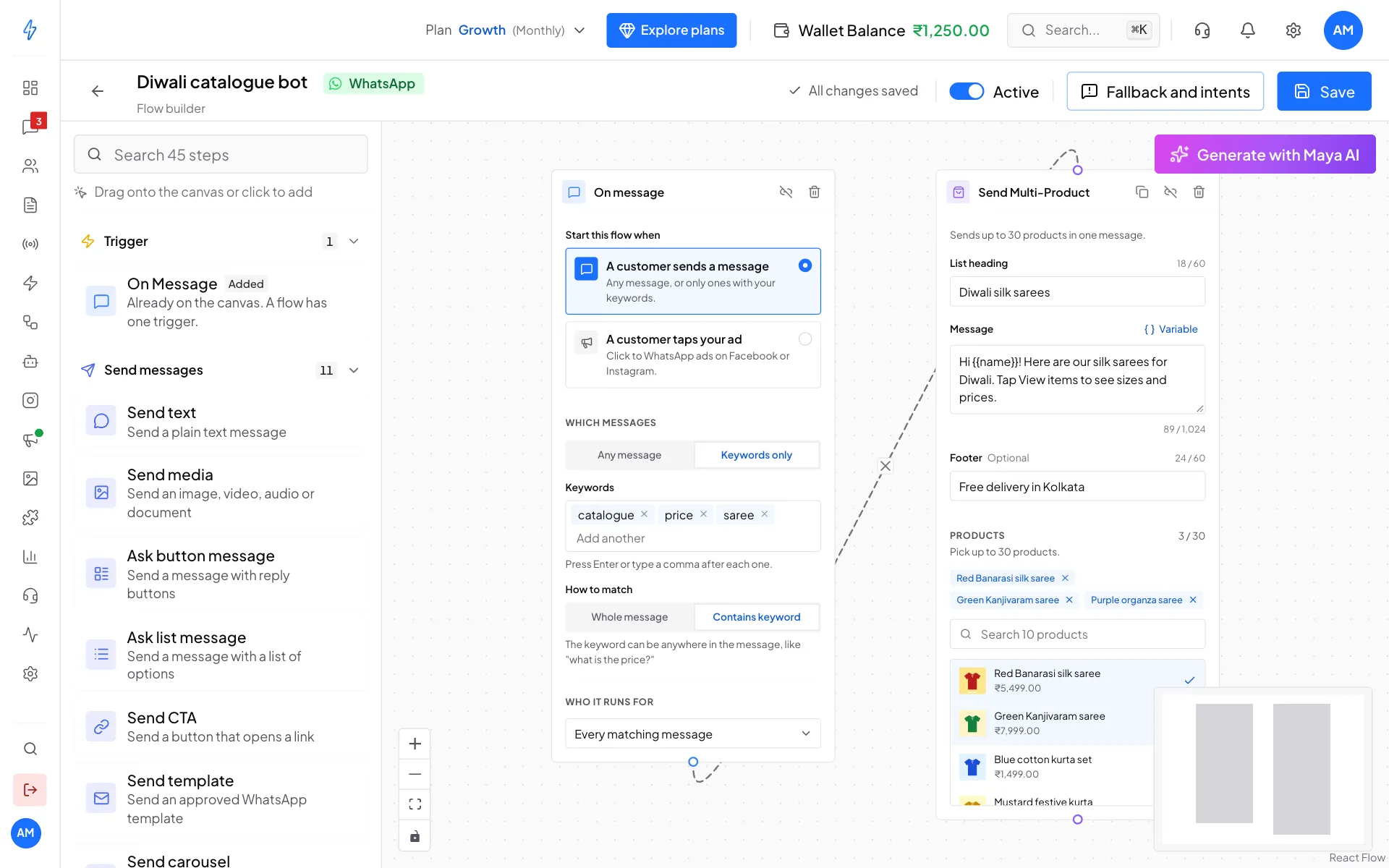
A bot that sends three sarees when someone asks about them Save
Click Save at the top right. Make sure Active is on.
The fields
Message
Write what the customer reads with the products. You can add saved answers with Variable, or by typing them like this:
Hi {{name}}, here are the items you asked about.The message is needed for all steps except Send single product, where it is optional. Up to 1,024 characters.
Products
The picker lists everything imported from your catalog. Search by name or product ID.
- Send catalog message: picking a product is optional. It only sets the Header thumbnail picture.
- Send single product: pick exactly one.
- Send multi-product: pick up to 30. Chosen products show as chips you can remove.
- Send product carousel: pick 2 to 10. Each one becomes a card.
Footer and heading
A Footer (optional, 60 characters) works on all steps except the carousel. Send multi-product also takes a List heading (60 characters). Left empty, it is Our products.
Which catalog is used
The step remembers your catalog the first time you set it up. So if you switch catalogs later, a live bot does not quietly start sending different products. If you move to a new catalog, open each catalog step and pick the products again.
When something is missing
A catalog step never leaves the customer stuck. If the catalog is missing, no product is picked, or the text is too long, the step sends your message as plain text and the bot moves on.
So if customers say they got text where products should be, check:
- a catalog is connected in Commerce,
- your products are imported (Import products),
- the step still has products picked.
Example bots
A simple product question bot:
On message (keywords: catalogue, price, saree)
  then Send catalog message
       "Here is our full range. Tap below to browse."
  then Ask button message
       "Want help choosing?"  [Yes] [No thanks]
  then (Yes) Send text
       "Great! Tell us your budget and the occasion."
A follow-up after someone taps your ad:
On message (A customer taps your ad)
  then Send single product
       "Thanks for your interest! Here is the saree from our ad."
  then Ask question
       "Any questions before you order?"
See Workflow bot for triggers and bot basics, and Click-to-WhatsApp (CTWA) tracking for bots that start from ads.