
Automations
Automations are ready-made Instagram bots. Pick one, fill in a couple of fields, and it starts working on your Instagram straight away. No flow building needed.
Turn on an automation
Open the Automations tab
In the left sidebar, click Instagram. The Automations tab opens first. The automations are grouped: Grow your audience, Sell more, Answer faster, Keep people engaged and Set up your profile.
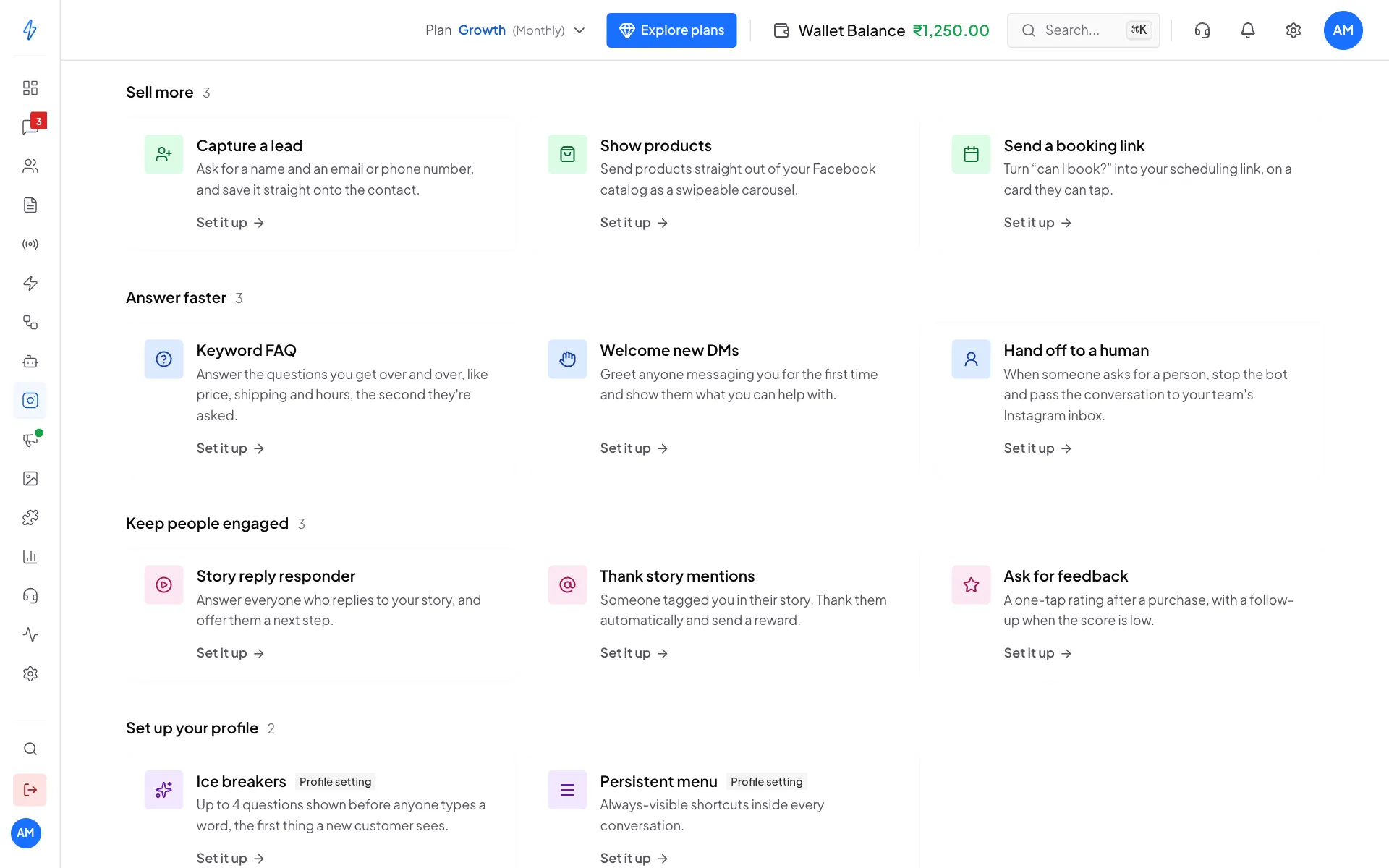
Pick the automation you need Pick one
Click a card, for example Comment-to-DM. A box opens with a short Why it works note and the fields to fill in.
Fill in the fields
For Comment-to-DM:
- Under Posts to watch, tap each post it should run on. A tick shows on the ones you picked.
- Under Trigger keywords, type a word and press Enter (or type a comma). Add as many as you like.
- Write The DM to send.
- Optional: add a Link. It is sent as a second message so the link preview shows.
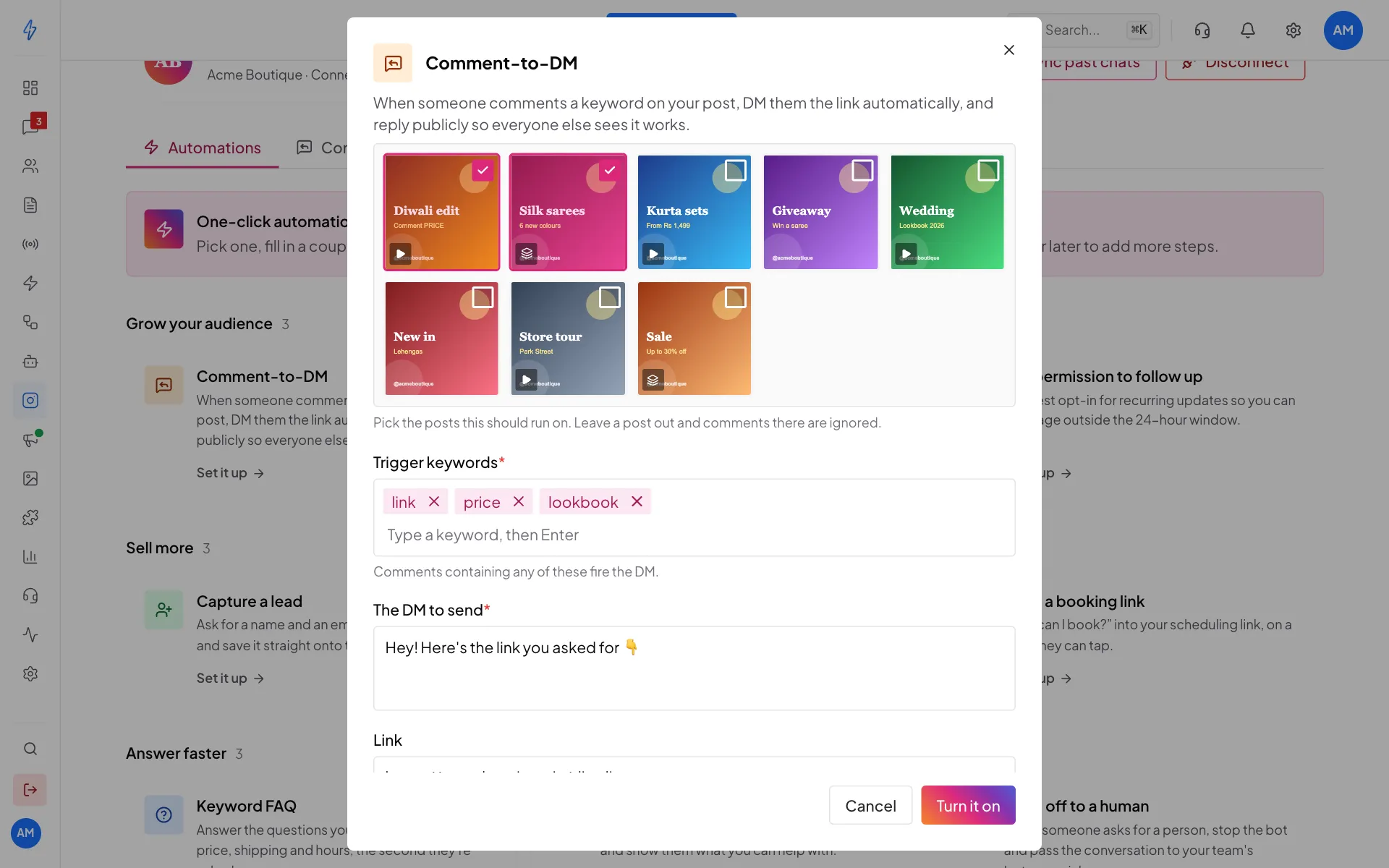
Pick posts, add keywords, write the DM Click Turn it on
Click Turn it on. You will see a message that it is live. From now on it answers on Instagram by itself.
Every automation is a real bot
Each automation you turn on is saved as a published Instagram bot. You find it in AI Agents & Bots in the left sidebar, where you can rename it, switch it off, or delete it.
The automations
Grow your audience
Sell more
Answer faster
Keep people engaged
Set up your profile
Ice breakers and Persistent menu carry a Profile setting badge. They change your Instagram profile instead of creating a bot. See Ice breakers and menu.
Two automations to set up first
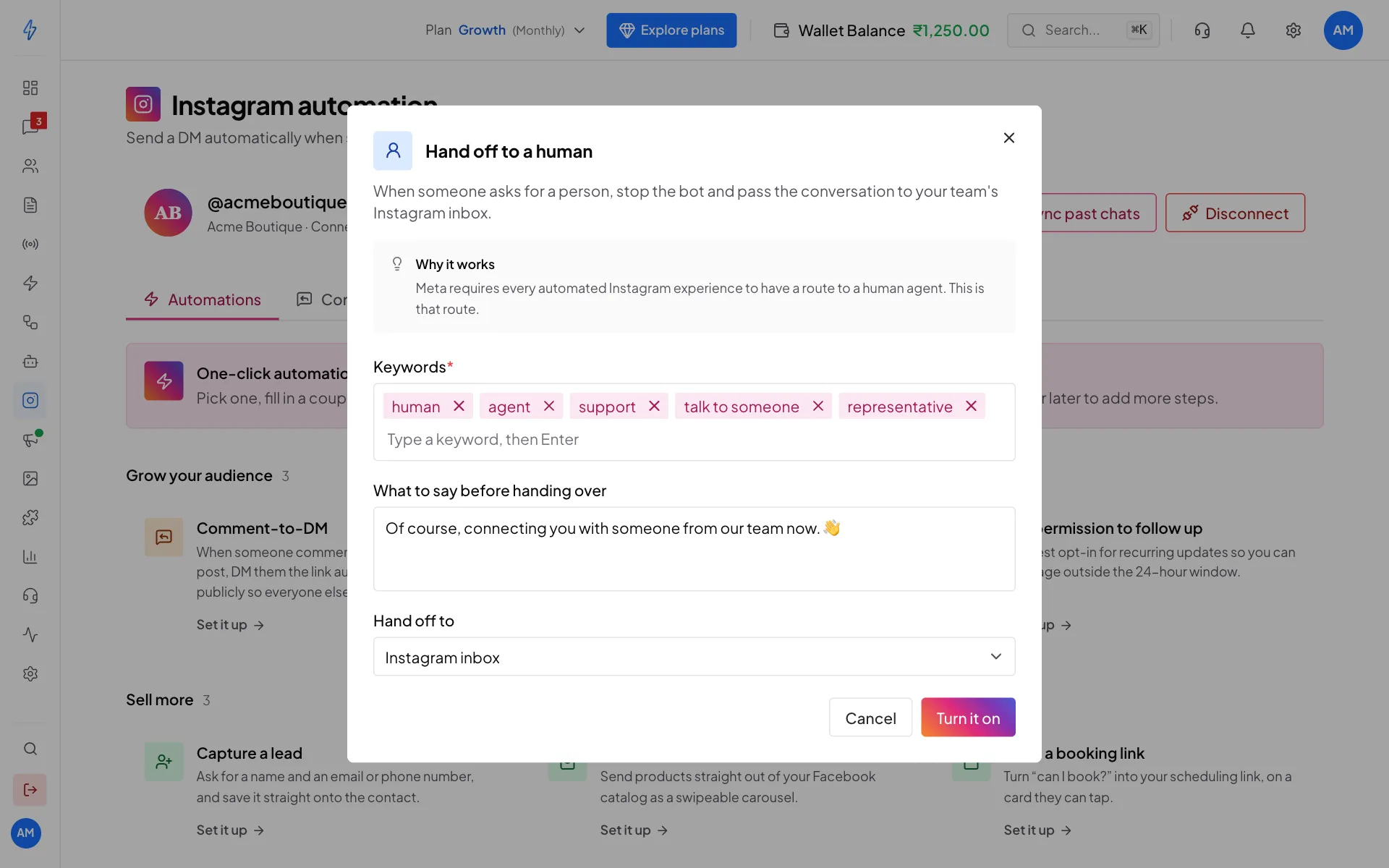
Hand off to a human
Meta requires every automated Instagram chat to have a way to reach a real person. This automation is that way. When a DM has a keyword like human or agent, the bot sends a short message, passes the chat to your team, and stops, so it never talks over the person who picks up the chat.
Fill in the Keywords, What to say before handing over, and Hand off to. Leave Hand off to on Instagram inbox unless your developer asks otherwise.
Welcome new DMs
This greets only someone's first message, so a returning customer is never greeted like a stranger.
Under Menu options, type the choices customers can tap, one per row. Click Add another for more rows. The Reply code (optional) box can stay empty.
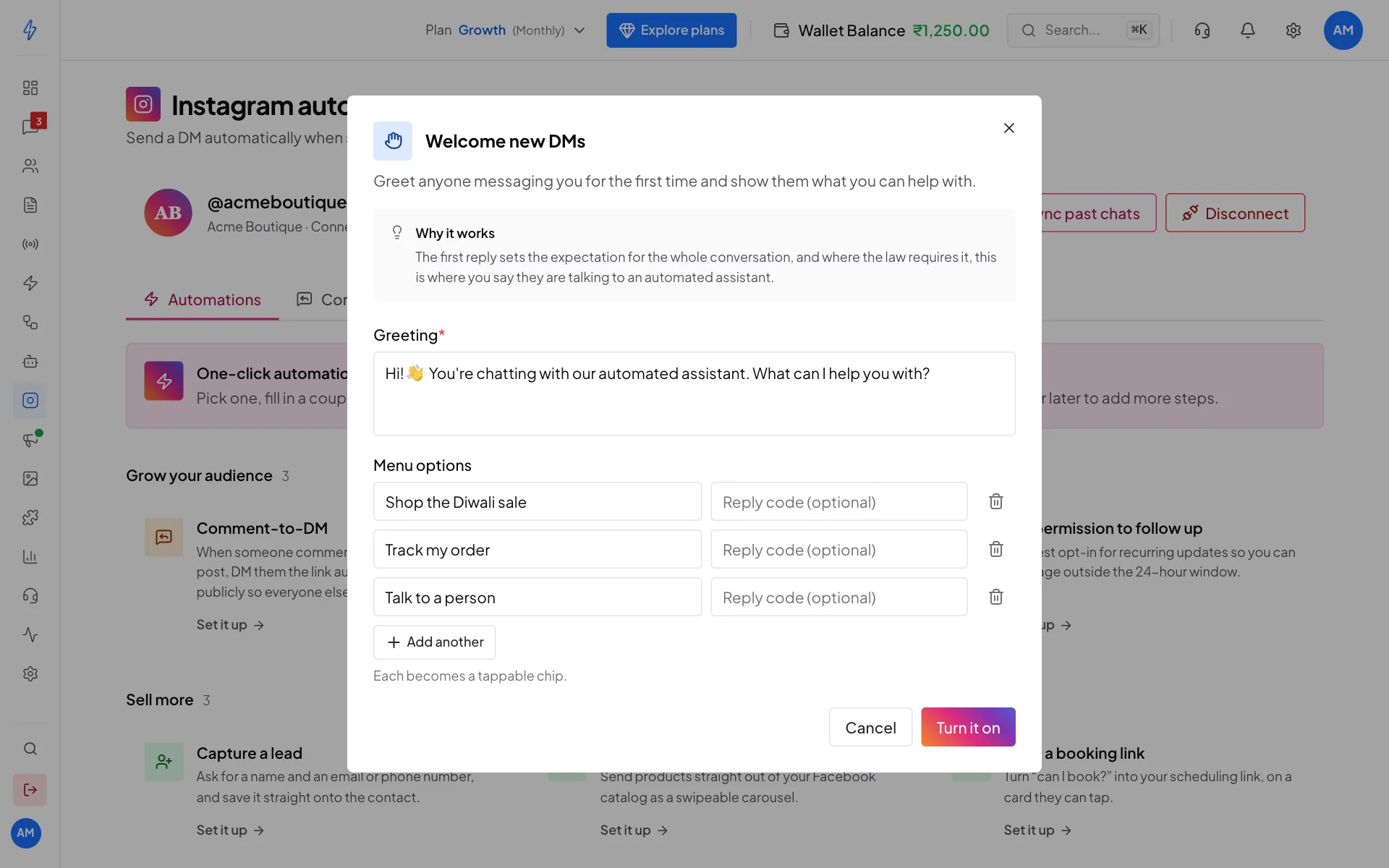
Where the law requires it (California and Germany are the examples in Meta's rules), the greeting must say the customer is talking to an automated assistant. The default greeting already does. If you rewrite it, keep a line like "You're chatting with our automated assistant."
The fields you will see
Reply codes
Every button a customer taps carries a hidden reply code. Your bot reacts to the code, not to the words on the button. So you can rename a button later without breaking anything. If you leave the code empty, the app makes one for you.
After an automation is live
Open AI Agents & Bots in the left sidebar to find the bot the automation created. From there you can rename it, switch it off without deleting it, or delete it.
Turning on the same automation twice creates a second bot. To change an automation, delete its bot and turn the automation on again with the new settings.
Some steps are not shown in the flow builder
Most automations use Instagram-only steps, such as tap buttons, reactions, typing and hand off. The flow builder does not show those steps yet, so change these automations from this tab as described above.
Limits
- Tap buttons: 13 per message. Text over 20 characters is cut short.
- Cards: 10 per message, 3 buttons per card.
- Products: 10 per message.
- Message text: 1,000 characters.
- Tap buttons and cards only show in the Instagram mobile app. On Instagram on the web the text still arrives.
These limits are checked before anything is sent, so you get a clear message instead of a DM that silently loses its buttons.