
Creating an Ad
You create a Click-to-WhatsApp ad in a five-step wizard, with a live preview of the Facebook ad and the WhatsApp chat beside every step. We then run it for you for a flat daily rate, paid from your ad credits.
Before you start
- WhatsApp connected: the ad opens a chat with your WhatsApp business number.
- Ad credits: at least one day of your chosen rate. See Ad credits.
- Your Facebook Page shared with us, and linked to your WhatsApp number in Meta Business Settings. See Managed ads.
Create a campaign
Start a new campaign
In the left sidebar, click CTWA Ads. On the Managed ads tab, click New campaign. The New managed campaign window opens.
Campaign: Page and goal
Pick the Facebook Page the ad runs from. The ad shows that Page's name and picture. The note under it names the WhatsApp number the Page must be linked to.
Pick a Goal:
- Engagement: the most WhatsApp chats for your money. The right choice for most shops.
- Sales: people likely to buy after chatting.
- Traffic: the cheapest clicks through to WhatsApp, not the most chats.
Only tick a Special ad category (Housing, Employment, Credit, Social issues, elections or politics, Gambling and gaming, Financial products and services) if your ad really is about one. Meta limits targeting for these, so ticking one you do not need makes the ad work worse. Click Next.
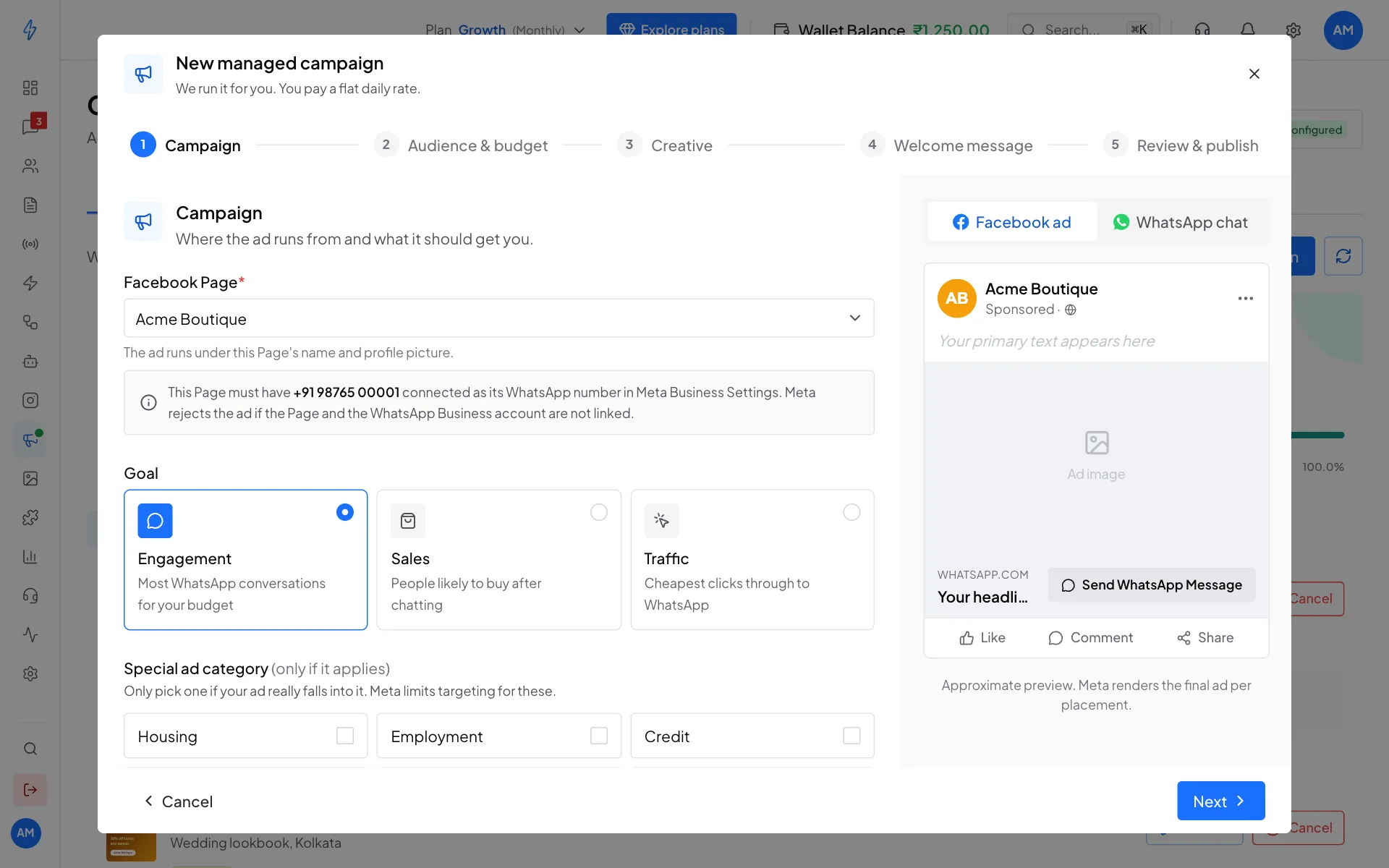
Step 1, Campaign: your Page and your goal Audience & budget: daily rate and who sees it
Type your Daily rate, for example 500. That is what you pay per day from your ad credits, and only for the days the campaign runs. The lowest and highest rates you can use are shown under the field.
Under Who sees it, search Locations for a country, state or city and click it, for example Kolkata. Add as many as you like. Set Age and Gender if needed.
Interests and behaviours is optional. Leaving it empty lets Meta find the right people itself, which usually works better for a first campaign. Under Where it shows, Facebook and Instagram are on by default.
Estimated reach under the preview is Meta's guess of how many people the ad can reach. Click Next.
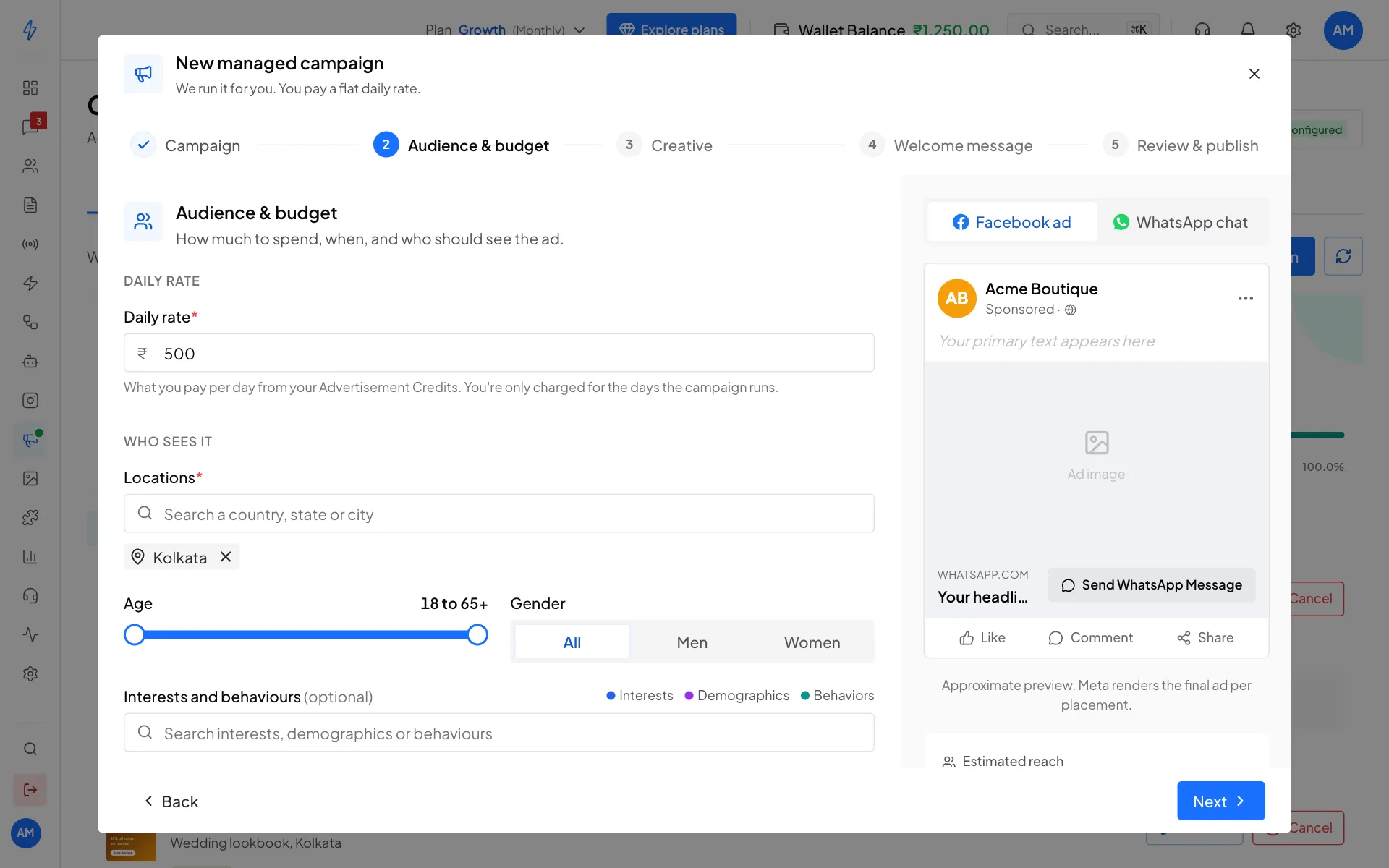
Step 2, Audience & budget: daily rate and locations Creative: picture and words
Add the Ad image: drag a JPG or PNG in, click Choose from library, or click Generate with AI (see below).
Write the Primary text (the message above the picture, best under 90 characters), the Headline (the bold line next to the button, up to 25 characters), and an optional Description. Give it an Ad name that only you see. The button always says Send WhatsApp Message. That is the only button Meta allows on these ads.
Short of ideas? Open Write my ad with AI at the top of this step (see below). Click Next.
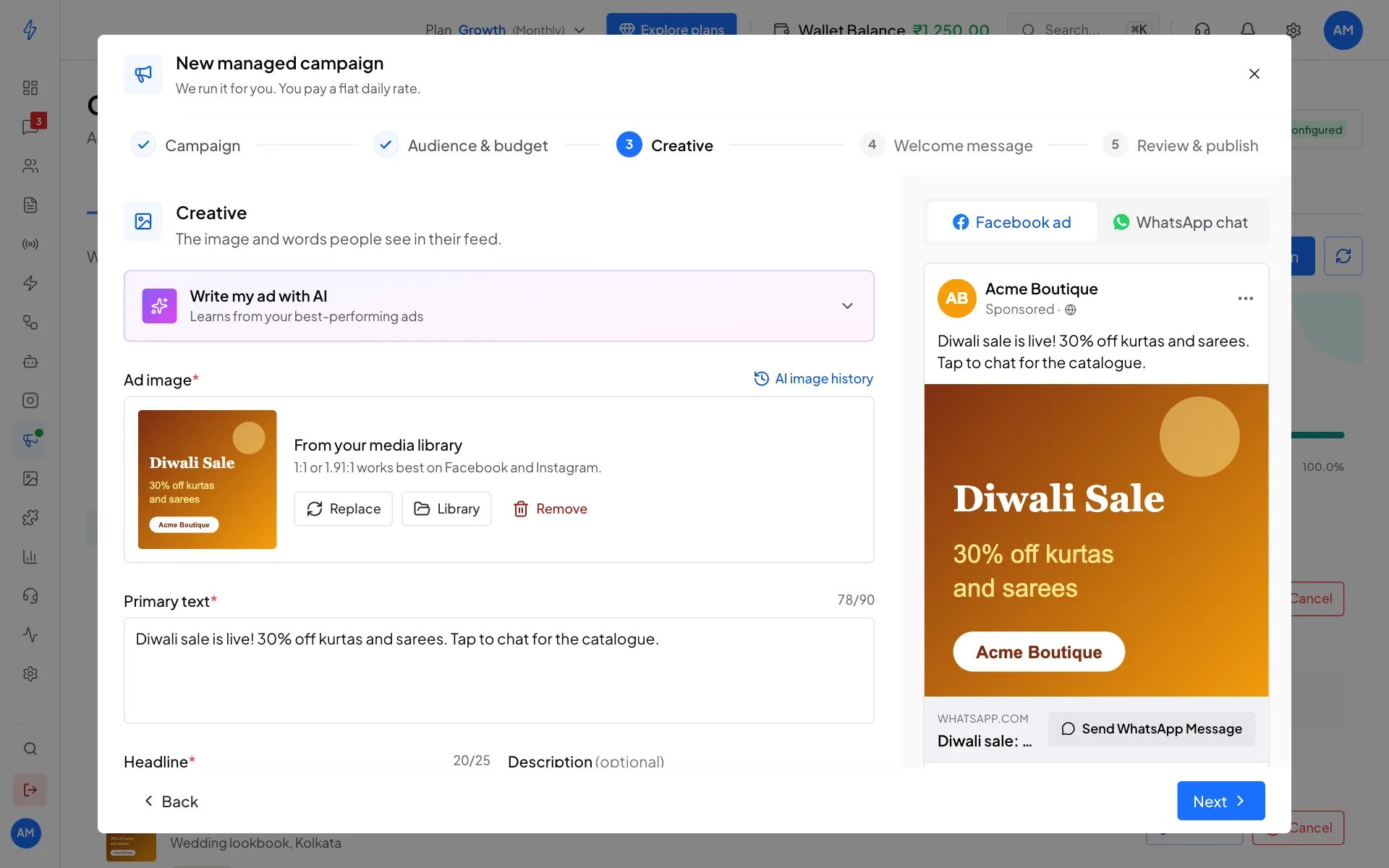
Step 3, Creative: the preview updates as you type Welcome message: what the chat shows
Keep Show a welcome screen on. Write the Greeting message, the first thing the customer sees when the chat opens, for example Hi! Thanks for tapping our Diwali ad. Which outfit caught your eye? Check the Pre-filled customer message, the text waiting in the customer's message box so they only have to tap send. Click the WhatsApp chat tab on the right to see it. Click Next.
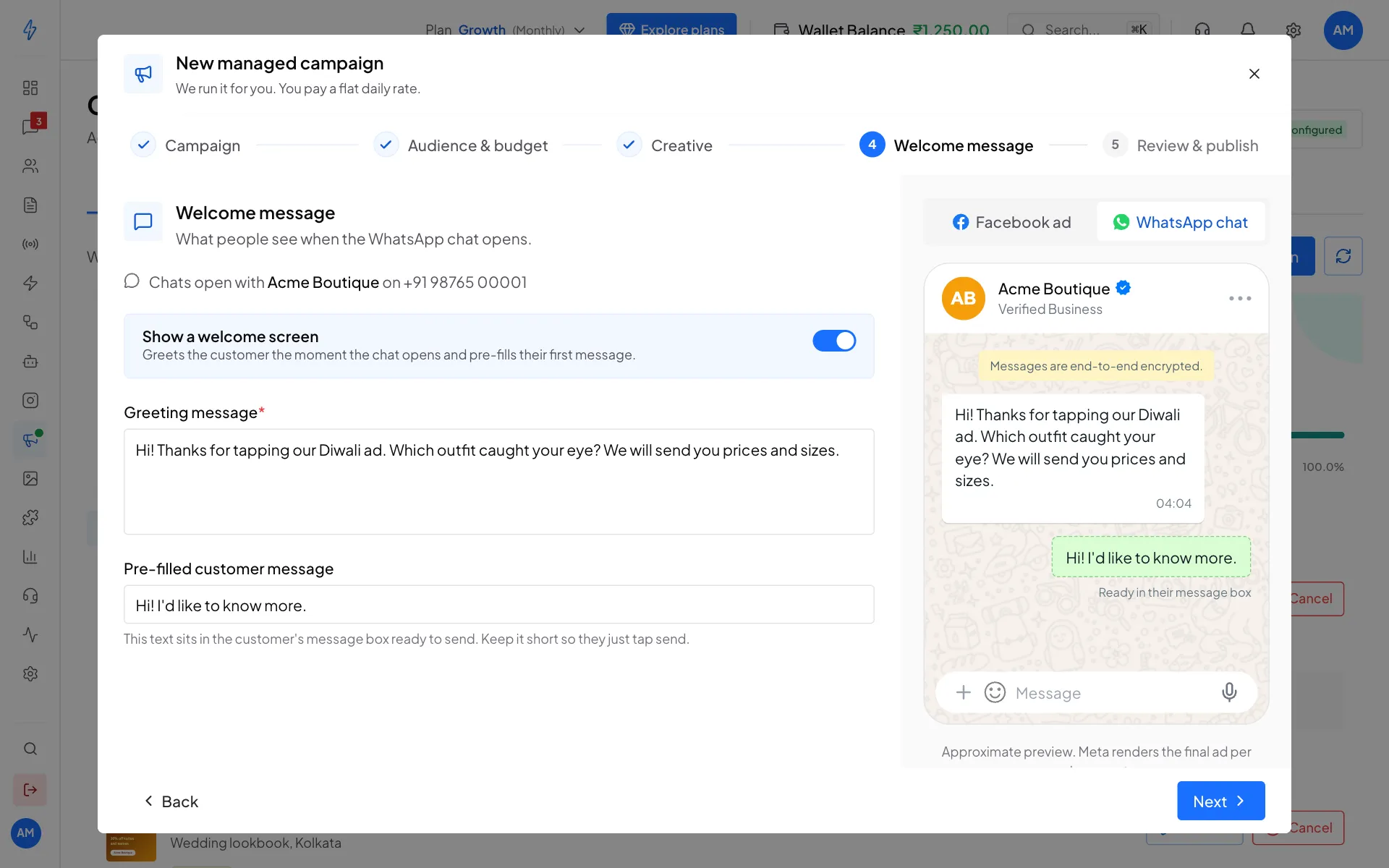
Step 4, Welcome message: a warm greeting gets far more replies Review & publish
Check the summary. The box at the top shows your daily rate and that it is billed from your ad credits. Click Edit on any section to change it. Then click Launch campaign.
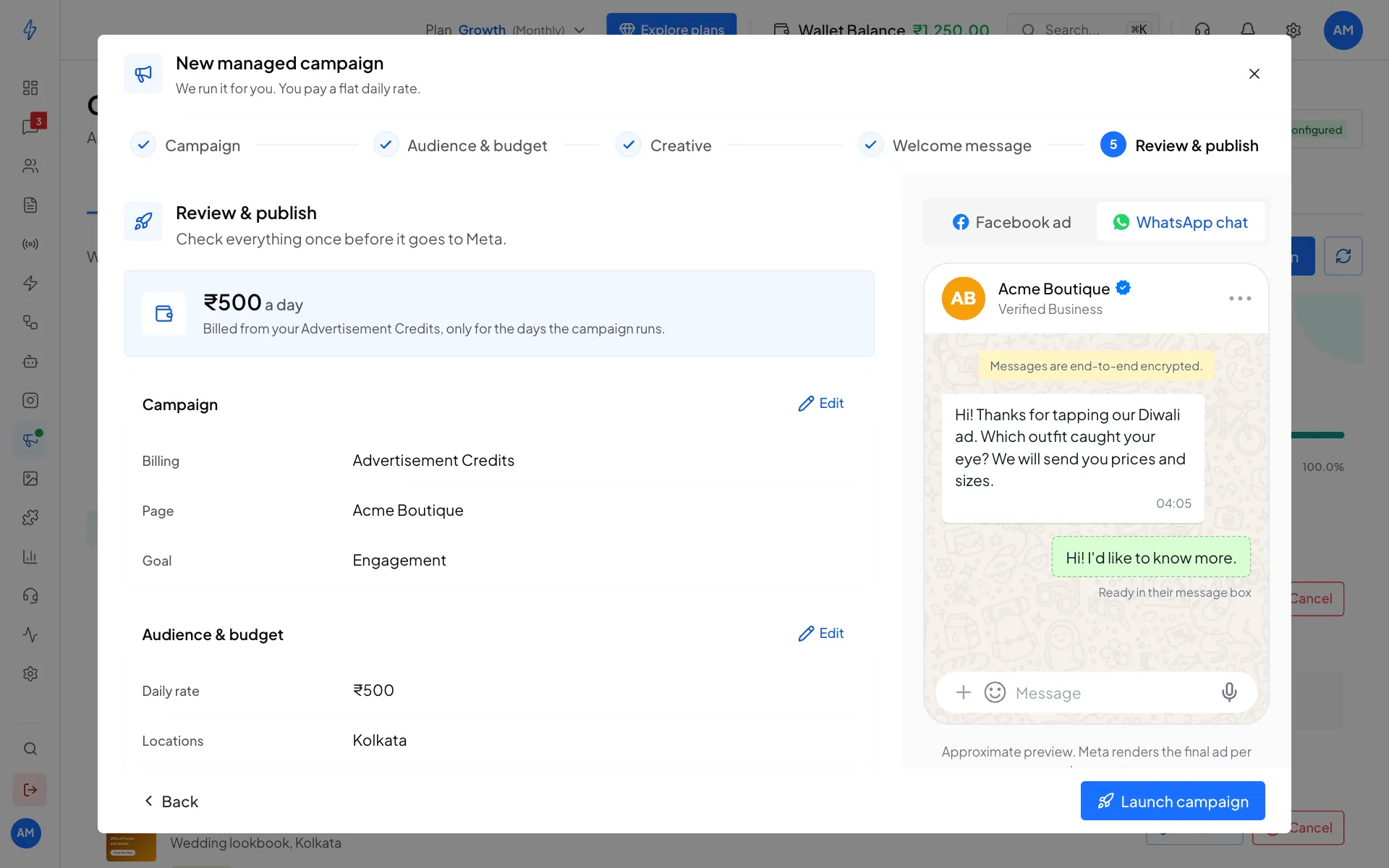
Step 5, Review & publish: check, then Launch campaign
You will see the new campaign on the Managed ads tab. New ads wait in Meta's review before they run, usually a few hours, so seeing no reach at first is normal. Day one is charged only once the campaign exists, so a campaign that fails to build costs nothing.
Write my ad with AI
In the Creative step, open Write my ad with AI. Fill in What are you advertising?, and optionally Who is it for? and Offer or hook. Pick a Tone and the language in Write in, then click Generate ad copy. You get three versions, each with a different angle (price, urgency, social proof). Every version fills four fields at once: Headline, Primary text, and the Greeting and Pre-filled customer message for the welcome step. Click Use this on the one you like, then edit anything.
It learns from your own best ads, so it writes the way you talk about your products. Under Also run this ad in another language, pick a language and click Translate to translate the copy that is in the form. Read a translation before you publish.
Each generation is charged from your wallet. See AI credits and pricing.
Generate the picture with AI
In the Creative step, click Generate with AI under Ad image:
- Describe the image, for example a festive silk saree on a warm golden background.
- Product and Logo (optional): pick your own photos so the picture is built around your real product and logo.
- Shape: 1:1 for the feed, 9:16 for Stories and Status, and a few others.
- Style: general, professional, creative, youth or family.
- Badge text (optional): words written onto the picture, like Shop Now. This is separate from the ad's button.
Each picture is charged from your main wallet, and every picture you make is kept in AI image history, so you can reuse one instead of paying again.